
Assembling a Pc: A Comprehensive Guide
Are you ready to assemble your own PC? Assembling a computer can be a daunting task, but with the right guidance, it’s a rewarding experience that can save you money and give you exactly what you want in a machine.
Important Considerations Before Assembly
Before diving into the assembly process, it’s essential to consider a few things:
- Identify Your Needs: Determine how you plan to use your PC. If you’re a gamer or video editor, you’ll need a more powerful computer than if you only use it for browsing and email.
- Set a Budget: Decide how much you’re willing to spend on your PC.
- Choose The Right Components: Select components that meet your needs and budget.
Components to Assemble a PC
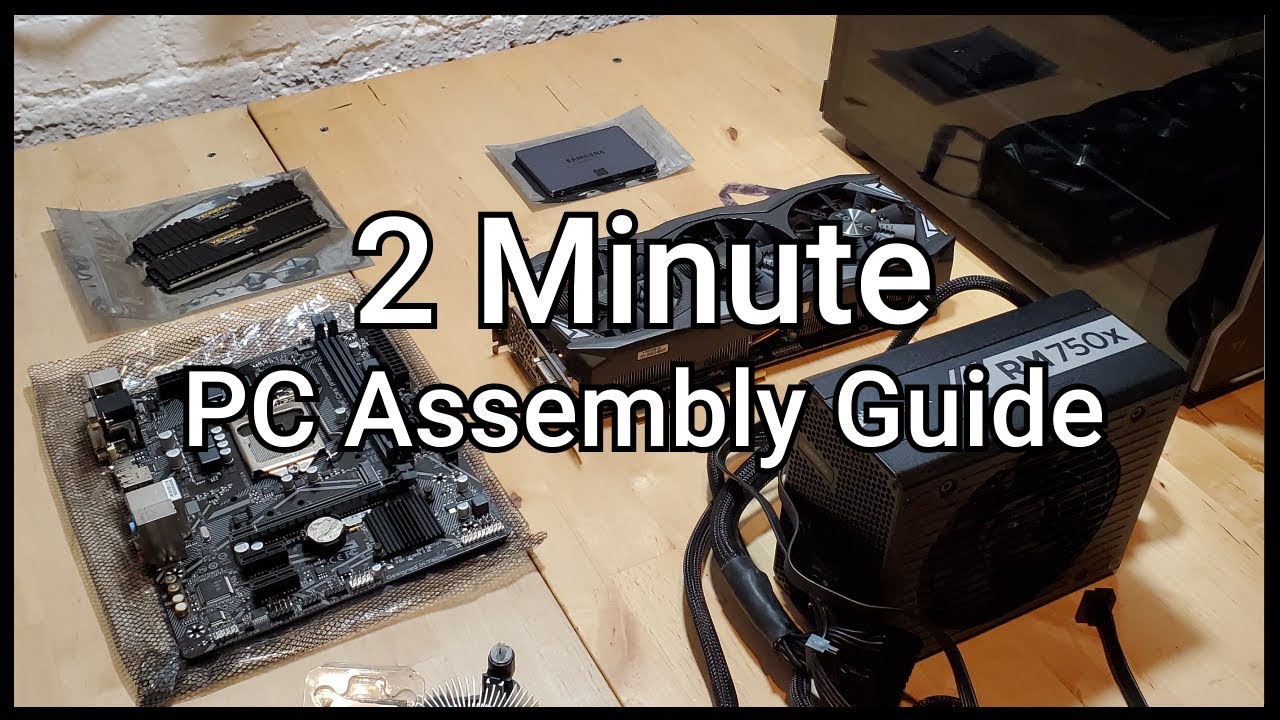
To assemble a PC, you’ll need the following components:
- Cpu (Central Processing Unit): The brain of your computer, responsible for executing instructions. Choose from AMD or Intel processors.
- Motherboard: The main circuit board that connects all hardware components together.
- Ram (Random Access Memory): Temporary storage for data and programs.
- Storage Drive: Where you’ll store your operating system, programs, and files. Options include hard disk drives, solid-state drives, or a combination of both.
- Power Supply: Provides power to all components in the PC.
Step-by-step Assembly Guide
- Prepare Your Workspace: Clear a flat surface and ensure good lighting.
- Unpack Components: Carefully unpack all components from their boxes and anti-static bags.
- Assemble The Cpu: Install the CPU onto the motherboard, following the manufacturer’s instructions.
- Install Ram: Add your chosen RAM modules to the motherboard.
- Mount The Storage Drive: Insert your storage drive into the motherboard or case.
- Connect Front Panel Cables: Connect front panel cables (power button, LED lights) to the motherboard.
- Install Power Supply: Place the power supply unit inside the case and connect it to the motherboard and other components.
- Assemble Case Components: Install any additional case components, such as fans or filters.
Tips For a Smooth Assembly Process
- Use Anti-static Protection: Ground yourself by touching a grounded metal object or wear an anti-static wrist strap to prevent damage to sensitive components.
- Follow Manufacturer Instructions: Read and follow the manufacturer’s instructions for each component.
- Take Your Time: Don’t rush through the assembly process – it’s better to take your time and ensure everything is properly connected.
Other Helpful Resources
For more information on assembling a PC, consider consulting:
- Online tutorials and guides
- Manufacturer documentation
- Online forums and communities
Remember, assembling a PC can be a fun and rewarding experience. Take your time, follow these guidelines, and you’ll have a fully functional computer in no time.
Conclusion
Assembling a PC is a significant undertaking that requires attention to detail and patience. By following this comprehensive guide, you’ll be able to build a custom PC that meets your needs and budget. Don’t hesitate to ask for help if needed – online resources, forums, and manufacturer documentation are all available to guide you through the process.
Frequently Asked Questions
- What is The Best Cpu For Gaming?
The best CPU for gaming depends on your specific needs and budget. Consider AMD Ryzen or Intel Core i7 processors. - How Much Ram do I Need?
A minimum of 8GB RAM is recommended, but 16GB or more is ideal for most users. - What Type of Storage Drive Should I Choose?
Consider a solid-state drive (SSD) for faster loading times and improved performance. - How do I Connect Front Panel Cables to The Motherboard?
Follow the manufacturer’s instructions for connecting front panel cables to the motherboard. - Can I Assemble a PC With a Liquid Cooling System?
Yes, but ensure you follow proper safety precautions and follow the manufacturer’s instructions.
Additional Resources
For more information on assembling a PC, check out these additional resources:
Stay up-to-date with the latest tech news and reviews on our website!


