
Understanding IP Addresses: A Comprehensive Guide
Are you tired of dealing with complex network configurations? Do you want to assign a static IP address to your devices without any hassle? Look no further! In this article, we will guide you through the process of assigning a static IP address to various devices, including PCs, Macs, printers, PS4 consoles, and even routers.
What is an IP Address?
An IP (Internet Protocol) address is a unique numerical label assigned to each device on a network. It’s used to identify and communicate with other devices on the same network or over the internet. In this article, we’ll focus on IPv4 addresses, which are composed of four numbers separated by dots.
Why Assign a Static IP Address?
Assigning a static IP address is useful for several reasons:
- Easy Identification: A static IP address makes it easy to identify a device on the network.
- Stability: A static IP address ensures that the device always has the same IP address, even after restarts or reboots.
- Security: Assigning a static IP address can help prevent unauthorized access to your devices.
Assigning a Static IP Address: Step-by-step Guide
Here’s a step-by-step guide on how to assign a static IP address to various devices:
Step 1: Find Your Router’s IP Address
Before assigning a static IP address, you need to find your router’s IP address. To do this:
- On Windows, open the Command Prompt or PowerShell and type
ipconfig. Look for the “Gateway” address. - On macOS, open Terminal and type
ipconfig getifaddr en0(for Ethernet) oripconfig getifaddr en1(for Wi-Fi). The Gateway address will be displayed.
Step 2: Understand Your Network Configuration
Now that you have your router’s IP address, it’s essential to understand your network configuration. You’ll need to know:
- The prime three octets of the router’s IP address
- The fourth octet (which can range from 1 to 253)
Step 3: Assign a Static IP Address
Here are the steps for assigning a static IP address to various devices:
Windows 10
- Click on the network icon in the system tray.
- Select “Properties” and then click on “TCP/IPv4” settings.
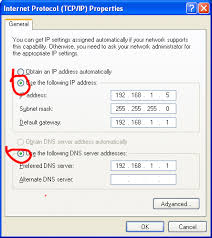
- Choose “Use the following IP address” and enter the desired IP address, subnet mask, gateway, and DNS server addresses.
Macos
- Click on the network icon in the menu bar.
- Select “Advanced” and then click on “TCP/IP” settings.
- Choose “Using DHCP with manual address” and enter the desired IP address, subnet mask, router, and DNS server addresses.
Printer (varies by Manufacturer)
- Access the printer’s web interface using its IP address.
- Navigate to the network settings and choose “Manual” or “Static” IP configuration.
- Enter the desired IP address, subnet mask, gateway, and DNS server addresses.
Ps4
- Go to Settings > Network Settings.
- Choose “Configure Internet Connection” and select “Custom.”
- Enter the desired IP address, subnet mask, and DNS server addresses.
Raspberry Pi (using Terminal)
- Open a Terminal window.
- Type
sudo nano /etc/dhcpcd.Confto edit the configuration file. - Add the following lines:
Interface eth0

  Static ip_address = <IP address>

  Static routers = <router IP address>

  Static domain_name_servers = <DNS server addresses>
Router (varies by Manufacturer)
- Access the router’s web interface using its IP address.
- Navigate to the advanced settings and look for the “DHCP” or “IP Address Reservation” section.
- Assign a new IP address to the device you want to configure.
Conclusion
Assigning a static IP address may seem daunting, but it’s a straightforward process once you understand the basics. By following these steps, you can ensure that your devices have stable and secure connections to your network. Remember to always consult your device manufacturer’s documentation for specific instructions.
Faqs
- Q: Why do I Need to Assign a Static IP Address?
A: Assigning a static IP address helps with device identification, stability, and security. - Q: Can I Use The Same IP Address For Multiple Devices?
A: No, it’s essential to assign unique IP addresses to each device on your network. - Q: How do I Find my Router’s IP Address?
A: You can find your router’s IP address by checking the “Gateway” address usingipconfigon Windows oripconfig getifaddr en0on macOS. - Q: What is The Subnet Mask, And Why is it Important?
A: The subnet mask helps determine which devices are part of the same network segment. - Q: Can I Assign a Static IP Address to a Device Connected Through Wi-fi?
A: Yes, you can assign a static IP address to a device connected through Wi-Fi by following the steps outlined in this guide. - Q: How do I Configure Multiple Devices With Static IP Addresses?
A: You can configure multiple devices with static IP addresses by repeating the process for each device.
We hope this article has provided you with a comprehensive understanding of assigning static IP addresses to various devices. If you have any further questions or concerns, please don’t hesitate to reach out!


