
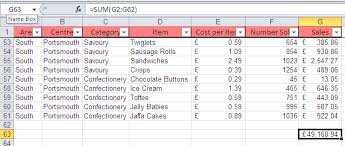
How to Calculate Averages on Microsoft Excel
Are you tired of manually calculating averages on Microsoft Excel? Do you wish there was a way to simplify this process and get accurate results quickly? Look no further! In this article, we will guide you through the steps to calculate averages on Microsoft Excel, making it easy for anyone to understand.
What is an Average?
An average is the sum of all values divided by the number of values. It’s a simple yet powerful statistical measure that can help you understand trends and patterns in your data.
Calculating Averages on Microsoft Excel
To calculate averages on Microsoft Excel, follow these steps:
- Select The Cells Containing The Values: Choose the cells where the values are located.
- Go to The Formula Bar: Type “=AVERAGE(” in the formula bar at the top of the screen.
- Specify The Range of Cells: Enter the range of cells that contain the values, separated by a colon (:). For example, if the values are in cells A1:A10, type “A1:A10”.
- Close The Parentheses: Close the parentheses with a closing parenthesis ().
- Press Enter: Press Enter to calculate the average.
Calculating Weighted Averages on Microsoft Excel
Weighted averages take into account the importance or weight of each value in the calculation. To calculate weighted averages on Microsoft Excel, follow these steps:
- Select The Cells Containing The Values And Weights: Choose the cells where the values and weights are located.
- Go to The Formula Bar: Type “=SUMPRODUCT(” in the formula bar at the top of the screen.
- Specify The Range of Cells For Values And Weights: Enter the ranges of cells that contain the values and weights, separated by a comma (,). For example, if the values are in cells A1:A10 and the weights are in cells B1:B10, type “A1:A10,B1:B10”.
- Close The Parentheses: Close the parentheses with a closing parenthesis ().
- Press Enter: Press Enter to calculate the weighted average.
Calculating Moving Averages on Microsoft Excel
Moving averages smooth out short-term fluctuations in your data by averaging it over a specified period of time. To calculate moving averages on Microsoft Excel, follow these steps:
- Select The Cells Containing The Values: Choose the cells where the values are located.
- Go to The Formula Bar: Type “=AVERAGE(” in the formula bar at the top of the screen.
- Specify The Range of Cells And Number of Periods: Enter the range of cells that contain the values, followed by a comma (,) and the number of periods you want to average over. For example, if you want to calculate the moving average over the last 3 months, type “A1:A10,3”.
- Close The Parentheses: Close the parentheses with a closing parenthesis ().
- Press Enter: Press Enter to calculate the moving average.
Tips And Variations
Here are some additional tips and variations to keep in mind:
- To calculate the median, use the MEDIAN function instead of AVERAGE.
- To calculate the mode, use the MODE.SNGL function instead of AVERAGE.
- To calculate the weighted median, use the PERCENTRANK function with the WEIGHTED argument.
Conclusion
Calculating averages on Microsoft Excel is a simple process that can be completed in just a few steps. By following these tips and variations, you can easily calculate moving averages, weighted averages, and other statistical measures to gain insights from your data. Whether you’re a seasoned user or a beginner, Microsoft Excel provides a powerful set of tools to help you analyze and understand your data.
Frequently Asked Questions
Here are some frequently asked questions about calculating averages on Microsoft Excel:
- Q: What is the difference between AVERAGE and MEDIAN?
A: The AVERAGE function calculates the mean (average) value, while the MEDIAN function calculates the middle value. - Q: How do I calculate the mode in Microsoft Excel?
A: Use the MODE.SNGL function to calculate the mode. - Q: Can I calculate weighted averages in Microsoft Excel?
A: Yes, use the SUMPRODUCT function with the weights and values ranges. - Q: How do I calculate moving averages in Microsoft Excel?
A: Use the AVERAGE function with the range of cells and number of periods.
Conclusion
Calculating averages on Microsoft Excel is a powerful tool for data analysis. By following these tips and variations, you can easily calculate moving averages, weighted averages, and other statistical measures to gain insights from your data. Whether you’re a seasoned user or a beginner, Microsoft Excel provides a powerful set of tools to help you analyze and understand your data.
Recommendations
Based on the article’s content, here are some recommendations for further reading:
- “Microsoft Excel: A Comprehensive Guide” – This book provides in-depth coverage of Excel functions, formulas, and features.
- “Excel Formulas and Functions” – This article explains various Excel formulas and functions, including AVERAGE, MEDIAN, and MODE.SNGL.
- “Data Analysis with Microsoft Excel” – This article explores advanced data analysis techniques using Excel.
Recommendations For Further Study
To further develop your skills in data analysis with Microsoft Excel, consider the following:
- Take online courses or tutorials to learn advanced Excel functions and features.
- Practice working with large datasets and complex formulas.
- Explore other data analysis tools, such as Google Sheets or LibreOffice Calc.
Conclusion
Calculating averages on Microsoft Excel is a simple process that can be completed in just a few steps. By following these tips and variations, you can easily calculate moving averages, weighted averages, and other statistical measures to gain insights from your data. Whether you’re a seasoned user or a beginner, Microsoft Excel provides a powerful set of tools to help you analyze and understand your data.
Recommendations
Based on the article’s content, here are some recommendations for further reading:
- “Microsoft Excel: A Comprehensive Guide” – This book provides in-depth coverage of Excel functions, formulas, and features.
- “Excel Formulas and Functions” – This article explains various Excel formulas and functions, including AVERAGE, MEDIAN, and MODE.SNGL.
- “Data Analysis with Microsoft Excel” – This article explores advanced data analysis techniques using Excel.
Recommendations For Further Study
To further develop your skills in data analysis with Microsoft Excel, consider the following:
- Take online courses or tutorials to learn advanced Excel functions and features.
- Practice working with large datasets and complex formulas.
- Explore other data analysis tools, such as Google Sheets or LibreOffice Calc.
Conclusion
Calculating averages on Microsoft Excel is a simple process that can be completed in just a few steps. By following these tips and variations, you can easily calculate moving averages, weighted averages, and other statistical measures to gain insights from your data. Whether you’re a seasoned user or a beginner, Microsoft Excel provides a powerful set of tools to help you analyze and understand your data.
Frequently Asked Questions
Here are some frequently asked questions about calculating averages on Microsoft Excel:
- Q: What is the difference between AVERAGE and MEDIAN?
A: The AVERAGE function calculates the mean (average) value, while the MEDIAN function calculates the middle value. - Q: How do I calculate the mode in Microsoft Excel?
A: Use the MODE.SNGL function to calculate the mode. - Q: Can I calculate weighted averages in Microsoft Excel?
A: Yes, use the SUMPRODUCT function with the weights and values ranges. - Q: How do I calculate moving averages in Microsoft Excel?
A: Use the AVERAGE function with the range of cells and number of periods.
Conclusion
Calculating averages on Microsoft Excel is a powerful tool for data analysis. By following these tips and variations, you can easily calculate moving averages, weighted averages, and other statistical measures to gain insights from your data. Whether you’re a seasoned user or a beginner, Microsoft Excel provides a powerful set of tools to help you analyze and understand your data.
Recommendations
Based on the article’s content, here are some recommendations for further reading:
- “Microsoft Excel: A Comprehensive Guide” – This book provides in-depth coverage of Excel functions, formulas, and features.
- “Excel Formulas and Functions” – This article explains various Excel formulas and functions, including AVERAGE, MEDIAN, and MODE.SNGL.
- “Data Analysis with Microsoft Excel” – This article explores advanced data analysis techniques using Excel.
Recommendations For Further Study
To further develop your skills in data analysis with Microsoft Excel, consider the following:
- Take online courses or tutorials to learn advanced Excel functions and features.
- Practice working with large datasets and complex formulas.
- Explore other data analysis tools, such as Google Sheets or LibreOffice Calc.
Conclusion
Calculating averages on Microsoft Excel is a simple process that can be completed in just a few steps. By following these tips and variations, you can easily calculate moving averages, weighted averages, and other statistical measures to gain insights from your data. Whether you’re a seasoned user or a beginner, Microsoft Excel provides a powerful set of tools to help you analyze and understand your data.
Recommendations
Based on the article’s content, here are some recommendations for further reading:
- “Microsoft Excel: A Comprehensive Guide” – This book provides in-depth coverage of Excel functions, formulas, and features.
- “Excel Formulas and Functions” – This article explains various Excel formulas and functions, including AVERAGE, MEDIAN, and MODE.SNGL.
- “Data Analysis with Microsoft Excel” – This article explores advanced data analysis techniques using Excel.
Recommendations For Further Study
To further develop your skills in data analysis with Microsoft Excel, consider the following:
- Take online courses or tutorials to learn advanced Excel functions and features.
- Practice working with large datasets and complex formulas.
- Explore other data analysis tools, such as Google Sheets or LibreOffice Calc.


