
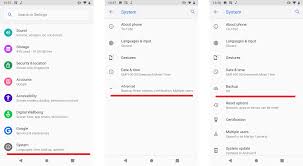
How to Backup Android: A Step-by-step Guide
As a smartphone user, it’s essential to have a backup plan in place in case your device fails or you upgrade to a new one. In this article, we’ll explore the different ways to backup your Android device, including using cloud services, manual data transfer, and official software from phone manufacturers.
Why Backup Your Android Device?
Backing up your Android device is crucial for several reasons:
- Data Protection: A backup ensures that your important files, contacts, and messages are safe in case of a device failure or loss.
- Time-saving: Manual data transfer can be time-consuming. Cloud services make it easy to save and restore your data with just a few taps.
- Peace of Mind: Knowing that your data is backed up gives you peace of mind, especially when upgrading to a new device.
Cloud Services For Android Backup
There are several cloud services that allow you to backup your Android device:
- Google Drive: Google’s cloud storage service allows you to save contacts, calendars, photos, and other data directly from your phone.
- Samsung Cloud: If you’re a Samsung user, you can use their cloud service to backup and restore your device’s settings, apps, and files.
- Xiaomi Cloud: Xiaomi users can utilize their cloud service for backing up and restoring device settings, apps, and files.
Manual Data Transfer
If you prefer not to use cloud services or want a more hands-on approach, manual data transfer is an option:
- Usb Cable: Connect your Android device to your computer using a USB cable.
- Adb (Android Debug Bridge): Use ADB commands to transfer files between your phone and computer.
Official Software For Android Backup
Phone manufacturers often provide their own software for backing up and restoring devices:
- Samsung Smart Switch: Samsung’s official software allows you to backup and restore data from one device to another.
- Huawei Hisuite: Huawei’s official software provides a similar feature for backing up and restoring data.
- LG PC Suite: LG’s official software allows users to transfer files, music, photos, and more between their phone and computer.
Backing Up Whatsapp Data
If you’re using WhatsApp on your Android device:
- Backup Whatsapp Data to Google Drive: Open WhatsApp, go to Settings > Chat > Backup chat, and configure the backup process.
- Manual Whatsapp Backup: Use a third-party app or manually transfer WhatsApp data between devices.
Transferring Data From Android to Iphone
If you’re planning to switch from an Android device to an iPhone:
- Use Move to Ios: This official app allows you to transfer data, including contacts, messages, and photos, directly from your Android device to your new iPhone.
- Manual Transfer: Transfer specific data, such as contacts and calendar events, using cloud services like Google Drive.
Backing Up Data With a Broken Screen
If your screen is broken but still functional:
- Use an External Mouse: Connect an external mouse using an OTG adapter to access backup functions.
- Recovery Mode: Boot your device in recovery mode and use ADB commands to transfer files between your phone and computer.
Transferring Data From Android to SD Card
If you’re using a device with a microSD card:
- Use The Android Built-in File Manager: Transfer data from your internal storage to your microSD card.
- Third-party Apps: Use apps like File Manager or ES Explorer to transfer files between devices.
Conclusion
Backing up your Android device is essential for protecting your valuable data and ensuring a smooth transition when upgrading or switching to a new device. With these methods, you can choose the best approach that suits your needs.
- Cloud Services: Convenient and easy to use, cloud services like Google Drive, Samsung Cloud, and Xiaomi Cloud offer a simple way to backup and restore your data.
- Manual Transfer: If you prefer a more hands-on approach, manual data transfer using USB cables or ADB commands allows for greater control over the process.
- Official Software: Phone manufacturers’ official software, such as Samsung Smart Switch, Huawei HiSuite, and LG PC Suite, provide a reliable way to backup and restore data.
In conclusion, backing up your Android device is crucial for protecting your valuable data. Choose the method that suits you best, and enjoy the peace of mind that comes with knowing your data is safe.
Frequently Asked Questions
- Q: How do I Backup my Android Device?
A: You can use cloud services like Google Drive, Samsung Cloud, or Xiaomi Cloud, or opt for manual data transfer using USB cables or ADB commands. - Q: What if my Screen is Broken? Can I Still Backup my Data?
A: Yes, even with a broken screen, you can access backup functions by booting your device in recovery mode and using ADB commands to transfer files between your phone and computer. - Q: How do I Transfer Whatsapp Data From Android to Iphone?
A: You can use Move to iOS, an official app that allows you to transfer data directly from your Android device to your new iPhone. - Q: What Are The Benefits of Using Cloud Services For Backing up my Android Device?
A: Cloud services offer a convenient and easy way to backup and restore your data, with features like automatic backups and access to your data from anywhere.
Additional Resources
For more information on backing up your Android device:
- Google Drive: Learn how to use Google’s cloud storage service for backing up your Android data.
- Samsung Cloud: Understand the benefits of using Samsung’s cloud service for backup and restoration.
- Xiaomi Cloud: Discover how Xiaomi’s cloud service can help you backup and restore your device’s settings, apps, and files.
By following these steps and choosing the best method for your needs, you’ll be able to protect your valuable data and enjoy a smooth transition when upgrading or switching to a new device.


