
How to Backup Ipad: A Step-by-step Guide
Are you worried about losing your precious data on your iPad? Do you want to ensure that all your files, photos, and videos are safe in case something goes wrong with your device? Look no further! In this article, we will guide you through the process of backing up your iPad using various methods.
Why Backup Your Ipad?
Before we dive into the backup process, let’s quickly discuss why it’s essential to backup your iPad. Here are a few reasons:
- Data Loss Prevention: A backup ensures that all your data, including photos, videos, and documents, is safe in case of accidental deletion, device damage, or loss.
- Easy Recovery: In the event of an issue with your iPad, you can restore your data from the backup, saving time and effort.
- Peace of Mind: Knowing that your data is backed up gives you peace of mind, allowing you to focus on other things without worrying about losing valuable information.
Method 1: Backup Ipad on Icloud
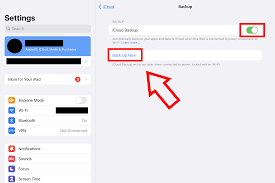
ICloud is a convenient way to backup your iPad automatically. Here’s how:
- Go to Settings > [Your Name] > iCloud.
- Tap on the toggle next to “iCloud Backup” to enable it.
- Make sure you have enough storage space on your iCloud account.
- The first backup may take some time, but subsequent backups will be faster.
Method 2: Backup Ipad on PC
If you prefer to use a Windows or macOS computer, you can backup your iPad using iTunes. Here’s how:
- Connect your iPad to the computer using a USB cable.
- Open iTunes and select your iPad from the top left corner of the screen.
- Click on “Summary” and then click on “Backup Now.”
Method 3: Backup Ipad on Mac
If you have a macOS Catalina or later version, you can use the built-in Finder app to backup your iPad:
- Connect your iPad to the computer using a USB cable.
- Open the Finder app and select your iPad from the sidebar.
- Click on “Summary” and then click on “Backup Now.”
Method 4: Backup Ipad on External Drive
If you want to backup your iPad to an external drive, follow these steps:
- Connect your iPad to the computer using a USB cable.
- Open iTunes or Finder (depending on your operating system).
- Select your iPad from the top left corner of the screen or sidebar.
- Click on “Summary” and then click on “Backup Now.”
- Once the backup is complete, transfer it to the external drive.
Method 5: Backup Ipad on Google Drive
Google Drive allows you to store your iPad’s data online. Here’s how:
- Install the Google Drive app from the App Store.
- Open the app and sign in with your Google account.
- Tap on the menu icon (three horizontal lines) and select “Settings.”
- Enable backup by toggling the switch next to “Backup.”
Now that you know how to backup your iPad, take a few minutes to set it up and ensure all your data is safe.
Frequently Asked Questions
Here are some frequently asked questions about backing up your iPad:
- Q: How Often Should I Backup my Ipad?
A: It’s recommended to backup your iPad at least once a week, or whenever you make significant changes to your device. - Q: What Happens if I Lose my Ipad And Don’t Have a Backup?
A: If you don’t have a backup, all your data will be lost. Make sure to regularly back up your iPad to avoid this situation. - Q: Can I Backup Multiple Devices at Once?
A: Yes, you can backup multiple devices using iCloud or iTunes.
By following these steps and understanding the importance of backing up your iPad, you’ll ensure that all your valuable data is safe and easily recoverable.


