
The Ultimate Guide to Backing Up Your Iphone: A Step-by-step Tutorial
Are you tired of worrying about losing your important data, photos, and conversations on your iPhone? Look no further! In this article, we will guide you through the process of backing up your iPhone using various methods, including iCloud, iTunes, Windows, Mac, and external hard disk.
Why Back Up Your Iphone?
Before we dive into the nitty-gritty, let’s quickly cover why backing up your iPhone is essential. Think about it: What if your phone gets lost, stolen, or damaged? What if you upgrade to a new device and want to transfer all your data? A backup ensures that your precious memories, conversations, and files are safe and can be easily recovered.
Backing Up Your Iphone on Icloud
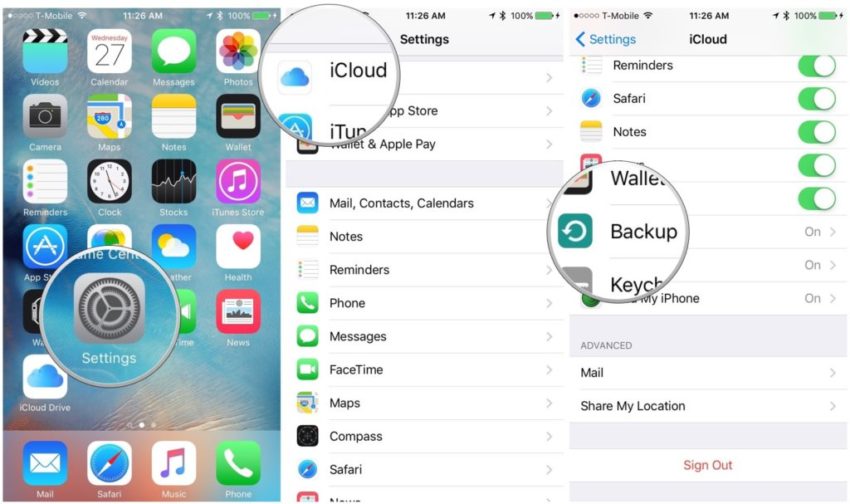
The first method we’ll cover is backing up your iPhone on iCloud. This is the easiest and most convenient way to ensure your data is safely stored online.
- Go to Settings: Tap on your name at the top of the screen, then tap on “iCloud.”
- Select Icloud Backup: Choose “iCloud Backup” from the list of options.
- Turn On Automatic Backups: Switch the toggle next to “iCloud Backup” to the right (green).
- Tap on OK: Confirm that you want to enable iCloud backup.
Your iPhone will now automatically back up your data, photos, and conversations to iCloud every day. You can also manually trigger a backup by tapping on “Backup Now.”
Backing Up Your Iphone on Itunes
If you’re using a Windows PC or Mac, backing up your iPhone on iTunes is another excellent option.
- Connect Your Iphone: Connect your iPhone to your computer using a USB cable.
- Open Itunes: Launch iTunes and select your iPhone from the top left menu.
- Select Summary: Click on “Summary” in the left-hand menu.
- Enable Backup: Make sure the box next to “This computer” is selected, then click on “Backup Now.”
Backing Up Your Iphone on Windows
If you’re using a Windows PC, follow these steps:
- Connect Your Iphone: Connect your iPhone to your computer using a USB cable.
- Open Itunes: Launch iTunes and select your iPhone from the top left menu.
- Select Summary: Click on “Summary” in the left-hand menu.
- Enable Backup: Make sure the box next to “This computer” is selected, then click on “Backup Now.”
Backing Up Your Iphone on Mac
If you’re using a Mac, follow these steps:
- Connect Your Iphone: Connect your iPhone to your computer using a USB cable.
- Open Finder: Launch Finder and select your iPhone from the left-hand menu.
- Select General: Click on “General” in the left-hand menu.
- Enable Backup: Make sure the box next to “Backup Now” is selected.
Backing Up Your Iphone on External Hard Disk
If you want to create a local backup of your iPhone data, follow these steps:
- Back up Your Iphone Using Icloud or Itunes: First, back up your iPhone to iCloud or iTunes.
- Connect an External Hard Disk: Connect an external hard disk to your computer.
- Copy The Backup Folder: Copy the backup folder from your computer to the external hard disk.
Backing Up Your Iphone With a Broken Screen
If your screen is broken, you can still recover some data using a third-party software like EaseUS MobiSaver Free.
- Connect Your Iphone: Connect your iPhone to your computer using a USB cable.
- Launch Easeus Mobisaver Free: Download and launch the software on your computer.
- Scan Your Iphone: Let the software scan your iPhone for recoverable data.
Backing Up Your Whatsapp Conversations
Want to back up your WhatsApp conversations? Here’s how:
- Open Whatsapp: Open WhatsApp on your iPhone.
- Tap Settings: Tap on “Settings” in the top right corner of the screen.
- Select Chat Backup: Choose “Chat Backup” from the list of options.
- Enable Video Backups: Switch the toggle next to “Include videos” to the right (green).
- Enter a Password: Enter a password to protect your backup.
Conclusion
Backing up your iPhone is an essential step in protecting your valuable data, photos, and conversations. We’ve covered four methods: ICloud, iTunes, Windows, and external hard disk. Remember to always back up your device regularly to avoid losing precious memories.
Frequently Asked Questions (FAQs)
- Q: How Often Should I Back up my Iphone?
A: It’s recommended to back up your iPhone daily using iCloud or manually trigger a backup every week. - Q: Can I Recover Data From a Broken Screen?
A: Yes, you can use third-party software like EaseUS MobiSaver Free to recover some data from a broken screen. - Q: How do I Back up my Whatsapp Conversations?
A: Open WhatsApp, go to Settings > Chat Backup, and follow the instructions. - Q: Can I Transfer my Iphone Backup to an External Hard Disk?
A: Yes, you can copy the backup folder from your computer to an external hard disk. - Q: How do I Enable Automatic Backups on Icloud?
A: Go to Settings > iCloud > iCloud Backup and switch the toggle to the right (green). - Q: Can I Back up my Iphone on a Mac Using Itunes?
A: Yes, you can follow the same steps as for Windows. - Q: How do I Recover Data From an External Hard Disk?
A: Simply copy the backup folder from the external hard disk to your computer.
The Final Word
Backing up your iPhone is a simple yet crucial step in protecting your digital memories. We hope this comprehensive guide has helped you understand the process and chosen the best method for your needs.


