
How to Do Backup on Google Drive: A Step-by-step Guide
Are you tired of worrying about losing your important data? Do you want to ensure that your photos, videos, and documents are safely stored in the cloud? Look no further than Google Drive! In this article, we’ll show you how to do backup on Google Drive using your Android device, iPhone, or PC.
What is Google Drive?
Google Drive is a cloud storage service provided by Google that allows you to store and access your files from anywhere, at any time. With Google Drive, you can upload files up to 15 GB for free, and upgrade to a paid plan if needed.
Backup on Google Drive: Android
If you have an Android device, you can easily backup your data, photos, and videos using the Google Drive app. Here’s how:
- Download And Install The Google Drive App: First, download and install the Google Drive app from the Play Store.
- Open The Google Drive App: Open the app and sign in with your Google account credentials.
- Tap on The Menu Icon: Tap on the three horizontal lines (menu icon) at the top-left corner of the screen.
- Select “Backup”: Select “Backup” from the menu options.
- Choose What to Backup: Choose what you want to backup, such as your photos and videos.
- Tap on “Add Account”: Tap on “Add account” if you haven’t already added your Google Drive account.
- Select Your Device’s Storage: Select the storage device (SD card or internal storage) that contains the data you want to backup.
Backup on Google Drive: Iphone
If you have an iPhone, you can also backup your data using Google Drive. Here’s how:
- Download And Install The Google Drive App: First, download and install the Google Drive app from the App Store.
- Open The Google Drive App: Open the app and sign in with your Google account credentials.
- Tap on The Menu Icon: Tap on the three horizontal lines (menu icon) at the top-left corner of the screen.
- Select “Settings”: Select “Settings” from the menu options.
- Choose What to Backup: Choose what you want to backup, such as your photos and videos.
Backup on Google Drive: PC
If you have a PC, you can also use Google Drive to backup your data. Here’s how:
- Download And Install Google Drive: First, download and install the Google Drive desktop app.
- Sign in With Your Google Account: Sign in with your Google account credentials.
- Select What to Backup: Select what you want to backup, such as your documents, photos, and videos.
How to Backup Photos on Google Drive
If you have a lot of photos stored on your device, you can use the Google Photos app to backup them automatically. Here’s how:
- Download And Install Google Photos: First, download and install the Google Photos app.
- Sign in With Your Google Account: Sign in with your Google account credentials.
- Tap on The Menu Icon: Tap on the three horizontal lines (menu icon) at the top-left corner of the screen.
- Select “Settings”: Select “Settings” from the menu options.
How to Backup Whatsapp Chats on Google Drive
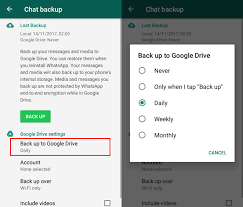
If you want to backup your WhatsApp chats, here’s how:
- Open Whatsapp: Open the WhatsApp app.
- Tap on The Menu Icon: Tap on the three horizontal lines (menu icon) at the top-left corner of the screen.
- Select “Settings”: Select “Settings” from the menu options.
- Select “Chats”: Select “Chats” from the settings menu.
Frequently Asked Questions
Q: How much storage space do I have on Google Drive?
A: You have 15 GB of free storage space on Google Drive. If you need more, you can upgrade to a paid plan.
Q: Can I backup my entire device using Google Drive?
A: Yes, you can backup your entire device using Google Drive. This includes all your apps, data, and settings.
Q: How do I restore my backed-up data from Google Drive?
A: To restore your backed-up data from Google Drive, simply sign in with the same Google account credentials on a new device or PC.
Conclusion
Backing up your data is an essential step to protect yourself against losing important files. With Google Drive, you can easily backup your photos, videos, and documents using your Android device, iPhone, or PC. Remember to always have a backup of your data in case something goes wrong!
We hope this article has helped you understand how to do backup on Google Drive. If you have any questions or need further assistance, don’t hesitate to contact us.
Faqs
- Q: What is the maximum file size I can upload to Google Drive?
A: The maximum file size you can upload to Google Drive is 750 MB. - Q: Can I use Google Drive on multiple devices?
A: Yes, you can use Google Drive on multiple devices, including your phone, tablet, and PC. - Q: How do I know if my data has been backed up successfully?
A: You’ll receive a notification when the backup process is complete. - Q: Can I delete files from Google Drive?
A: Yes, you can delete files from Google Drive. However, keep in mind that deleted files will still be stored on your device until they are removed. - Q: Is my data secure on Google Drive?
A: Your data is encrypted and protected by two-factor authentication when using Google Drive.
References


