
How to Do a Backup of Your PC on Windows 10
Are you worried about losing your important data in case your computer crashes or is stolen? Do you want to make sure that your files are safe and easily recoverable? If so, then this article is for you! In this guide, we will show you how to do a backup of your PC on Windows 10 using various methods.
Why Backing Up Your Data is Important
Backing up your data is crucial in today’s digital age. With more and more people relying on their computers for work, entertainment, and communication, the risk of losing important files and data increases exponentially. A single virus attack or hardware failure can wipe out all your precious memories, documents, and projects.
Types of Backup
There are several types of backups that you can create to protect your data:
- Complete Backup: This type of backup creates a complete copy of all your files and folders.
- Incremental Backup: This type of backup only saves the changes made since the last complete or incremental backup.
- Differential Backup: This type of backup saves all the changes made since the last complete backup, but not the changes made since the last incremental backup.
How to Do a Backup on Windows 10
Windows 10 provides several built-in tools to help you create backups. Here are some steps to follow:
- Use File Explorer: You can use File Explorer to manually copy your files and folders to an external drive or network location.
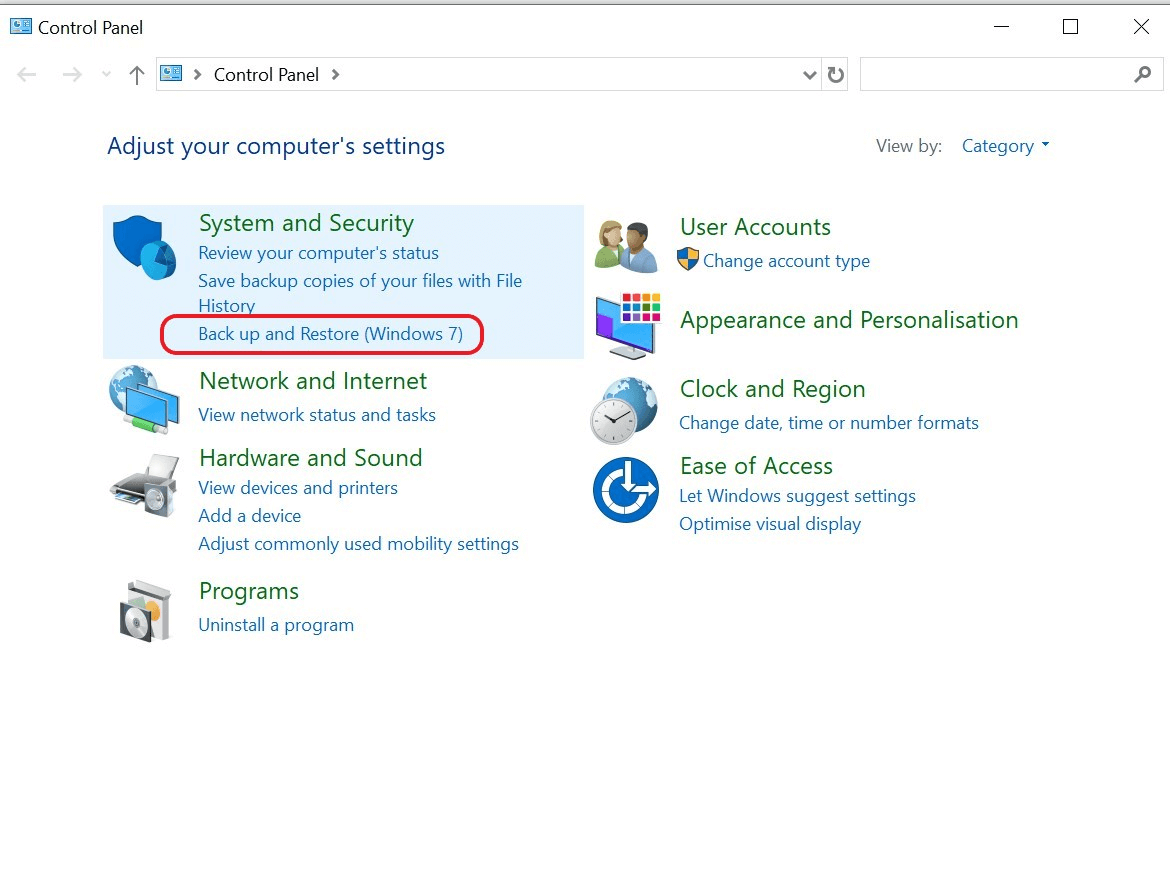
- Use The Windows Backup Tool: The Windows Backup tool is a free utility that comes with Windows 10. It allows you to create backups of your files, folders, and system settings.
- Use a Cloud Service: You can also use cloud services like OneDrive or Google Drive to store your backup files online.
External Software For Backups
If you want more advanced features or better control over your backups, you may want to consider using external software. Some popular options include:
- Easeus Todo Backup: This is a user-friendly tool that allows you to create complete, incremental, and differential backups.
- Acronis True Image: This software provides advanced backup and recovery features, including disk imaging and cloning.
Benefits of Backing Up Your Data
Backing up your data has numerous benefits, including:
- Data Protection: A backup ensures that your important files and data are safe in case your computer crashes or is stolen.
- Increased Productivity: With a backup, you can quickly recover your files and get back to work without losing any time.
- Peace of Mind: Knowing that your data is protected can give you peace of mind and reduce stress.
Frequently Asked Questions
- What Are The Benefits of Backing up my Data?
- Backing up your data protects it from loss due to computer crashes, theft, or other unforeseen events.
- How do I Create a Backup on Windows 10?
- You can use File Explorer, the Windows Backup tool, or cloud services like OneDrive or Google Drive to create backups.
- What Types of Backups Are Available?
- Complete, incremental, and differential backups are available, each with its own features and benefits.
Conclusion
Backing up your data is an essential step in protecting yourself from data loss. Whether you use built-in tools like the Windows Backup tool or external software like EaseUS Todo Backup, having a backup ensures that your important files and data are safe and easily recoverable.


