
Backup Strategies For Windows 7: A Comprehensive Guide
Are you tired of worrying about data loss due to hardware failure or software corruption? Look no further! In this article, we will explore the best practices for backing up your Windows 7 system, ensuring that all your important files and settings are safely stored away.
Why Backup Your Windows 7 System?
Before we dive into the nitty-gritty of backup strategies, let’s quickly discuss why backup is essential. With a backup, you can:
- Restore your system to its previous state in case of a crash or corruption
- Protect your important files and documents from accidental deletion or loss
- Ensure business continuity by having a reliable backup plan in place
Understanding The Backup Process
To create a backup, you’ll need an external hard drive or a CD/DVD with sufficient space to store your data. The process involves selecting which files and settings to include in the backup, choosing a storage location, and scheduling regular backups.
Creating an Image of Your System (Sysprep)
One of the most efficient ways to back up your Windows 7 system is by creating an image of your entire system using Sysprep. This will create a copy of your system’s registry, settings, and files, allowing you to restore everything in case of a disaster.
How to Create a System Image Using Sysprep
To create a system image using Sysprep:
- Go to the Start menu and select Control Panel.
- Click on the “System and Safety” icon.
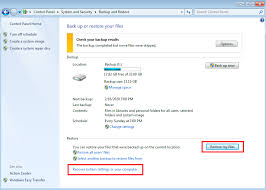
- Select “Backup and Recovery.”
- Choose the option to create a system image.
- Select the external hard drive or CD/DVD as the storage location.
Creating a Backup of Your Windows 7 System
In addition to creating an image, you can also create a backup of your individual files and settings using the built-in Windows 7 Backup utility.
How to Create a Backup Using Windows 7 Backup Utility
To create a backup using the Windows 7 Backup utility:
- Go to the Start menu and select Control Panel.
- Click on the “System and Safety” icon.
- Select “Backup and Recovery.”
- Choose the option to create a manual or automatic backup.
Tips For Scheduling Regular Backups
To ensure that your backups are up-to-date, it’s essential to schedule regular backups. Here are some tips:
- Set your backup software to run daily or weekly, depending on your needs.
- Use a combination of local and cloud storage to ensure data availability in case of disaster.
- Test your backups regularly to ensure they’re complete and accurate.
Alternative Backup Solutions
While the built-in Windows 7 Backup utility is sufficient for many users, there are alternative solutions that offer more advanced features. Some popular alternatives include:
- EaseUS Todo Backup
- Clonezilla
- Macrium Reflect
These programs can create detailed backups of your system and files, making it easier to restore everything in case of a disaster.
Conclusion
In conclusion, backing up your Windows 7 system is an essential task that ensures business continuity and protects your important data. By following the steps outlined in this article, you’ll be able to create a comprehensive backup plan using Sysprep or alternative solutions. Remember to schedule regular backups and test them regularly to ensure complete accuracy.
Frequently Asked Questions (FAQs)
- What is The Best Way to Back up my Windows 7 System?
The best way to back up your Windows 7 system is by creating an image using Sysprep or a combination of individual file backups using the built-in Backup utility.
- How Often Should I Schedule Backups?
It’s recommended to schedule daily or weekly backups, depending on your needs and data volume.
- What Are Some Alternative Backup Solutions?
Some popular alternative backup solutions include EaseUS Todo Backup, Clonezilla, and Macrium Reflect.
- Can I Create a System Image Using a Cd/dvd?
Yes, you can create a system image using a CD/DVD, but this method is generally slower and less efficient than creating an image on an external hard drive.
- How do I Restore my Windows 7 System From a Backup?
To restore your Windows 7 system from a backup, go to the Start menu, select Control Panel, and click on “System and Safety” > “Backup and Recovery.” Follow the instructions to initiate the recovery process.
- Can I Use a Cloud Storage Service For Backups?
Yes, you can use a cloud storage service like OneDrive or Dropbox to store your backups. This method ensures data availability even in case of local hardware failure.
- What if I Have a Lot of Files to Backup? Can I Still Use The Built-in Backup Utility?
Yes, you can use the built-in Backup utility for larger file volumes by selecting the “Manual” or “Automatic” backup option.
- Are There Any Free Backup Software Options Available?
Yes, some popular free backup software options include EaseUS Todo Backup (trial version) and Acronis True Image (evaluation version).
Recommended Reading:
- Microsoft’s official guide to backing up your Windows 7 system
- EaseUS Todo Backup user manual
- Clonezilla documentation


