
How to Successfully Ban a Page on Facebook: Tips And Tricks
As an administrator of a Facebook page, it’s essential to maintain a clean and respectful community. Unfortunately, sometimes users can become problematic, engaging in behaviors that disrupt the harmony of your page. In such cases, banning them may be the best solution.
In this article, we’ll guide you through the process of banning a user on Facebook using both the computer version and the app on smartphones and tablets. We’ll also cover how to unblock a user if they were banned by mistake.
Understanding Banning on Facebook
Banning a user on Facebook means blocking them from interacting with your page in any way. This includes commenting, liking, sharing, or even messaging you. When a user is banned, they will not be able to participate in discussions, leave reviews, contact you directly, or perform any other actions on your page.
Why Ban a User?
Banning a user can be necessary when someone:
- Spams links to their own websites
- Worrying others with comments or messages
- Engages in harassing behavior
In these situations, banning the user is often the most effective solution.
How to Ban a User on Facebook (Computer Version)
- Access Your Page Settings: Go to your Facebook page and click on the three dots next to your page name.
- Click on Settings: A dropdown menu will appear; select “Settings” from it.
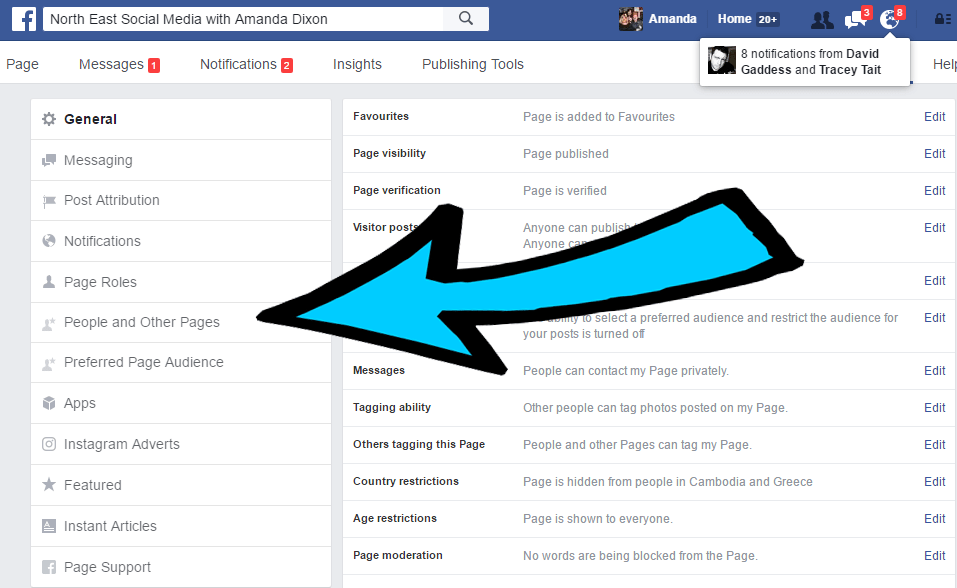
- Scroll Down to The People And Other Pages Section: Click on this option.
- Select Block Users: You’ll see a list of users who have contacted you or followed your page.
- Search For The User to Ban: Type their name in the search bar to find them.
- Click on Block User: Select this option next to the user’s name.
- Confirm The Block: Click “Block” again to confirm.
How to Ban a User on Facebook (Smartphone And Tablet Version)
- Open The Facebook App: Initiate the Facebook app on your smartphone or tablet.
- Select Your Page: Choose the page you want to manage from the list of available pages.
- Scroll Down to The Comments Section: Find the comment left by the user you want to ban.
- Tap on The Three Dots: Next to the comment, tap on the three dots.
- Select Block User: Choose this option to ban the user.
- Confirm The Block: Tap “OK” to confirm.
How to Remove a Ban From an User (Computer Version)
- Access Your Page Settings: Follow the same steps as above.
- Click on Settings: Select “Settings” again.
- Scroll Down to The People And Other Pages Section: Click on this option.
- Select Block Users: You’ll see a list of banned users.
- Find The User You Want to Unban: Search for their name in the search bar.
- Click on Unblock User: Select this option next to the user’s name.
- Confirm The Unblock: Click “Unblock” again to confirm.
How to Remove a Ban From an User (Smartphone And Tablet Version)
- Open The Facebook App: Initiate the Facebook app on your smartphone or tablet.
- Select Your Page: Choose the page you want to manage from the list of available pages.
- Scroll Down to The Settings Section: Tap on the three dots next to the comment left by the user you want to unban.
- Tap on Settings: Select “Settings” from this menu.
- Select Block Users: You’ll see a list of banned users.
- Find The User You Want to Unban: Search for their name in the search bar.
- Tap on Unblock User: Select this option next to the user’s name.
- Confirm The Unblock: Tap “Unblock” again to confirm.
Conclusion
Banning a user on Facebook can be a necessary measure when dealing with problematic behavior on your page. Remember that banning is reversible, so if you accidentally ban someone, you can always unban them later.
By following these steps, you’ll be able to maintain a healthy and respectful community on your Facebook page.
Frequently Asked Questions
- Q: What Happens When I Ban an User?
A: When you ban a user, they will no longer be able to interact with your page in any way. - Q: Can I Still See The Comments of a Banned User?
A: No, comments left by banned users will not appear on your page. - Q: How do I Remove a Ban From an User?
A: To unban a user, follow the steps outlined in this article to access the “Block Users” section and select “Unblock User.” - Q: Can I Ban Someone Who Has Commented on my Page?
A: Yes, you can ban someone who has commented on your page if their comment is deemed problematic. - Q: Will a Banned User be Notified About The Block?
A: Yes, when a user is banned, they will receive a notification from Facebook. - Q: Can I Report a User For Harassment or Spamming?
A: Yes, you can report users to Facebook if you suspect them of engaging in harassing behavior or spamming links to their own websites. - Q: What Happens When Someone Tries to Contact me Directly After Being Banned?
A: When someone is banned from your page, they will not be able to send you direct messages or contact you through other means.


