
How to Regain Administrator Role on a Facebook Page
Are you no longer an administrator of a Facebook page that you once managed? Don’t worry, it’s not the end of the world! In this article, we’ll guide you through the steps to regain your administrator role on a Facebook page.
Understanding Facebook Page Roles
Before we dive into the solution, let’s understand how Facebook page roles work. As an administrator of a Facebook page, you have complete control over the page and its settings. However, if someone else is also an administrator of the page, they may be able to modify your role or even remove you as an administrator.
The Problem: Being Removed as Administrator
If you’ve been removed as an administrator of a Facebook page by someone else, it can be frustrating and confusing. But fear not! We’re here to help you regain your role.
Step 1: Reach Out to The Current Administrators
Firstly, try reaching out to the current administrators of the page. They may have removed you accidentally or without realizing the impact on you. Explain the situation to them and ask if they can reinstate you as an administrator.
The Solution: Appointing a New Administrator
If the current administrators are unwilling to reinstate you, don’t worry! There’s another way to regain your role. You can appoint a new administrator who will help you get back into the management of the page.
Appointing a New Administrator on Android
To appoint a new administrator on Android, follow these steps:
- Open Facebook and go to the page for which you want to appoint a new administrator.
- Tap on the three horizontal lines (☰) on the top right corner of the screen.
- Select “Pages” from the menu.
- Choose the page for which you want to appoint a new administrator.
- Tap on the “Gestisci” button.
- Scroll down and tap on the “Access to the Page” option.
- Tap on the “Add” button.
- Type in the name or email address of the person you want to appoint as an administrator.
- Select their occurrence from the menu.
- Toggle the switch next to “Consent also to this person to have the complete control.”
- Tap on the “Consent access” button.
Appointing a New Administrator on Iphone
To appoint a new administrator on iPhone, follow these steps:
- Open Facebook and go to the page for which you want to appoint a new administrator.
- Tap on the three horizontal lines (☰) on the top right corner of the screen.
- Select “Pages” from the menu.
- Choose the page for which you want to appoint a new administrator.
- Scroll down and tap on the “Visualize instruments” option.
- Tap on the “Access to the Page” option.
- Tap on the “Roles of the Page” option.
- Tap on the “Add/Add a person to the page” button.
- Type in the name or email address of the person you want to appoint as an administrator.
- Select their occurrence from the menu.
- Toggle the switch next to “Consent also to this person to have the complete control.”
- Tap on the “Consent access” button.
Appointing a New Administrator on Computer
To appoint a new administrator on computer, follow these steps:
- Open Facebook and go to the page for which you want to appoint a new administrator.
- Click on the three dots (⋯) on the top right corner of the screen.
- Select “Pages” from the menu.
- Choose the page for which you want to appoint a new administrator.
- Click on the “Gestisci” button.
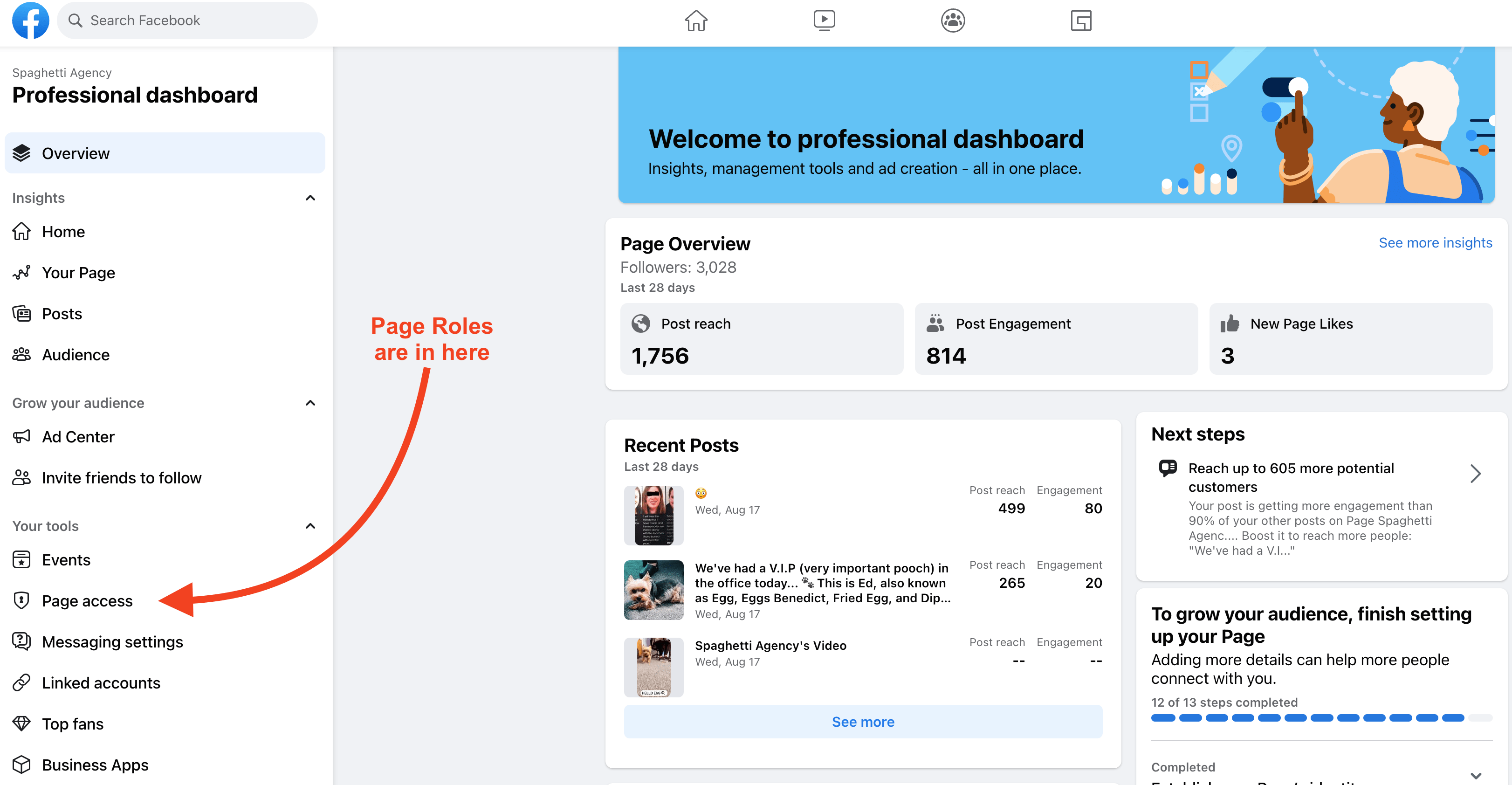
- Scroll down and click on the “Access to the Page/Roles of the page” option.
- Click on the “Add” button.
- Type in the name or email address of the person you want to appoint as an administrator.
- Select their occurrence from the menu.
- Toggle the switch next to “Consent also to this person to have the complete control.”
- Click on the “Consent access” button.
Conclusion
Regaining your administrator role on a Facebook page is possible, even if someone else has removed you. By following these steps and appointing a new administrator, you can regain control over the page and its settings. Don’t hesitate to reach out for help or guidance if you need it!
Frequently Asked Questions (FAQs)
- Q: What Happens if I’m Removed as an Administrator of a Facebook Page?
A: If someone else removes you as an administrator, they may be able to modify your role or even remove you from the page altogether. - Q: Can I Regain my Administrator Role on a Facebook Page?
A: Yes, you can! By following the steps outlined in this article, you can appoint a new administrator who will help you get back into the management of the page. - Q: How do I Know if Someone Else Has Removed me as an Administrator?
A: Check your Facebook notifications or reach out to the current administrators to see if they’ve made any changes to your role. - Q: Can I Appoint Multiple Administrators on a Facebook Page?
A: Yes, you can! However, be aware that having too many administrators can lead to confusion and disagreements over who should make decisions for the page. - Q: What Are The Benefits of Being an Administrator of a Facebook Page?
A: As an administrator, you have complete control over the page and its settings, allowing you to manage content, engage with followers, and run ads. - Q: Can I Change my Role on a Facebook Page?
A: Yes! You can change your own role or ask someone else to change it for you by following the steps outlined in this article. - Q: What if I’m Unable to Regain my Administrator Role?
A: If you’re unable to regain your administrator role, consider reaching out to Facebook support or seeking help from a digital marketing expert.
Remember, being an administrator of a Facebook page comes with great responsibility and power! Use these steps wisely to regain control over your page and its settings.


