
How to Block a Cluster on Whatsapp: A Step-by-step Guide
Are you tired of receiving unwanted messages from a group chat on WhatsApp? Do you want to block a cluster without leaving the conversation, but don’t know how? You’re not alone! In this article, we’ll guide you through the process of blocking a cluster on WhatsApp, even if it seems like an impossible task.
Understanding The Limitations
Before we dive into the solution, it’s essential to understand that WhatsApp doesn’t have a built-in feature to block a group chat directly. However, there are alternative solutions that can help you achieve a similar outcome.
Blocking Administrator Cluster on Whatsapp
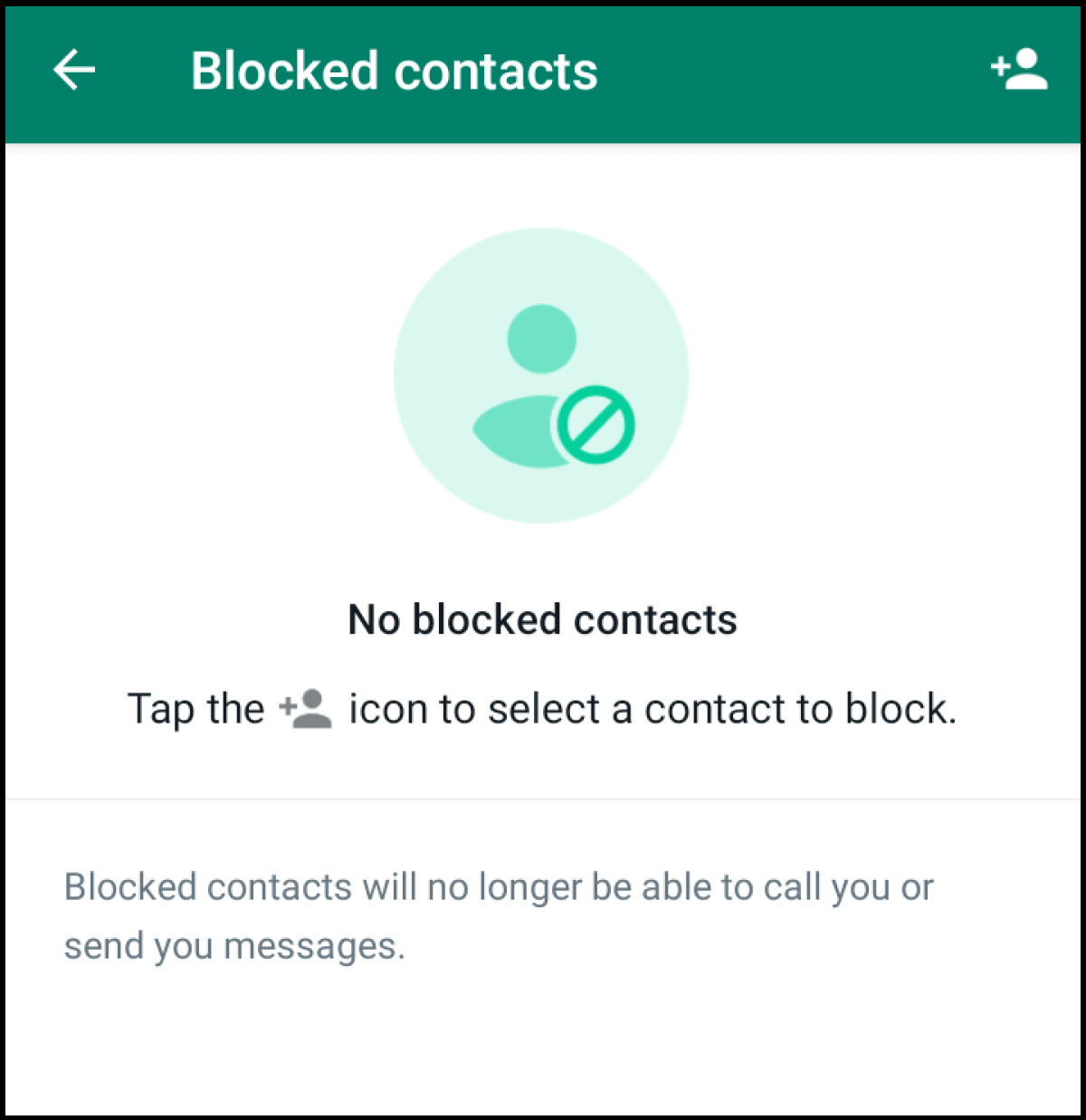
One possible solution is to block the administrator of the cluster, which will prevent them from adding you to new clusters or groups. To do this:
- Open WhatsApp and navigate to the Chat section.
- Find the cluster you want to block and tap on its name.
- In the Cluster/Info section, find the administrator’s name and tap on it.
- Select the “Block” option next to their name.
- Confirm that you want to block this user.
Blocking a Cluster Without Leaving
If blocking the administrator doesn’t appeal to you, or if you’re not comfortable with the implications of doing so, there’s another solution:
- Open WhatsApp and navigate to the Chat section.
- Find the cluster you want to block and tap on its name.
- Swipe left on the cluster’s icon and select “Disattiva notifications” (or go to Settings > Chats > Disattiva notifications).
- Select the option to silence the cluster for indeterminate time or 8 hours/1 week.
Blocking a Cluster on Whatsapp: Android
If you’re using an Android device, follow these steps:
- Open WhatsApp and navigate to the Chat section.
- Find the cluster you want to block and tap on its name.
- Tap on the three dots in the top-right corner of the screen and select “Disattiva notifications”.
- Select the option to silence the cluster for indeterminate time or 8 hours/1 week.
Blocking a Cluster on Whatsapp: Iphone
If you’re using an iPhone, follow these steps:
- Open WhatsApp and navigate to the Chat section.
- Find the cluster you want to block and swipe right on its icon.
- Tap on “Silent” and select the option to silence the cluster for indeterminate time or 8 hours/1 week.
Blocking a Cluster on Whatsapp: PC
You can also block a cluster on WhatsApp using the desktop app:
- Open WhatsApp Web or the desktop client on your Windows or macOS device.
- Navigate to the Chat section and find the cluster you want to block.
- Click on the cluster’s icon and select “Disattiva notifications”.
- Select the option to silence the cluster for indeterminate time or 8 hours/1 week.
Blocking a Contact on Cluster Whatsapp
Unfortunately, it’s not possible to block a contact within a cluster on WhatsApp directly. However, you can take advantage of the previous solutions to limit their interaction with you.
Conclusion
While blocking a cluster on WhatsApp might seem like an insurmountable task, our guide has provided you with several workarounds to achieve similar outcomes. Remember that blocking administrator cluster or silencing notifications will prevent users from adding you to new clusters or groups, but won’t block messages within the existing conversation.
Frequently Asked Questions (FAQs)
- Q: Can I Block a Group Chat on Whatsapp?
A: No, there’s no built-in feature to block a group chat directly. - Q: What Happens When I Block an Administrator Cluster?
A: You’ll prevent them from adding you to new clusters or groups, but won’t block messages within the existing conversation. - Q: Will Blocking a Cluster Affect my Conversations With Other Users?
A: No, blocking a cluster will only affect your interaction with the specific group chat. - Q: Can I Unblock a Silenced Cluster?
A: Yes, you can reactivate notifications or extract the cluster from the Filed section on WhatsApp. - Q: What’s The Difference Between Silencing And Filing a Cluster on Whatsapp?
A: Silencing a cluster will prevent notifications, while filing it will hide it from your Chat list and prevent new messages from reaching you. - Q: Can I Block a Contact Within a Cluster on Whatsapp?
A: No, there’s no direct option to block a contact within a cluster. - Q: Will Blocking an Administrator Affect Their Ability to Message me Privately?
A: No, blocking an administrator will only prevent them from adding you to new clusters or groups; they can still send you private messages. - Q: Can I Reactivate Notifications For a Filed Cluster on Whatsapp?
A: Yes, you can reactivate notifications by going to the Filed section and selecting the “Extract” option.
We hope this guide has helped you understand how to block a cluster on WhatsApp and avoid unwanted conversations!


