
How to Block a Number on Samsung: A Step-by-step Guide
Are you tired of receiving unwanted calls from unknown numbers? Do you want to block a specific number on your Samsung phone? Look no further! In this article, we will guide you through the process of blocking a number on your Samsung device.
Why Should You Block Unwanted Calls?
Unwanted calls can be frustrating and annoying. They can disrupt your daily routine and make it difficult for you to focus on important tasks. By blocking unwanted numbers, you can regain control over your phone and prevent these distractions.
Blocking a Number on Samsung: Functions “of Series”
The majority of Samsung phones come with built-in features that allow you to block unwanted calls without installing third-party apps or modifying the operating system. In fact, there are three different ways to block a number on Samsung:
- Blocking an already enumerated numbering in the call log
- Blocking a present contact in the phonebook
- Applying a global restriction to all unknown numbers
Blocking a Number of The Record Called
If you’ve received unwanted calls from a specific number and want to avoid receiving them in the future, you can use the “Block” feature on your Samsung phone. To do this:
- Open the Phone app and tap on the three dots (⋮) at the top right corner.
- Select “Settings” and then “Record called”.
- Find the number you want to block in the call log and tap on it.
- Tap on the “Block” button to confirm.
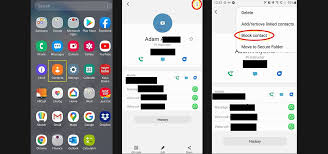
Blocking a Contact
If the person who’s calling you is already in your contacts list, you can block their calls using the Contacts app. To do this:
- Open the Contacts app and find the contact you want to block.
- Tap on the three dots (⋮) at the top right corner.
- Select “Settings” and then “Block contact”.
- Confirm by tapping on the “Block” button.
Blocking Unknown Numbers
If you want to block unknown numbers, you can do so using the Phone app’s settings. To do this:
- Open the Phone app and tap on the three dots (⋮) at the top right corner.
- Select “Settings” and then “Block numbers”.
- Switch the toggle next to “Block unknown numbers/deprived” to the ON position.
Blocking Numbers Already in Your Contacts
If you want to block numbers that are already in your contacts list, you can do so using the same method as blocking a contact. To do this:
- Open the Contacts app and find the contact you want to block.
- Tap on the three dots (⋮) at the top right corner.
- Select “Settings” and then “Block contact”.
- Confirm by tapping on the “Block” button.
Blocking Numbers With Third-party Apps
If the above methods don’t work for you, or if you want to block numbers that are not in your contacts list, you can use third-party apps like Should I Answer, Tellows, or TrueCaller. These apps use community-driven databases to identify and block unwanted calls.
Important Considerations
Before using any of these methods, keep the following points in mind:
- Blocking a number may prevent you from receiving important calls.
- Some numbers may be blocked incorrectly, causing disruptions to your daily routine.
- Using third-party apps may require you to share personal data with the app developers.
Conclusion
Blocking unwanted calls on Samsung is a straightforward process that can be completed using built-in features or third-party apps. By following the steps outlined in this article, you can regain control over your phone and prevent distractions caused by unwanted calls.
Faqs
- Q: How do I Block a Number on my Samsung Phone?
A: You can block a number using the Phone app’s settings or third-party apps like Should I Answer or TrueCaller. - Q: Can I Block Unknown Numbers on my Samsung Phone?
A: Yes, you can block unknown numbers by switching the toggle next to “Block unknown numbers/deprived” to the ON position in the Phone app’s settings. - Q: How do I Unblock a Blocked Number on my Samsung Phone?
A: To unblock a blocked number, go to Settings > Block numbers and switch the toggle next to the blocked number to the OFF position. - Q: Can I Use Third-party Apps to Block Unwanted Calls?
A: Yes, you can use third-party apps like Should I Answer or TrueCaller to block unwanted calls.
Note: This article is intended for informational purposes only and may not be applicable in all situations.


