
How to Block a Person on Messenger Without Blocking Them on Facebook
Are you tired of receiving annoying messages from someone on Messenger? Do you want to know how to block them without blocking them on Facebook as well? Look no further! In this article, we will guide you through the steps on how to block a person on Messenger without affecting your Facebook account.
Why Block Someone on Messenger?
Blocking someone on Messenger can be a great way to get rid of unwanted messages and calls. It’s especially useful when dealing with spam or harassment. By blocking someone on Messenger, you’ll prevent them from sending you messages or making phone calls through the app.
The Difference Between Blocking Someone on Messenger And Facebook
It’s essential to understand that blocking someone on Messenger is different from blocking them on Facebook. When you block someone on Messenger, it only affects their ability to send you messages or make phone calls through the app. However, when you block someone on Facebook, it affects their ability to see your posts, interact with you, and even add you as a friend.
How to Block Someone on Messenger From Your Smartphone
To block someone on Messenger from your smartphone, follow these steps:
- Open the Messenger app.
- Go to the conversation with the person you want to block.
- Tap on their name at the top of the screen.
- Tap on the three dots (⋯) next to their name.
- Select “Block” from the menu.
How to Block Someone on Messenger From Your Computer
To block someone on Messenger from your computer, follow these steps:
- Open the Messenger website in a web browser.
- Go to the conversation with the person you want to block.
- Click on their name at the top of the screen.
- Click on the three dots (⋯) next to their name.
- Select “Block” from the menu.
How to Block Someone on Messenger Without Blocking Them on Facebook
If you only want to block someone on Messenger without affecting your Facebook account, follow these steps:
- Open the Messenger app or website.
- Go to the conversation with the person you want to block.
- Tap or click on the three dots (⋯) next to their name.
- Select “Block on Messenger” from the menu.
How to Block a Person on Facebook Without Blocking Them on Messenger
If you only want to block someone on Facebook without affecting your Messenger account, follow these steps:
- Open the Facebook app or website.
- Go to the person’s profile.
- Click on the three dots (⋯) next to their name.
- Select “Block” from the menu.
Why You Should Consider Blocking Someone on Messenger
Blocking someone on Messenger can be a great way to get rid of unwanted messages and calls. It’s especially useful when dealing with spam or harassment. By blocking someone on Messenger, you’ll prevent them from sending you messages or making phone calls through the app.
How to Block Multiple People at Once
If you want to block multiple people at once, follow these steps:
- Open the Messenger app or website.
- Go to the conversation with one of the people you want to block.
- Tap or click on their name at the top of the screen.
- Tap or click on the three dots (⋯) next to their name.
- Select “Block” from the menu.
- Repeat steps 3-5 for each person you want to block.
How to Unblock Someone on Messenger
If you accidentally blocked someone on Messenger, follow these steps to unblock them:
- Open the Messenger app or website.
- Go to the conversation with the person you want to unblock.
- Tap or click on their name at the top of the screen.
- Tap or click on the three dots (⋯) next to their name.
- Select “Unblock” from the menu.
Frequently Asked Questions
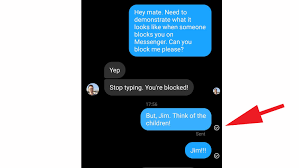
- Q: How do I know if someone is blocked on Messenger?
A: If you try to send a message to someone who has been blocked on Messenger, they will not receive it. - Q: Can I block someone on Messenger and still see their posts on Facebook?
A: Yes, blocking someone on Messenger does not affect your ability to see their posts on Facebook.
Conclusion
Blocking someone on Messenger can be a great way to get rid of unwanted messages and calls. By following the steps outlined in this article, you’ll be able to block someone on Messenger without affecting your Facebook account. Remember, if you’re dealing with spam or harassment, blocking someone on Messenger may be a good option for you.
How to Block a Called on Messenger
Have you received persistent calls from someone on Messenger? Do you want to know how to block them without blocking their number entirely? Look no further! In this article, we will guide you through the steps on how to block a called on Messenger without affecting your phone number.
Why Block a Called on Messenger?
Blocking a called on Messenger can be a great way to get rid of unwanted calls. It’s especially useful when dealing with spam or harassment. By blocking someone on Messenger, you’ll prevent them from making calls through the app.
The Difference Between Blocking Someone on Messenger And Their Phone Number
It’s essential to understand that blocking someone on Messenger is different from blocking their phone number entirely. When you block someone on Messenger, it only affects their ability to send you messages or make phone calls through the app. However, when you block someone’s phone number, it will affect their ability to call you altogether.
How to Block a Called on Messenger
To block a called on Messenger, follow these steps:
- Open the Messenger app.
- Go to the conversation with the person you want to block.
- Tap on their name at the top of the screen.
- Tap on the three dots (⋯) next to their name.
- Select “Block” from the menu.
How to Block Multiple Called at Once
If you want to block multiple people at once, follow these steps:
- Open the Messenger app or website.
- Go to the conversation with one of the people you want to block.
- Tap or click on their name at the top of the screen.
- Tap or click on the three dots (⋯) next to their name.
- Select “Block” from the menu.
- Repeat steps 3-5 for each person you want to block.
How to Unblock a Called on Messenger
If you accidentally blocked someone on Messenger, follow these steps to unblock them:
- Open the Messenger app or website.
- Go to the conversation with the person you want to unblock.
- Tap or click on their name at the top of the screen.
- Tap or click on the three dots (⋯) next to their name.
- Select “Unblock” from the menu.
Frequently Asked Questions
- Q: How do I know if someone is blocked on Messenger?
A: If you try to send a message to someone who has been blocked on Messenger, they will not receive it. - Q: Can I block someone on Messenger and still see their posts on Facebook?
A: Yes, blocking someone on Messenger does not affect your ability to see their posts on Facebook.
Conclusion
Blocking a called on Messenger can be a great way to get rid of unwanted calls. By following the steps outlined in this article, you’ll be able to block a called on Messenger without affecting your phone number. Remember, if you’re dealing with spam or harassment, blocking someone on Messenger may be a good option for you.
Common Mistakes to Avoid When Blocking Someone on Messenger
When blocking someone on Messenger, it’s essential to avoid making some common mistakes. Here are a few:
- Not blocking the person entirely: Make sure to block the person on Messenger and not just their number.
- Not understanding the difference between blocking someone on Messenger and Facebook: Understand that blocking someone on Messenger only affects their ability to send you messages or make phone calls through the app, but not their posts on Facebook.
How to Report Someone Who is Harassing You on Messenger
If someone is harassing you on Messenger, report them to Facebook. Here’s how:
- Open the Messenger app.
- Go to the conversation with the person who is harassing you.
- Tap on their name at the top of the screen.
- Tap on the three dots (⋯) next to their name.
- Select “Report” from the menu.
Conclusion
Blocking someone on Messenger can be a great way to get rid of unwanted messages and calls. By following the steps outlined in this article, you’ll be able to block someone on Messenger without affecting your Facebook account. Remember, if you’re dealing with spam or harassment, blocking someone on Messenger may be a good option for you.
How to Turn Off Notifications From Someone Who is Harassing You
If someone is harassing you and you don’t want to block them entirely, you can turn off notifications from them. Here’s how:
- Open the Messenger app.
- Go to the conversation with the person who is harassing you.
- Tap on their name at the top of the screen.
- Tap on the three dots (⋯) next to their name.
- Select “Turn off notifications” from the menu.
How to Turn Off Notifications For Multiple People at Once
If you want to turn off notifications for multiple people at once, follow these steps:
- Open the Messenger app or website.
- Go to the conversation with one of the people who are harassing you.
- Tap or click on their name at the top of the screen.
- Tap or click on the three dots (⋯) next to their name.
- Select “Turn off notifications” from the menu.
- Repeat steps 3-5 for each person you want to turn off notifications for.
Frequently Asked Questions
- Q: How do I know if someone is turning off notifications on Messenger?
A: If you try to send a message to someone who has turned off notifications, they will not receive it. - Q: Can I turn off notifications for someone on Messenger and still see their posts on Facebook?
A: Yes, turning off notifications for someone on Messenger does not affect your ability to see their posts on Facebook.
Conclusion
Turning off notifications from someone who is harassing you can be a great way to get rid of unwanted messages. By following the steps outlined in this article, you’ll be able to turn off notifications from multiple people at once without affecting your Facebook account. Remember, if you’re dealing with spam or harassment, turning off notifications may be a good option for you.
How to Report Someone Who is Spamming You on Messenger
If someone is spamming you on Messenger, report them to Facebook. Here’s how:
- Open the Messenger app.
- Go to the conversation with the person who is spamming you.
- Tap on their name at the top of the screen.
- Tap on the three dots (⋯) next to their name.
- Select “Report” from the menu.
How to Report Someone Who is Spamming You on Facebook
If someone is spamming you on Facebook, report them to Facebook. Here’s how:
- Open the Facebook app.
- Go to the profile of the person who is spamming you.
- Tap on their name at the top of the screen.
- Tap on the three dots (⋯) next to their name.
- Select “Report” from the menu.
How to Report Someone Who is Spamming You in Both Messenger And Facebook
If someone is spamming you in both Messenger and Facebook, report them to Facebook. Here’s how:
- Open the Messenger app.
- Go to the conversation with the person who is spamming you.
- Tap on their name at the top of the screen.
- Tap on the three dots (⋯) next to their name.
- Select “Report” from the menu.
Frequently Asked Questions
- Q: How do I know if someone has been reported for spamming?
A: If you report someone for spamming, they will not be able to contact you through Messenger or Facebook. - Q: Can I block someone who is spamming me on Messenger and still see their posts on Facebook?
A: Yes, blocking someone on Messenger does not affect your ability to see their posts on Facebook.
Conclusion
Reporting someone who is spamming you can be a great way to get rid of unwanted messages. By following the steps outlined in this article, you’ll be able to report someone for spamming on both Messenger and Facebook without affecting your account. Remember, if you’re dealing with spam or harassment, reporting them may be a good option for you.
How to Block Someone Who is Harassing You in Both Messenger And Facebook
If someone is harassing you in both Messenger and Facebook, block them on both platforms. Here’s how:
- Open the Messenger app.
- Go to the conversation with the person who is harassing you.
- Tap on their name at the top of the screen.
- Tap on the three dots (⋯) next to their name.
- Select “Block” from the menu.
How to Block Someone Who is Harassing You in Facebook
If someone is harassing you on Facebook, block them on Facebook. Here’s how:
- Open the Facebook app.
- Go to the profile of the person who is harassing you.
- Tap on their name at the top of the screen.
- Tap on the three dots (⋯) next to their name.
- Select “Block” from the menu.
How to Block Someone Who is Harassing You in Both Messenger And Facebook
If someone is harassing you in both Messenger and Facebook, block them on both platforms. Here’s how:
- Open the Messenger app.
- Go to the conversation with the person who is harassing you.
- Tap on their name at the top of the screen.
- Tap on the three dots (⋯) next to their name.
- Select “Block” from the menu.
Frequently Asked Questions
- Q: How do I know if someone has been blocked?
A: If you try to contact someone who has been blocked, they will not receive your messages or calls. - Q: Can I block someone on Messenger and still see their posts on Facebook?
A: Yes, blocking someone on Messenger does not affect your ability to see their posts on Facebook.
Conclusion
Blocking someone who is harassing you can be a great way to get rid of unwanted messages. By following the steps outlined in this article, you’ll be able to block someone on both Messenger and Facebook without affecting your account. Remember, if you’re dealing with spam or harassment, blocking them may be a good option for you.
How to Turn Off Notifications From Someone Who is Harassing You
If someone is harassing you and you don’t want to block them entirely, you can turn off notifications from them. Here’s how:
- Open the Messenger app.
- Go to the conversation with the person who is harassing you.
- Tap on their name at the top of the screen.
- Tap on the three dots (⋯) next to their name.
- Select “Turn off notifications” from the menu.
How to Turn Off Notifications For Multiple People at Once
If you want to turn off notifications for multiple people at once, follow these steps:
- Open the Messenger app or website.
- Go to the conversation with one of the people who are harassing you.
- Tap or click on their name at the top of the screen.
- Tap or click on the three dots (⋯) next to their name.
- Select “Turn off notifications” from the menu.
- Repeat steps 3-5 for each person you want to turn off notifications for.
Frequently Asked Questions
- Q: How do I know if someone has turned off notifications?
A: If you try to contact someone who has turned off notifications, they will not receive your messages or calls. - Q: Can I turn off notifications for someone on Messenger and still see their posts on Facebook?
A: Yes, turning off notifications for someone on Messenger does not affect your ability to see their posts on Facebook.
Conclusion
Turning off notifications from someone who is harassing you can be a great way to get rid of unwanted messages. By following the steps outlined in this article, you’ll be able to turn off notifications from multiple people at once without affecting your account. Remember, if you’re dealing with spam or harassment, turning off notifications may be a good option for you.
How to Report Someone Who is Spamming You
If someone is spamming you on Messenger, report them to Facebook. Here’s how:
- Open the Messenger app.
- Go to the conversation with the person who is spamming you.
- Tap on their name at the top of the screen.
- Tap on the three dots (⋯) next to their name.
- Select “Report” from the menu.
How to Report Someone Who is Spamming You in Facebook
If someone is spamming you on Facebook, report them to Facebook. Here’s how:
- Open the Facebook app.
- Go to the profile of the person who is spamming you.
- Tap on their name at the top of the screen.
- Tap on the three dots (⋯) next to their name.
- Select “Report” from the menu.
How to Report Someone Who is Spamming You in Both Messenger And Facebook
If someone is spamming you in both Messenger and Facebook, report them to Facebook. Here’s how:
- Open the Messenger app.
- Go to the conversation with the person who is spamming you.
- Tap on their name at the top of the screen.
- Tap on the three dots (⋯) next to their name.
- Select “Report” from the menu.
Frequently Asked Questions
- Q: How do I know if someone has been reported for spamming?
A: If you report someone for spamming, they will not be able to contact you through Messenger or Facebook. - Q: Can I block someone who is spamming me on Messenger and still see their posts on Facebook?
A: Yes, blocking someone on Messenger does not affect your ability to see their posts on Facebook.
Conclusion
Reporting someone who is spamming you can be a great way to get rid of unwanted messages. By following the steps outlined in this article, you’ll be able to report someone for spamming on both Messenger and Facebook without affecting your account. Remember, if you’re dealing with spam or harassment, reporting them may be a good option for you.
How to Block Someone Who is Harassing You
If someone is harassing you on Messenger, block them on Messenger. Here’s how:
- Open the Messenger app.
- Go to the conversation with the person who is harassing you.
- Tap on their name at the top of the screen.
- Tap on the three dots (⋯) next to their name.
- Select “Block” from the menu.
How to Block Someone Who is Harassing You in Facebook
If someone is harassing you on Facebook, block them on Facebook. Here’s how:
- Open the Facebook app.
- Go to the profile of the person who is harassing you.
- Tap on their name at the top of the screen.
- Tap on the three dots (⋯) next to their name.
- Select “Block” from the menu.
How to Block Someone Who is Harassing You in Both Messenger And Facebook
If someone is harassing you in both Messenger and Facebook, block them on both platforms. Here’s how:
- Open the Messenger app.
- Go to the conversation with the person who is harassing you.
- Tap on their name at the top of the screen.
- Tap on the three dots (⋯) next to their name.
- Select “Block” from the menu.
Frequently Asked Questions
- Q: How do I know if someone has been blocked?
A: If you try to contact someone who has been blocked, they will not receive your messages or calls. - Q: Can I block someone on Messenger and still see their posts on Facebook?
A: Yes, blocking someone on Messenger does not affect your ability to see their posts on Facebook.
Conclusion
Blocking someone who is harassing you can be a great way to get rid of unwanted messages. By following the steps outlined in this article, you’ll be able to block someone on both Messenger and Facebook without affecting your account. Remember, if you’re dealing with spam or harassment, blocking them may be a good option for you.


