
How to Block a Website on Pc: A Step-by-step Guide
Are you tired of unwanted websites popping up on your family computer? Do you want to ensure that your kids are protected from explicit or inappropriate content? Look no further! In this article, we will guide you through the process of blocking a website on PC, covering various methods and platforms.
Why Block Websites?
Blocking websites is an essential step in maintaining a safe online environment for your family. With so much content available on the internet, it’s easy to stumble upon sites that are not suitable for minors. By blocking these sites, you can prevent unwanted exposure to explicit or mature themes, cyberbullying, and other online hazards.
Blocking Websites on Windows
Microsoft has provided a built-in feature called “Family Safety” in Windows 10 and later versions. This feature allows parents to set restrictions on specific websites, applications, and even monitor their child’s activity.
To start, click on the Start button (the icon with the Windows logo) and select Settings. From there, navigate to Accounts > Family & other users. Click on “Add a member” and follow the prompts to create a new account for your child. Once complete, you’ll be able to configure the restrictions for their account.
Blocking Websites on Macos
MacOS also has a built-in feature called “Family Sharing” that allows parents to set restrictions on specific websites and applications. To access this feature, click on the Apple menu (the icon with the apple logo) and select System Preferences > Family. From there, navigate to the “Restrictions” tab and configure the settings for your child’s account.
Blocking Websites on Other Browsers
If you prefer not to use the built-in features of Windows or macOS, you can also block websites using third-party extensions. Some popular options include:
- Distract Me Not: A free extension available for Chrome, Edge, and Firefox that allows you to block specific websites by URL or keyword.
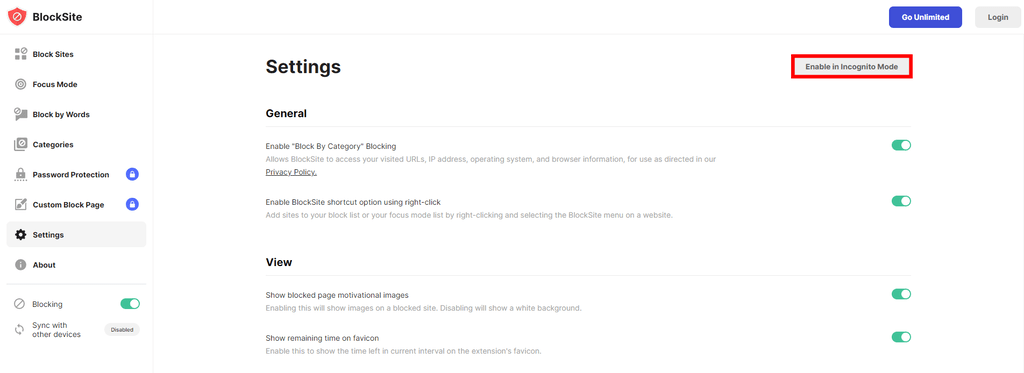
- Blocksite: A paid extension available for Chrome, Edge, and Firefox that provides a more comprehensive filtering system.
- Safesearch: A built-in feature in Google’s search engine that blocks explicit content. You can also use this feature on other browsers using the SafeSearch extension.
Using Dns Services
Another way to block websites is by using DNS services like OpenDNS Family Shield. This service allows you to set restrictions on specific websites and monitor your child’s activity across all devices. To configure OpenDNS, follow these steps:
- On Windows:
- Click on the Start button and select Control Panel.
- Navigate to Network and Internet > Change network settings.
- Select “Properties” for your internet connection.
- In the “IPv4 DNS” section, enter 208.67.222.123 As the preferred DNS server and 208.67.220.123 As the alternative DNS server.
- On macOS:
- Click on the Apple menu and select System Preferences > Network.
- Select your internet connection from the list of available connections.
- Click on the “Advanced” button and select the “DNS” tab.
- Enter 208.67.222.123 As the preferred DNS server and 208.67.220.123 As the alternative DNS server.
Blocking Websites on Android
For Android devices, you can use Google’s Family Link app to block websites and set restrictions on your child’s device. To configure this feature:
- Download and install the Family Link app on both your child’s device and your own.
- Open the app and follow the prompts to create a new account for your child.
- Configure the restrictions for their account, including blocking specific websites.
Blocking Websites on Iphone And Ipad
For iOS devices, you can use the built-in feature called “Screen Time” to block websites and set restrictions. To configure this feature:
- Open the Settings app and select Screen Time.
- Navigate to the “Content & Privacy Restrictions” tab.
- Select “Web Content” and configure the settings for your child’s account.
Conclusion
Blocking websites on PC is a straightforward process that can be achieved using various methods and platforms. By following the steps outlined in this article, you can ensure a safer online environment for your family and prevent unwanted exposure to explicit or mature content.
Frequently Asked Questions (FAQs)
- What is The Best Way to Block Websites on Pc?
The best way to block websites on PC depends on your specific needs and preferences. Microsoft’s Family Safety feature in Windows 10 and later versions provides a comprehensive solution, while third-party extensions like Distract Me Not and Blocksite offer more flexibility.
- How do I Configure Opendns on my Pc?
To configure OpenDNS on your PC, follow the steps outlined above for Windows or macOS.
- Can I Block Websites on Android Devices?
Yes, you can use Google’s Family Link app to block websites and set restrictions on Android devices.
- How do I Configure Screen Time on Ios Devices?
To configure Screen Time on iOS devices, open the Settings app and select Screen Time. Navigate to the “Content & Privacy Restrictions” tab and select “Web Content” to configure the settings for your child’s account.
- Are There Any Limitations to Blocking Websites Using Third-party Extensions?
Yes, some third-party extensions may have limitations or require a paid subscription to access advanced features.
- Can I Block Websites on Multiple Devices at Once?
Yes, many DNS services and parental control apps allow you to block websites on multiple devices at once.
- How do I Monitor my Child’s Activity Online?
To monitor your child’s activity online, use a combination of the methods outlined in this article, including configuring OpenDNS or using a parental control app like Google Family Link.
- Are There Any Other Ways to Block Websites on Pc?
Yes, you can also block websites using browser extensions like SafeSearch or by using built-in features in your web browser.


