
How to Block Unwanted Email Addresses on Gmail
Are you tired of receiving unwanted emails from spammers or telemarketers? Do you want to learn how to block these addresses and keep your inbox clean? Look no further! In this article, we will guide you through the process of blocking unwanted email addresses on Gmail, both on the web and on mobile devices.
Why Block Unwanted Email Addresses?
Blocking unwanted email addresses is a simple yet effective way to reduce clutter in your inbox. It’s especially useful if you receive emails from spammers or telemarketers that you don’t want to see. By blocking these addresses, you can prevent them from sending you emails in the future.
How to Block Unwanted Email Addresses on Gmail (Web)
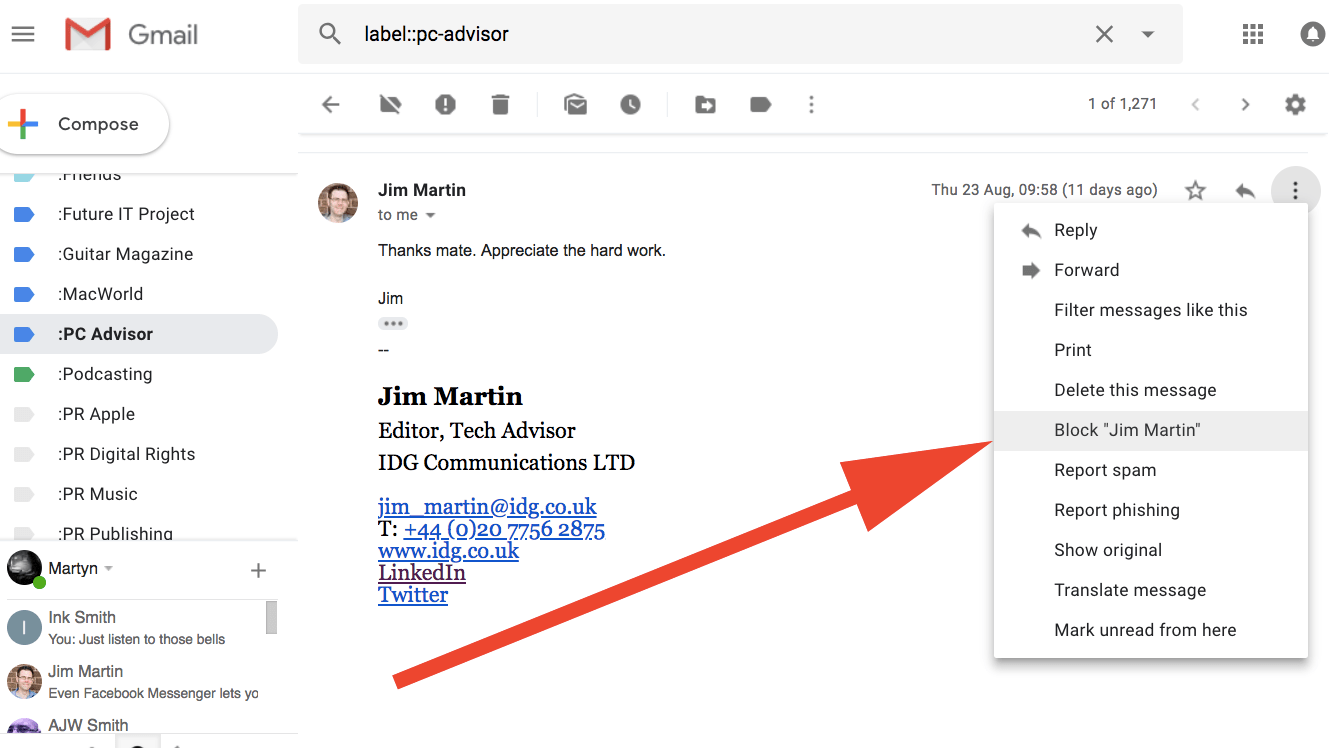
Blocking unwanted email addresses on Gmail is a straightforward process. Here’s how to do it:
- Log in to Your Google Account: First, make sure you’re logged in to your Google account.
- Open The Gmail Interface: Click on the Gmail icon to open the interface.
- Find The Email From The Unwanted Address: Look for an email from the address you want to block. It can be a message that’s already in your inbox or one that’s been forwarded to you.
- Click on The Three Dots: Next to the email, click on the three dots (⋮).
- Select Block Sender: From the dropdown menu, select “Block sender”.
- Confirm The Block: A pop-up window will appear asking if you’re sure you want to block the sender. Click on “Block” to confirm.
How to Unblock an Address
If you accidentally blocked an address or changed your mind about blocking a particular sender, here’s how to unblock them:
- Log in to Your Google Account: First, make sure you’re logged in to your Google account.
- Open The Gmail Interface: Click on the Gmail icon to open the interface.
- Click on The Gear Icon: In the top right corner of the page, click on the gear icon (⚙️).
- Select See All Settings: From the dropdown menu, select “See all settings”.
- Scroll Down to Blocked Senders: In the new window that opens, scroll down to the section labeled “Blocked senders”.
- Find The Address You Want to Unblock: Click on the three dots (⋮) next to the address you want to unblock.
- Select Unblock Sender: From the dropdown menu, select “Unblock sender”.
How to Block Unwanted Email Addresses on Gmail (Client)
If you use the client version of Gmail on your computer or mobile device, here’s how to block unwanted email addresses:
Microsoft Outlook (Windows/MacOS)
- Open Outlook: First, open the Microsoft Outlook application.
- Find The Email From The Unwanted Address: Look for an email from the address you want to block.
- Right-click on The Message: Right-click on the message and select “Junk” > “Block Sender”.
- Confirm The Block: A pop-up window will appear asking if you’re sure you want to block the sender. Click on “OK” to confirm.
Thunderbird (Windows/MacOS/Linux)
- Open Thunderbird: First, open the Mozilla Thunderbird application.
- Find The Email From The Unwanted Address: Look for an email from the address you want to block.
- Right-click on The Message: Right-click on the message and select “Filter Message” > “Block Sender”.
- Confirm The Block: A pop-up window will appear asking if you’re sure you want to block the sender. Click on “OK” to confirm.
Mail (macOS)
- Open Mail: First, open the Apple Mail application.
- Find The Email From The Unwanted Address: Look for an email from the address you want to block.
- Click on The Message: Click on the message to select it.
- Click on The “Block Contact” Icon: In the top right corner of the window, click on the “Block Contact” icon ().
- Confirm The Block: A pop-up window will appear asking if you’re sure you want to block the contact. Click on “OK” to confirm.
How to Block Unwanted Email Addresses on Gmail (Mobile)
If you use the mobile version of Gmail, here’s how to block unwanted email addresses:
Android
- Open Gmail: First, open the Gmail application.
- Find The Email From The Unwanted Address: Look for an email from the address you want to block.
- Tap on The Three Dots: Tap on the three dots (⋮) next to the message.
- Select Block User: From the dropdown menu, select “Block user”.
- Confirm The Block: A pop-up window will appear asking if you’re sure you want to block the user. Tap on “OK” to confirm.
Iphone/ipados
- Open Gmail: First, open the Gmail application.
- Find The Email From The Unwanted Address: Look for an email from the address you want to block.
- Tap on The Message: Tap on the message to select it.
- Tap on The “Block” Icon: In the top right corner of the window, tap on the “Block” icon ().
- Confirm The Block: A pop-up window will appear asking if you’re sure you want to block the user. Tap on “OK” to confirm.
In conclusion, blocking unwanted email addresses on Gmail is a simple process that can be done on both the web and mobile devices. By following these steps, you can keep your inbox clean and free from spam and telemarketing emails.


