
How to Block a Chat on Whatsapp: A Step-by-step Guide
Are you tired of unwanted conversations on WhatsApp? Do you want to keep your personal chats private? Blocking a chat on WhatsApp is a simple yet effective way to maintain your online security and confidentiality. In this article, we will guide you through the process of blocking a chat on WhatsApp using Android, iPhone, and PC.
Why Block a Chat on Whatsapp?
Before we dive into the steps, let’s understand why you might want to block a chat on WhatsApp in the first place. Here are some reasons:
- You don’t want unwanted messages or spam from a particular contact.
- You want to keep your personal conversations private and secure.
- You’ve had an argument with someone and want to take a break from their conversations.
Blocking a Chat on Whatsapp Using Android
To block a chat on WhatsApp using Android, follow these steps:
- Open WhatsApp and go to the Chats tab.
- Select the chat you want to block by tapping on it.
- Tap on the three dots (⋯) at the top right corner of the screen.
- Tap on “More” from the menu that appears.
- Tap on “Block” to confirm.
Blocking a Chat on Whatsapp Using Iphone
To block a chat on WhatsApp using an iPhone, follow these steps:
- Open WhatsApp and go to the Chats tab.
- Select the chat you want to block by tapping on it.
- Tap on the contact’s name at the top of the screen.
- Tap on “Block” to confirm.
Blocking a Chat on Whatsapp Using PC
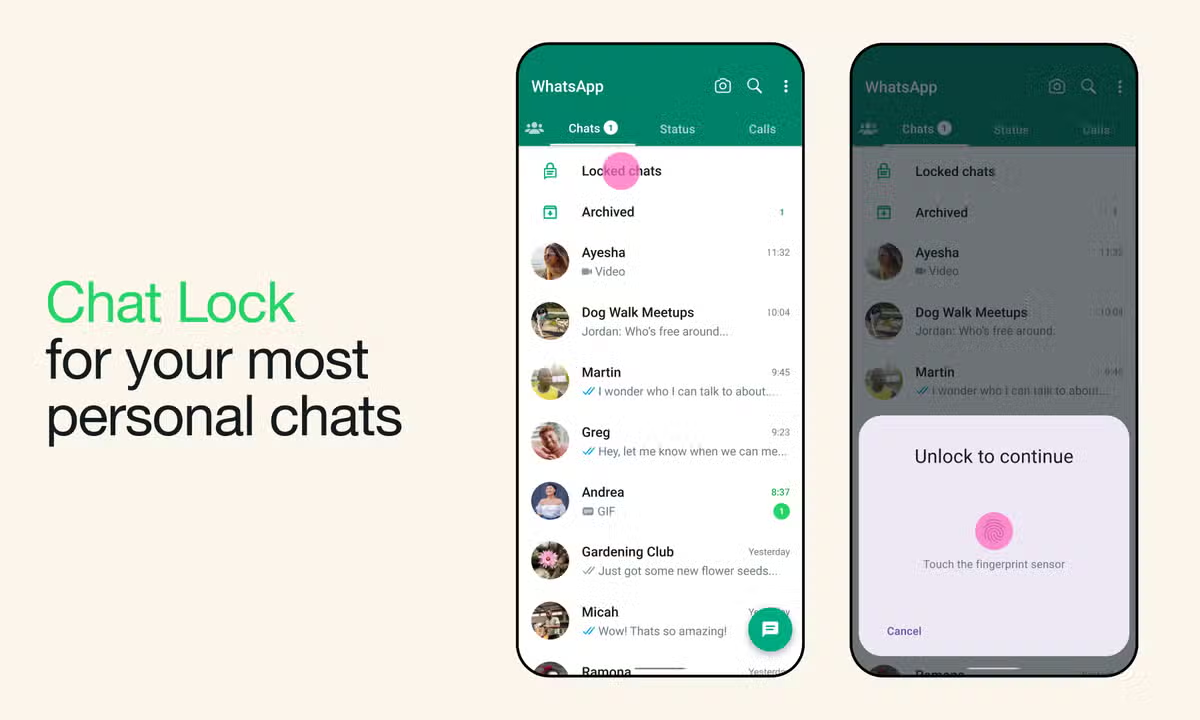
Unfortunately, the Padlock feature is not available on WhatsApp Web or Desktop. However, you can use a password to secure your chats. To do this:
- Open WhatsApp Web and click on the three dots (⋯) at the top right corner of the screen.
- Click on “Settings” from the menu that appears.
- Click on “Account” and then “Privacy.”
- Toggle the switch next to “Block contacts” to enable it.
- Enter a password to secure your chats.
Why Can’t I Block a Chat on Whatsapp Web or Desktop?
The Padlock feature is not available on WhatsApp Web or Desktop because it requires biometric authentication (such as Face ID or Touch ID) to work properly. However, you can use a password to secure your chats using the steps above.
How Do I Unblock a Chat on Whatsapp?
If you’ve accidentally blocked someone’s chat, don’t worry! You can unblock them by following these steps:
- Go back to the Chats tab in WhatsApp.
- Select the blocked chat by tapping on it.
- Tap on the three dots (⋯) at the top right corner of the screen.
- Tap on “Unblock” to confirm.
Can I Block Multiple Chats at Once?
Yes, you can block multiple chats at once. Simply select the chats you want to block by tapping on them, and then tap on the three dots (⋯) at the top right corner of the screen. Tap on “Block” to confirm.
What Happens If I Block Someone’s Chat on Whatsapp?
When you block someone’s chat on WhatsApp, they will not be able to see your profile picture or status updates. They will also not receive any notifications when you send them a message. However, if they try to call you using WhatsApp, the call will still go through.
Conclusion
Blocking a chat on WhatsApp is a simple and effective way to maintain your online security and confidentiality. By following these steps, you can block unwanted conversations and keep your personal chats private. Remember, blocking someone’s chat does not mean you’re ending the conversation forever; it simply means you want some space from that particular contact.
Frequently Asked Questions
- Q: How do I unblock a chat on WhatsApp?
A: To unblock a chat on WhatsApp, go back to the Chats tab, select the blocked chat by tapping on it, tap on the three dots (⋯) at the top right corner of the screen, and then tap on “Unblock” to confirm. - Q: Can I block multiple chats at once?
A: Yes, you can block multiple chats at once. Simply select the chats you want to block by tapping on them, and then tap on the three dots (⋯) at the top right corner of the screen. Tap on “Block” to confirm. - Q: What happens if I block someone’s chat on WhatsApp?
A: When you block someone’s chat on WhatsApp, they will not be able to see your profile picture or status updates. They will also not receive any notifications when you send them a message. However, if they try to call you using WhatsApp, the call will still go through.


