
How to Block Annoying Notifications on Chrome
Are you tired of being bombarded with notifications every time you browse the internet? Do you wish there was a way to block them all at once? Well, you’re in luck! In this article, we’ll show you how to block notifications on Chrome, whether you’re using it on your computer or mobile device.
Why Block Notifications on Chrome?
Notifications can be annoying, especially when they interrupt your browsing experience. By blocking notifications on Chrome, you can:
- Reduce distractions and stay focused while browsing
- Improve your overall online experience
- Avoid unnecessary pop-ups and ads
How to Block Notifications on Chrome (Desktop)
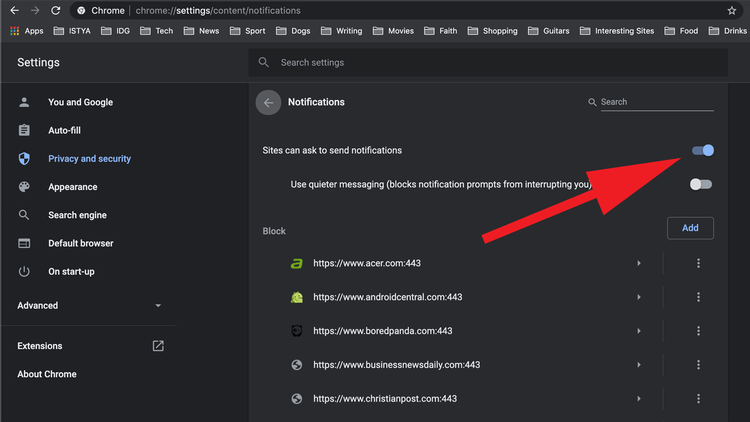
To block notifications on Chrome for desktop, follow these steps:
- Open the Chrome browser and click on the three dots in the top right corner.
- Select “Settings” from the dropdown menu.
- Scroll down to the “Privacy and security” section.
- Click on “Notifications”.
- Find the website you want to block notifications for and click on the three vertical dots next to it.
- Select “Block” from the dropdown menu.
How to Block Notifications on Chrome (Mobile)
To block notifications on Chrome for mobile, follow these steps:
- Open the Chrome app on your Android device.
- Tap on the three dots in the top right corner.
- Select “Settings”.
- Scroll down to the “Notifications” section.
- Find the website you want to block notifications for and tap on it.
- Select “Block” from the dropdown menu.
How to Block Notifications on Chrome (Windows 10)
To block notifications on Chrome for Windows 10, follow these steps:
- Open the Settings app on your computer.
- Click on “System”.
- Select “Notifications & actions”.
- Find Google Chrome in the list of apps and toggle off the switch next to it.
How to Block Notifications on Chrome (Mac)
To block notifications on Chrome for Mac, follow these steps:
- Open the System Preferences app.
- Click on “Notifications”.
- Select “Google Chrome” from the list of apps.
- Toggle off the switch next to “Allow notifications”.
How to Block Notifications on Chrome (Android)
To block notifications on Chrome for Android, follow these steps:
- Open the Settings app on your device.
- Scroll down to the “Apps & notifications” section.
- Select “Google Chrome”.
- Toggle off the switch next to “Allow notifications”.
Tips And Variations
- You can also block all notifications from a specific website by going to its settings page and toggling off the notification switch.
- If you want to block notifications for multiple websites, you can add them to a list and toggle off the notification switch for all of them at once.
- On Android devices, you can also use the “Do Not Disturb” mode to silence notifications during certain hours or events.
Conclusion
Blocking notifications on Chrome is a simple process that can greatly improve your online experience. Whether you’re using it on desktop or mobile, we hope this guide has shown you how to block annoying notifications and stay focused while browsing.
Frequently Asked Questions
- Why do I Still Get Notifications After Blocking Them?
- It’s possible that the website is updating its notification settings or that there are other apps interfering with your Chrome settings.
- Can I Block Notifications For All Websites at Once?
- Unfortunately, no. You’ll need to block notifications for each website individually.
- How do I Know if a Website Has Been Blocked From Sending me Notifications?
- Look for the “Blocked” label next to the website’s name in your Chrome settings.
- Can I Block Notifications on Other Browsers Like Firefox or Safari?
- Yes, you can follow similar steps to block notifications on other browsers as well.
- Will Blocking Notifications Affect my Ability to Receive Important Updates From Websites?
- No, blocking notifications won’t prevent you from receiving important updates or alerts from websites.
- Can I Set up a Whitelist For Certain Websites That I Want to Receive Notifications From?
- Yes, you can create a whitelist by adding specific websites to your Chrome settings and allowing them to send you notifications.
- How do I Reset my Notification Settings if I’ve Made Mistakes or Need to Change Them?
- You can reset your notification settings by going back to the original settings page and toggling off the switches for each website.
We hope this guide has helped you block annoying notifications on Chrome!


