
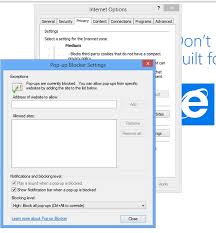
Blocking Popup Windows on Chrome: A Step-by-step Guide
Are you tired of annoying popup windows that interrupt your browsing experience? Do you want to know how to block them on Google Chrome? Look no further! In this article, we will guide you through the process of blocking popup windows on Chrome, whether you’re using a PC, Mac, Android device, or iPhone/iPad.
Understanding Popup Windows
Popup windows are those tiresome windows that open suddenly when you visit a website or click on specific links. They can be invasive and make navigation difficult. Moreover, they often serve as vehicles for swindles and malware. Blocking them is essential to ensure a safe and enjoyable browsing experience.
Blocking Popup Windows on Chrome: A Step-by-step Guide
Windows
To block popup windows on Chrome on Windows:
- Initiate the Google Chrome browser.
- Click on the three dots in the top-right corner of the screen.
- Select “Settings” from the drop-down menu.
- In the Settings page, click on “Privacy and security.”
- Scroll down to the “Site settings” section and select “Popup and redirects.”
- Toggle the switch next to “Blocked sites” to ON.
Mac
To block popup windows on Chrome on Mac:
- Initiate the Google Chrome browser.
- Click on the three dots in the top-right corner of the screen.
- Select “Preferences” from the drop-down menu.
- In the Preferences page, click on “Privacy and security.”
- Scroll down to the “Site settings” section and select “Popup and redirects.”
- Toggle the switch next to “Blocked sites” to ON.
Android
To block popup windows on Chrome on Android:
- Initiate the Google Chrome app.
- Tap on the three dots in the top-right corner of the screen.
- Select “Settings” from the drop-down menu.
- Scroll down to the “Site settings” section and select “Popup and redirects.”
- Toggle the switch next to “Blocked sites” to ON.
Iphone/ipad
To block popup windows on Chrome on iPhone/iPad:
- Initiate the Google Chrome app.
- Tap on the three dots in the top-right corner of the screen.
- Select “Settings” from the drop-down menu.
- Scroll down to the “Site settings” section and select “Block popup.”
- Toggle the switch next to “Block popup” to ON.
Blocking Popup Windows Using Extensions
While blocking popup windows on Chrome is relatively easy, some types of popup windows might still appear. To block these windows effectively, you can use extensions from third-party developers. These extensions can filter out advertising windows and other unwanted popups.
However, it’s essential to note that using extensions can expose your data to privacy and security risks. Some extensions may also cause malfunctions in website visualizations.
Conclusion
Blocking popup windows on Chrome is a straightforward process that can be completed in just a few steps. By following the guides above, you can ensure a safe and enjoyable browsing experience on your PC, Mac, Android device, or iPhone/iPad.
Remember to exercise caution when using extensions, as they may compromise your data and security.
Frequently Asked Questions
- Q: Why do Popup Windows Appear?
A: Popup windows often serve as vehicles for swindles and malware. - Q: How Can I Block Popup Windows on Chrome?
A: You can block popup windows on Chrome by following the step-by-step guides above for Windows, Mac, Android, or iPhone/iPad. - Q: Can I Use Extensions to Block Popup Windows?
A: Yes, you can use extensions from third-party developers to filter out advertising windows and other unwanted popups. - Q: Are There Any Risks Associated With Using Extensions?
A: Yes, using extensions can expose your data to privacy and security risks.


