
Blocking Unwanted Email on Iphone: A Step-by-step Guide
Are you tired of receiving unwanted emails on your iPhone? Do you want to learn how to block them without compromising the functionality of your device? Look no further! In this article, we will guide you through the process of blocking unwanted email on iPhone, covering various email providers such as Mail/iCloud, Gmail, and Outlook.
Why Block Unwanted Email on Iphone?
Unwanted emails can be a nuisance, taking up space in your inbox and distracting you from more important tasks. By blocking these emails, you can:
- Reduce clutter in your inbox
- Minimize distractions and increase productivity
- Improve the overall user experience of your iPhone
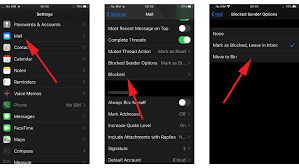
Blocking Unwanted Email on Mail/icloud
If you use the Mail app on your iPhone to manage your iCloud email account, follow these steps to block unwanted email:
- Open The Mail App: Tap on the Mail icon to open the app.
- Access The Settings Menu: Tap on the gear icon in the top-right corner of the screen to access the settings menu.
- Block Unwanted Email: Select the “Blocked” tab and tap on “Add New…”.
- Enter The Email Address: Enter the email address you want to block.
- Save Changes: Save your changes by tapping on “Done”.
Blocking Unwanted Email on Gmail
If you use the Gmail app on your iPhone, follow these steps to block unwanted email:
- Open The Gmail App: Tap on the Gmail icon to open the app.
- Access The Settings Menu: Tap on the gear icon in the top-right corner of the screen to access the settings menu.
- Block Unwanted Email: Select the “Blocked” tab and tap on “Add new”.
- Enter The Email Address: Enter the email address you want to block.
- Save Changes: Save your changes by tapping on “Save”.
Blocking Unwanted Email on Outlook
If you use the Outlook app on your iPhone, follow these steps to block unwanted email:
- Open The Outlook App: Tap on the Outlook icon to open the app.
- Access The Settings Menu: Tap on the gear icon in the top-right corner of the screen to access the settings menu.
- Block Unwanted Email: Select the “Blocked” tab and tap on “Add new”.
- Enter The Email Address: Enter the email address you want to block.
- Save Changes: Save your changes by tapping on “Save”.
Disabling Notifications For Email Apps
If you want to disable notifications for email apps, follow these steps:
- Access The Settings Menu: Tap on the gear icon in the top-right corner of the screen to access the settings menu.
- Select Notifications: Select the “Notifications” tab.
- Disable Notifications: Toggle off the switch next to the email app you want to disable notifications for.
Blocking Email Apps
If you want to block an email app entirely, follow these steps:
- Access The Settings Menu: Tap on the gear icon in the top-right corner of the screen to access the settings menu.
- Select Weather of Use: Select the “Weather of Use” tab.
- Block The Email App: Toggle off the switch next to the email app you want to block.
Conclusion
Blocking unwanted email on iPhone is a straightforward process that can be completed using various methods, depending on your email provider and preferences. By following these steps, you can:
- Reduce clutter in your inbox
- Minimize distractions and increase productivity
- Improve the overall user experience of your iPhone
Whether you use Mail/iCloud, Gmail, or Outlook, blocking unwanted email is a great way to take control of your digital life and enjoy a more streamlined iPhone experience.
Frequently Asked Questions
- Q: Can I Block All Email Apps at Once?
A: Yes, you can block all email apps by following the steps outlined in the “Blocking Email Apps” section. - Q: Will Blocking an Email App Affect my Ability to Receive Emails From That Provider?
A: No, blocking an email app will only prevent notifications and access to the app itself. - Q: Can I Unblock a Blocked Email App?
A: Yes, you can unblock a blocked email app by following the same steps outlined in this article. - Q: Will Disabling Notifications For an Email App Affect my Ability to Receive Emails From That Provider?
A: No, disabling notifications will only prevent notifications and won’t affect your ability to receive emails. - Q: Can I Block Unwanted Email on Multiple Devices at Once?
A: Yes, you can block unwanted email on multiple devices by following the same steps outlined in this article. - Q: Will Blocking an Email App Delete my Existing Emails From That Provider?
A: No, blocking an email app will not delete your existing emails from that provider. - Q: Can I Report Spam or Unwanted Email to Apple or Google?
A: Yes, you can report spam or unwanted email to Apple or Google by following the steps outlined in their respective help sections. - Q: Will Blocking an Email App Affect my Ability to Sync Contacts And Calendar Events With That Provider?
A: No, blocking an email app will not affect your ability to sync contacts and calendar events with that provider.


