
How to Block Unwanted Messages on Facebook: A Step-by-step Guide
Are you tired of receiving unwanted messages on Facebook? Do you want to block specific users or disable message requests altogether? Look no further! In this comprehensive guide, we will walk you through the steps to block messages on Facebook using your smartphone, tablet, computer, and Messenger app.
Why Block Messages on Facebook?
Before we dive into the step-by-step instructions, let’s discuss why blocking messages on Facebook might be necessary for you. Maybe you’re getting too many unwanted messages from strangers or acquaintances, and you want to declutter your inbox. Or perhaps you’re looking to block specific users who are sending you annoying or harassment messages.
Blocking Messages on Facebook: A Step-by-step Guide
Smartphone And Tablet
To block messages on Facebook using your smartphone or tablet, follow these steps:
- Open the Facebook app and tap on the three horizontal lines (☰) at the top right corner.
- Select “Settings and Privacy” from the menu.
- Tap on “Settings” and then scroll down to “Block Some People.”
- Add the name of the person you want to block and select “Block.”
Alternatively, you can also block messages by going to the person’s profile page and tapping on the three dots (…) at the top right corner. Select “Block” from the menu.
Computer
To block messages on Facebook using your computer, follow these steps:
- Log in to your Facebook account on a browser.
- Click on your profile picture at the top right corner and select “Settings and Privacy.”
- Click on “Settings” and then scroll down to “Block Some People.”
- Add the name of the person you want to block and click on “Confirm.”
Alternatively, you can also block messages by going to the person’s profile page and clicking on the three dots (…) at the top right corner. Select “Block” from the menu.
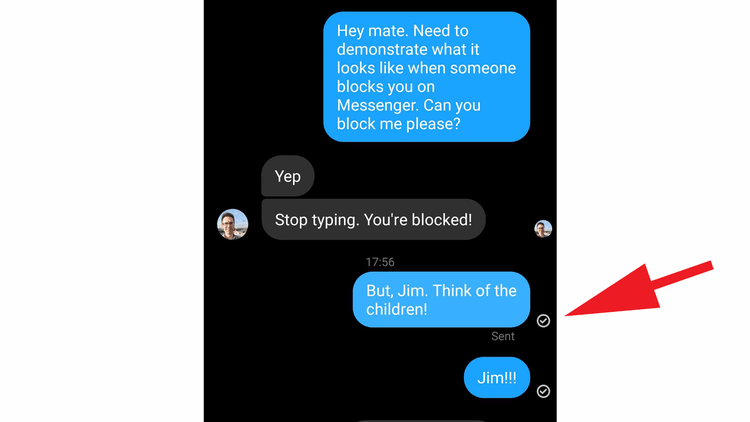
Blocking Messages in Messenger
To block messages in Messenger, follow these steps:
- Open the Messenger app and go to the conversation with the person you want to block.
- Tap on the name of the person at the top of the screen and select “Settings.”
- Scroll down to “Privacy” and tap on “Block.”
Alternatively, you can also block messages in Messenger by going to the person’s profile page and tapping on the three dots (…) at the top right corner. Select “Block Messages” from the menu.
Blocking Messages on a Facebook Page
To block messages on a Facebook page that you manage, follow these steps:
- Go to your Facebook page and click on the three dots (…) at the top right corner.
- Select “Settings” and then scroll down to “General.”
- Click on “Messenger” and toggle off the switch next to “Allow private messages.”
Alternatively, you can also block messages on a Facebook page by going to the page’s settings and clicking on “Privacy.” Scroll down to “Who can send me messages” and select “Only friends” or “No one.”
Blocking Email Notifications
To disable email notifications when someone sends you a message on Facebook, follow these steps:
- Log in to your Facebook account on a browser.
- Click on your profile picture at the top right corner and select “Settings and Privacy.”
- Click on “Notifications” and then scroll down to “Email.”
- Select “Only necessary notifications” to disable email notifications.
Alternatively, you can also disable email notifications by going to the Facebook settings page and clicking on “Notifications.” Scroll down to “Email” and toggle off the switch next to “Allow email notifications.”
Frequently Asked Questions (FAQs)
- Can I Block Specific Users From Sending me Messages?
Yes, you can block specific users from sending you messages by going to their profile page and selecting “Block” from the menu.
- How do I Disable Message Requests on Facebook?
To disable message requests on Facebook, go to your page’s settings and click on “General.” Scroll down to “Messenger” and toggle off the switch next to “Allow private messages.”
- Can I Block Email Notifications When Someone Sends me a Message on Facebook?
Yes, you can disable email notifications by going to your Facebook account settings and clicking on “Notifications.” Scroll down to “Email” and toggle off the switch next to “Allow email notifications.”
- How do I Report Harassment or Abuse on Facebook?
To report harassment or abuse on Facebook, click on the three dots (…) at the top right corner of the conversation window and select “Report.” Follow the prompts to complete the reporting process.
- Can I Block Messages in Messenger?
Yes, you can block messages in Messenger by going to the conversation with the person you want to block and tapping on their name at the top of the screen. Select “Settings” and then scroll down to “Privacy.” Tap on “Block.”
- How do I Disable Message Notifications on Facebook?
To disable message notifications on Facebook, go to your account settings and click on “Notifications.” Scroll down to “Message” and toggle off the switch next to “Allow message notifications.”
- Can I Block Messages From a Specific Facebook Page?
Yes, you can block messages from a specific Facebook page by going to the page’s settings and clicking on “General.” Scroll down to “Messenger” and toggle off the switch next to “Allow private messages.”
- How do I Unblock Someone on Facebook?
To unblock someone on Facebook, go to their profile page and click on the three dots (…) at the top right corner. Select “Unblock” from the menu.
By following these steps, you can effectively block unwanted messages on Facebook using your smartphone, tablet, computer, or Messenger app. Remember to always report harassment or abuse on Facebook by clicking on the three dots (…) at the top right corner of the conversation window and selecting “Report.”


