
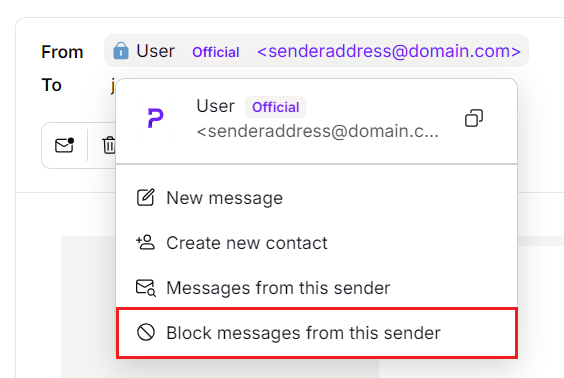
How to Block Unwanted Messages: A Comprehensive Guide
Are you tired of receiving unwanted messages on your social media platforms, messaging apps, or even your phone? Do you feel like you’re being bombarded with spammy messages that you just can’t seem to get rid of? Well, you’re in luck! In this article, we’ll show you how to block unwanted messages on various platforms, including WhatsApp, Instagram, Messenger, and more.
Why Block Unwanted Messages?
Before we dive into the nitty-gritty of blocking unwanted messages, let’s talk about why it’s essential to do so. Receiving unwanted messages can be frustrating, not to mention a waste of your time. By blocking these messages, you’ll be able to focus on the conversations that matter most to you.
Blocking Messages on Whatsapp
If you’re tired of receiving unwanted messages from someone on WhatsApp, there are several ways to block them:
- Method 1: Go to the conversation with the person you want to block and tap on their name. Then, tap on the three dots at the top right corner and select “Block.”
- Method 2: Open the WhatsApp settings app and go to Account > Privacy > Blocked Contacts. Tap on the “+” icon and add the contact’s number.
- Method 3: If you’ve already received messages from someone, open the chat with them and tap on their name. Then, tap on the “Block” button that appears.
Blocking Messages on Instagram
If you’re tired of receiving unwanted messages from someone on Instagram, here’s how to block them:
- Method 1: Go to the conversation with the person you want to block and tap on their name. Then, tap on the three dots at the top right corner and select “Block.”
- Method 2: Open the Instagram settings app and go to Account > Privacy > Blocked Contacts. Tap on the “+” icon and add the contact’s username.
- Method 3: If you’ve already received messages from someone, open the chat with them and tap on their name. Then, tap on the “Block” button that appears.
Blocking Messages on Messenger
If you’re tired of receiving unwanted messages from someone on Messenger, here’s how to block them:
- Method 1: Open the Messenger app and go to the conversation with the person you want to block.
- Method 2: If you’ve already received messages from someone, open the chat with them and tap on their name. Then, tap on the “Block” button that appears.
Blocking Messages on Chrome
If you’re tired of receiving unwanted notifications from websites on your Google Chrome browser, here’s how to block them:
- Method 1: Open the Chrome settings app and go to Settings > Notifications.
- Method 2: If you’ve already received notifications from a website, open the Chrome settings app and go to Settings > Advanced > Content Settings. Then, select “Block” next to the website’s name.
Blocking Messages on Android
If you’re tired of receiving unwanted messages on your Android device, here’s how to block them:
- Method 1: Open the Messages app and go to the conversation with the person you want to block.
- Method 2: If you’ve already received messages from someone, open the chat with them and tap on their name. Then, tap on the “Block” button that appears.
Blocking Messages on Iphone
If you’re tired of receiving unwanted messages on your iPhone, here’s how to block them:
- Method 1: Open the Messenger app and go to the conversation with the person you want to block.
- Method 2: If you’ve already received messages from someone, open the chat with them and tap on their name. Then, tap on the “Block” button that appears.
Blocking Messages on PC
If you’re tired of receiving unwanted messages on your computer, here’s how to block them:
- Method 1: Open the Messenger app and go to the conversation with the person you want to block.
- Method 2: If you’ve already received messages from someone, open the chat with them and tap on their name. Then, tap on the “Block” button that appears.
Conclusion
Blocking unwanted messages is a simple yet effective way to take control of your digital life. By following the methods outlined in this article, you’ll be able to block messages on various platforms, including WhatsApp, Instagram, Messenger, and more. Remember, it’s always better to be safe than sorry when it comes to online interactions.
Frequently Asked Questions (FAQs)
- Q: How do I Block Someone on Whatsapp?
A: To block someone on WhatsApp, go to the conversation with them, tap on their name, and select “Block.” - Q: How do I Block Someone on Instagram?
A: To block someone on Instagram, go to the conversation with them, tap on their name, and select “Block.” - Q: How do I Block Someone on Messenger?
A: To block someone on Messenger, go to the conversation with them, tap on their name, and select “Block.” - Q: How do I Block Unwanted Messages on Chrome?
A: To block unwanted messages on Chrome, open the settings app, go to Settings > Notifications, and select “Block” next to the website’s name. - Q: How do I Block Unwanted Messages on Android?
A: To block unwanted messages on Android, open the Messages app, go to the conversation with them, tap on their name, and select “Block.” - Q: How do I Block Unwanted Messages on Iphone?
A: To block unwanted messages on iPhone, open the Messenger app, go to the conversation with them, tap on their name, and select “Block.” - Q: How do I Block Unwanted Messages on Pc?
A: To block unwanted messages on PC, open the Messenger app, go to the conversation with them, tap on their name, and select “Block.”
Additional Resources
For more information on blocking unwanted messages, check out these additional resources:
- “How to Block Unwanted Messages on Whatsapp” by TechRadar
- “How to Block Unwanted Messages on Instagram” by The Verge
- “How to Block Unwanted Messages on Messenger” by CNET
- “How to Block Unwanted Messages on Chrome” by Lifehacker
Note: This article is for informational purposes only. It’s always best to consult the official documentation of each platform for more accurate information.


