
How to Block Notifications From a Website on Your Computer
Are you tired of being bombarded by notifications from a website every time you open your browser? Do you wish there was a way to block them once and for all? Look no further! In this article, we will guide you through the simple steps of blocking notifications from a website on your computer.
Why Block Notifications?
Notifications can be annoying, especially if they’re coming from a website that you don’t want to receive updates from. Not only are they distracting, but they can also clutter up your screen and make it difficult to focus on other tasks. By blocking notifications from a website, you can help maintain a clean and organized browsing experience.
Which Browser Do I Use?
Whether you’re using Chrome, Firefox, Edge, or Safari, we’ve got you covered. We’ll provide step-by-step instructions for each browser to ensure that you can block notifications from any website on your computer.
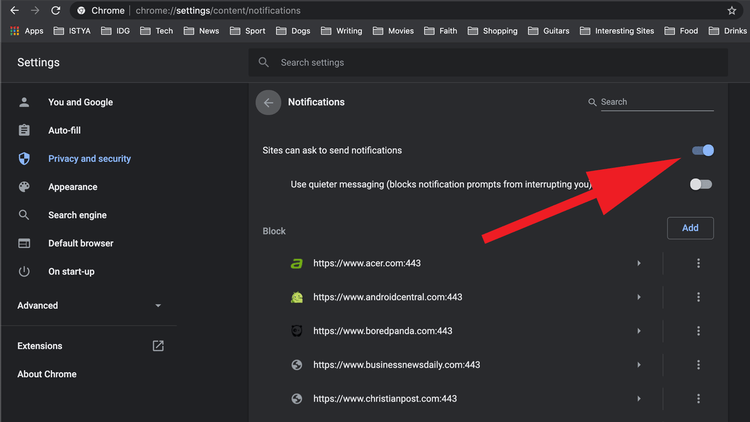
How to Block Notifications in Google Chrome
If you use Google Chrome as your primary browser, follow these steps:
- Click the three dots in the top right corner of the browser window.
- Select “Settings” from the dropdown menu.
- Scroll down to the “Privacy and security” section.
- Click on “Site settings”.
- Search for the website you want to block notifications from.
- Click on the three dots next to the website’s name.
- Select “Block” from the context menu.
How to Block Notifications in Mozilla Firefox
If you’re using Mozilla Firefox, follow these steps:
- Click the three horizontal lines in the top right corner of the browser window.
- Select “Options” from the dropdown menu.
- Scroll down to the “Privacy and Security” section.
- Click on “Permissions”.
- Search for the website you want to block notifications from.
- Click on the “Block” button next to the website’s name.
How to Block Notifications in Microsoft Edge
If you’re using Microsoft Edge, follow these steps:
- Click the three dots in the top right corner of the browser window.
- Select “Settings” from the dropdown menu.
- Scroll down to the “Cookie and site permissions” section.
- Click on “Site settings”.
- Search for the website you want to block notifications from.
- Click on the “Block” button next to the website’s name.
How to Block Notifications in Safari
If you’re using Safari, follow these steps:
- Click the Safari menu in the top left corner of the browser window.
- Select “Preferences”.
- Scroll down to the “Advanced” section.
- Click on “Show Develop menu”.
- Go back to the main menu and select “Develop”.
- Select “Block” from the context menu next to the website’s name.
How to Block Notifications on Mobile Devices
If you’re looking for a way to block notifications on your mobile device, follow these steps:
- For Android devices:
- Open the Chrome app.
- Tap the three dots in the top right corner of the browser window.
- Select “Settings”.
- Scroll down to the “Site settings” section.
- Search for the website you want to block notifications from.
- Tap on the “Block” button next to the website’s name.
- For iOS devices:
- Open the Settings app.
- Go to the “Safari” section.
- Scroll down to the “Notifications” section.
- Select the website you want to block notifications from.
Conclusion
Blocking notifications from a website is a simple process that can help maintain a clean and organized browsing experience. Whether you’re using Google Chrome, Mozilla Firefox, Microsoft Edge, or Safari on your computer or mobile device, we’ve provided step-by-step instructions to ensure that you can block notifications from any website.
Frequently Asked Questions
- Q: How do I Block All Notifications From a Website?
A: To block all notifications from a website, follow the steps outlined in this article for your specific browser. - Q: Can I Still Receive Notifications From a Website if I’ve Blocked Them?
A: No, blocking notifications from a website means that you will no longer receive any updates or messages from that site. - Q: How do I Unblock Notifications From a Website?
A: To unblock notifications from a website, follow the same steps outlined in this article for your specific browser, but select “Allow” instead of “Block”. - Q: Can I Block Notifications From Multiple Websites at Once?
A: Yes, you can block notifications from multiple websites by following the steps outlined in this article and selecting the additional websites you want to block. - Q: Will Blocking Notifications Affect my Ability to Use a Website’s Features?
A: No, blocking notifications will not affect your ability to use a website’s features or access its content. - Q: How do I Know if a Website Has Been Blocked From Sending me Notifications?
A: You can check the browser’s settings or notification menu to see if a website has been blocked from sending you notifications. - Q: Can I Block Notifications on Multiple Devices at Once?
A: Yes, you can block notifications on multiple devices by following the steps outlined in this article for each device.
Keywords: Blocking Notifications, Website Notifications, Browser Settings, Mobile Devices, Android, iOS


