
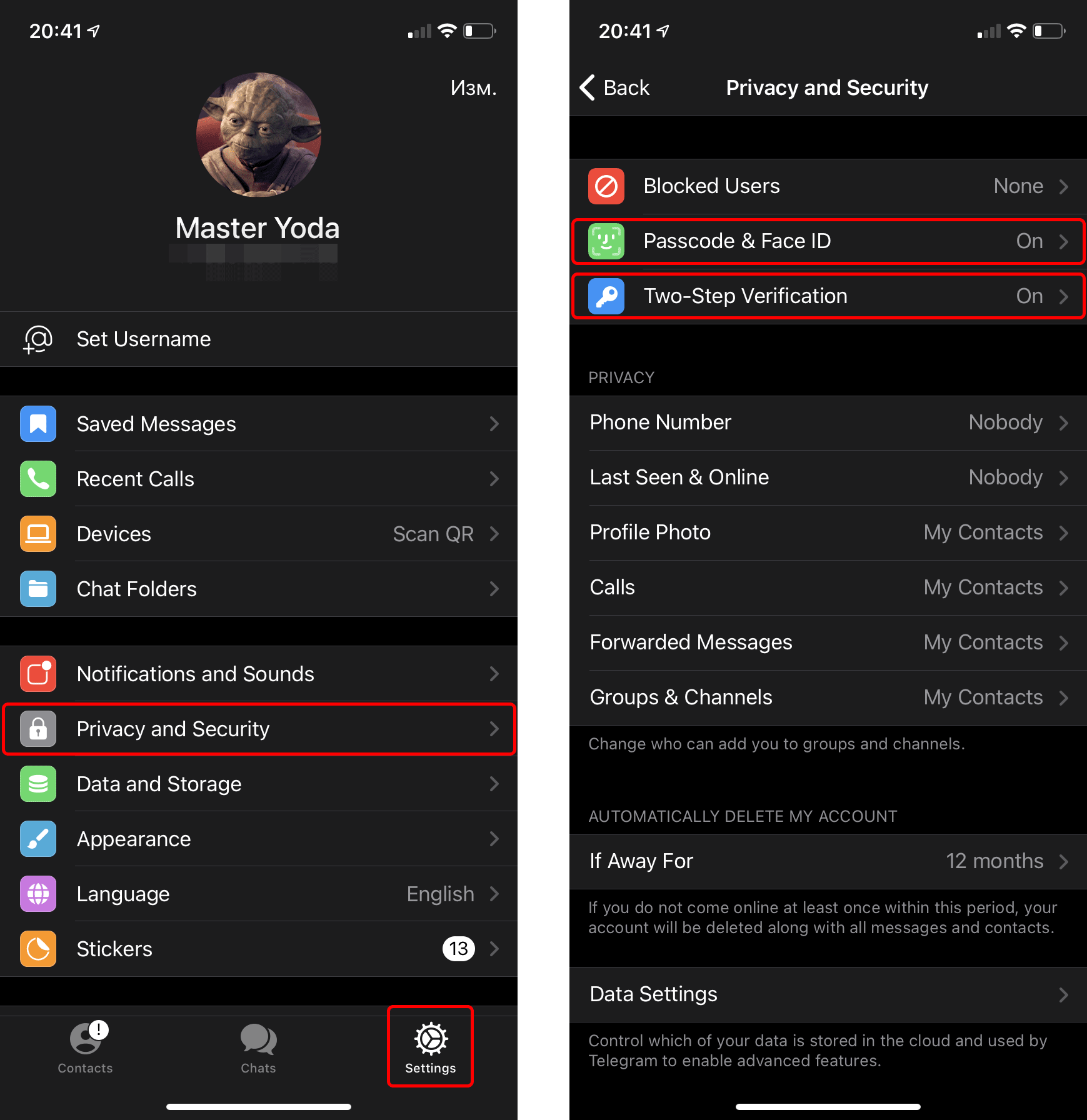
How to Block Someone on Telegram: A Step-by-step Guide
Are you tired of receiving unwanted messages or calls from someone on Telegram? Do you want to block them but don’t know how? Look no further! This article will guide you through the process of blocking someone on Telegram, including blocking their messages, calls, and even screenshots.
What Happens When You Block Someone on Telegram
Before we dive into the step-by-step guide, it’s essential to understand what happens when you block someone on Telegram. When you block someone, they will no longer be able to send you messages or make voice/video calls. They will also not be able to see your profile picture, online status, and last seen status.
However, if you’ve previously chatted with the person, they may still be able to see your previous conversations in the chat history. Also, if you’re part of a group conversation with them, they won’t be blocked from seeing messages sent by others in that group.
Blocking Someone on Telegram: A Step-by-step Guide
Blocking Someone on Android or Ios Devices
- Open the Telegram app on your device.
- Go to the “Contacts” section and select the person you want to block.
- Tap on their name, then tap on the three dots (⋯) next to their name.
- Select “Block user” from the menu.
Blocking Someone on a Computer
- Open the Telegram app on your computer.
- Go to the “Contacts” section and select the person you want to block.
- Click on their name, then click on the three dots (⋯) next to their name.
- Select “Block user” from the menu.
Blocking Messages on Telegram
If you only want to block someone’s messages without blocking them entirely, you can follow these steps:
- Open the Telegram app on your device.
- Go to the “Contacts” section and select the person you want to block messages from.
- Tap on their name, then tap on the three dots (⋯) next to their name.
- Select “Block messages” from the menu.
Blocking Calls on Telegram
If you only want to block someone’s calls without blocking them entirely, you can follow these steps:
- Open the Telegram app on your device.
- Go to the “Settings” section and select “Privacy and safety”.
- Select “Call settings” and toggle off the switch next to “Allow calls from”.
- Select the person you want to block calls from.
Blocking Screenshots on Telegram
Unfortunately, there is no option to block screenshots on Telegram entirely. However, if you’re using a device with Android, you can prevent users from taking screenshots of your conversations by going to Settings > Privacy and safety > Secret chats. This will encrypt your conversations so that only the sender and receiver can see them.
Blocking Someone Who Has Been Removed
If someone has been removed from your contacts, you can still block their messages or calls even if they’re no longer listed in your contacts.
Blocking Messages From Someone Who Has Been Removed
- Open the Telegram app on your device.
- Go to the “Contacts” section and select the person’s conversation that you want to block messages from.
- Tap on the three dots (⋯) next to their name.
- Select “Block messages” from the menu.
Blocking Calls From Someone Who Has Been Removed
- Open the Telegram app on your device.
- Go to the “Settings” section and select “Privacy and safety”.
- Select “Call settings” and toggle off the switch next to “Allow calls from”.
- Select the person’s conversation that you want to block calls from.
Conclusion
Blocking someone on Telegram can be a useful tool for maintaining your online privacy and reducing unwanted messages or calls. By following these step-by-step guides, you’ll be able to block someone entirely, block their messages only, or even prevent them from taking screenshots of your conversations.
Frequently Asked Questions (FAQs)
- Q: Can I Unblock Someone if I Accidentally Blocked Them?
A: Yes! You can easily unblock someone by following the same steps you used to block them. - Q: Will Blocking Someone Affect my Group Conversations With Them?
A: No, blocking someone won’t affect your group conversations with them. They will still be able to see messages sent by others in that group. - Q: Can I Report Someone Who is Harassing me on Telegram?
A: Yes! If you’re being harassed or bullied on Telegram, you can report the user to us by following these steps: Open Telegram > Settings > Report a problem > Block user - Q: How do I Know if Someone Has Been Blocked From Contacting Me?
A: When someone is blocked from contacting you, they will not be able to send you messages or make voice/video calls. However, if you’ve previously chatted with them, they may still see your previous conversations in the chat history. - Q: Can I Block Someone’s Account Entirely?
A: Unfortunately, no. You can only block an individual conversation with a specific person. If you want to report someone for harassment or abuse, please contact us directly. - Q: Will Blocking Someone Prevent Them From Seeing my Profile Picture And Last Seen Status?
A: Yes! When someone is blocked, they will not be able to see your profile picture, online status, and last seen status. - Q: Can I Block Screenshots of Telegram Conversations?
A: Unfortunately, no. There is no option to block screenshots of Telegram conversations entirely. However, if you’re using a device with Android, you can prevent users from taking screenshots of your secret chats.
I hope this article has helped you understand how to block someone on Telegram! If you have any further questions or concerns, please don’t hesitate to reach out to me directly.


