
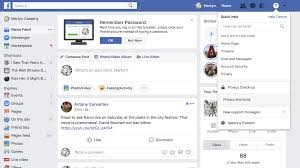
How to Block a Photo on Facebook: A Step-by-step Guide
Are you tired of your friends seeing certain photos on Facebook? Do you want to limit the visibility of specific images to only certain people? You’re in luck! Blocking a photo on Facebook is easier than you think, and we’ll guide you through it step by step.
Why Block a Photo on Facebook?
Before we dive into the nitty-gritty of blocking a photo, let’s quickly discuss why you might want to do so. Perhaps you’ve shared a funny or embarrassing photo with friends, but now you’re not so sure you’re comfortable sharing it with everyone. Or maybe you’ve taken a beautiful picture and don’t want certain people to see it. Whatever the reason, blocking a photo on Facebook is a simple way to control who sees your online content.
Blocking a Photo on Facebook: Smartphone And Tablet Edition
If you’re using a smartphone or tablet to access Facebook, here’s how to block a photo:
- Access Your Profile: First, navigate to your profile by tapping on the three horizontal lines (≡) in the top left corner of the screen.
- Select Photos: Next, tap on the “Photos” tab below your profile picture and cover photo.
- Choose The Photo You Want to Block: Scroll through your photos and select the one you want to block by tapping on it.
- Modify Privacy: Tap on the three dots (≡) in the top right corner of the screen, then tap on “Modify privacy.”
- Select Friends Only: Choose the “Friends only” option to limit who can see this photo.
- Save Changes: Finally, save your changes by tapping on the “Done” button.
Blocking a Photo on Facebook: PC Edition
If you’re using a computer to access Facebook, here’s how to block a photo:
- Log In to Your Account: First, log in to your account by entering your username and password.
- Select Photos: Next, click on the “Photos” tab below your profile picture and cover photo.
- Choose The Photo You Want to Block: Scroll through your photos and select the one you want to block by clicking on it.
- Modify Public: Click on the three dots (≡) in the top right corner of the screen, then click on “Modify public.”
- Select Friends Only: Choose the “Friends only” option to limit who can see this photo.
- Save Changes: Finally, save your changes by clicking on the “Done” button.
Blocking a Photo on Facebook: A Specific Friend
If you want to block a specific friend from seeing a particular photo, follow these steps:
- Select Photos: First, navigate to the photos tab below your profile picture and cover photo.
- Choose The Photo You Want to Block: Select the photo you want to block by tapping on it (or clicking on it).
- Modify Privacy: Tap or click on the three dots (≡) in the top right corner of the screen, then tap or click on “Modify privacy.”
- Select Friends Only: Choose the “Friends only” option to limit who can see this photo.
- Block a Specific Friend: Select the friend you want to block by tapping or clicking on their name.
- Save Changes: Finally, save your changes by tapping or clicking on the “Done” button.
Additional Tips
If you’re having trouble blocking a specific photo, here are some additional tips:
- Make sure you’re logged in to your account and have access to the Facebook app (or website).
- Ensure that the photo you want to block is not already blocked by a previous privacy setting.
- If you’re still experiencing issues, try restarting the Facebook app or clearing your browser cache.
Conclusion
Blocking a photo on Facebook is an easy way to control who sees your online content. Whether you’re using a smartphone, tablet, or computer, following these simple steps will ensure that only specific people can see certain photos. Remember, you have complete control over what you share and with whom – so take advantage of this feature to protect your digital identity!
Frequently Asked Questions (FAQs)
- Q: How do I Block a Photo on Facebook?
A: To block a photo on Facebook, follow the steps outlined in this article. - Q: Can I Block a Specific Friend From Seeing my Photos?
A: Yes! You can block a specific friend from seeing your photos by following the instructions provided above. - Q: Will Blocking a Photo Affect my Friends List?
A: No, blocking a photo will not affect your friends list in any way. - Q: Can I Still Share Photos With Certain People Even if I’ve Blocked Them?
A: Yes! You can still share photos with specific people even if you’ve blocked them from seeing other content. - Q: How do I Unblock a Photo on Facebook?
A: To unblock a photo, simply follow the steps outlined in this article and select the “Unblock” option instead of “Block.” - Q: Will Blocking a Photo Affect my Online Reputation?
A: No! Blocking a photo will not affect your online reputation in any way. - Q: Can I Block Multiple Photos at Once on Facebook?
A: Yes! You can block multiple photos at once by following the instructions provided above. - Q: How do I Know if Someone Has Blocked me From Seeing Their Photos?
A: If you’ve been blocked from seeing a photo, you’ll see a message indicating that only friends can see it – but you won’t be able to view the content itself!


