
How to Block Pop-ups on Safari: A Step-by-step Guide
Are you tired of annoying pop-ups disrupting your browsing experience on Safari? You’re not alone! In this article, we’ll show you how to block pop-ups on Safari for Mac, iPhone, and iPad.
Why Do I Need to Block Pop-ups?
Pop-ups can be frustrating, especially when they open unexpectedly or obstruct the content of a webpage. While some websites use pop-ups to offer valuable services or promotions, others may employ them to display malicious ads or steal your personal data.
Can I Still Access My Favorite Websites?
Yes! Blocking pop-ups on Safari won’t prevent you from accessing your favorite websites. You can still visit and enjoy your preferred sites without the annoyance of unwanted pop-ups.
Blocking Pop-ups on Safari For Mac
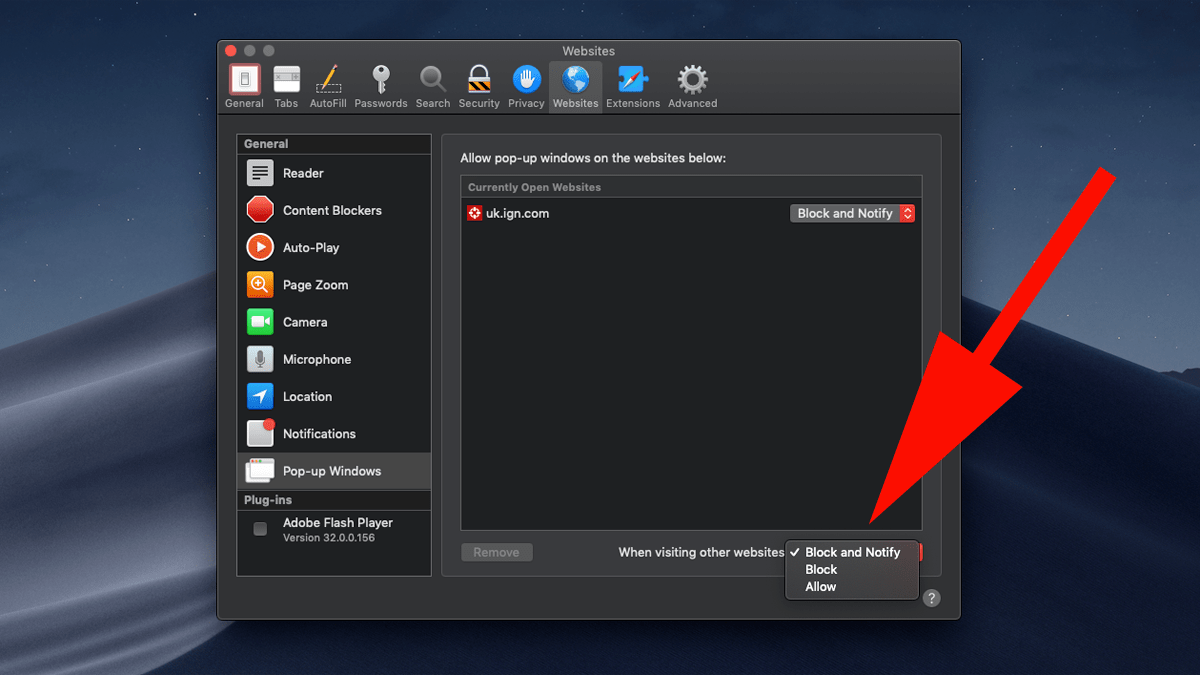
To block pop-ups on Safari for Mac, follow these steps:
- Open Safari: Click on the Safari icon in the Dock or Launchpad.
- Access Settings: Go to Safari > Preferences (or press Command + ,).
- Select Websites: Choose Websites from the left-hand menu.
- Block Pop-ups: Select the option to block pop-ups for all websites or specific sites.
How Do I Block Specific Sites on Safari?
If you only want to block pop-ups on specific websites, follow these steps:
- Open Safari: Click on the Safari icon in the Dock or Launchpad.
- Access Settings: Go to Safari > Preferences (or press Command + ,).
- Select Websites: Choose Websites from the left-hand menu.
- Block Pop-ups: Select the option to block pop-ups for specific sites.
To block a website, click on the three-dot icon in the top-right corner of the Safari window and select Block Website.
Blocking Pop-ups on Safari For Iphone And Ipad
To block pop-ups on Safari for iPhone or iPad, follow these steps:
- Open Settings: Tap on the Settings app.
- Select Safari: Choose Safari from the menu.
- Enable Block Pop-ups: Switch the toggle next to Block Pop-ups to On.
What About Specific Sites?
If you want to block pop-ups only for specific sites on your iPhone or iPad, follow these steps:
- Open Safari: Tap on the Safari icon.
- Access Settings: Go to Settings > Safari.
- Select Websites: Choose Websites from the menu.
- Block Pop-ups: Select the option to block pop-ups for specific sites.
To block a website, tap on the three-dot icon in the top-right corner of the Safari window and select Block Website.
How Do I Unblock Pop-ups?
To unblock pop-ups on Safari, follow these steps:
- Open Safari: Click on the Safari icon in the Dock or Launchpad (for Mac) or tap on the Safari icon (for iPhone or iPad).
- Access Settings: Go to Safari > Preferences (for Mac) or go to Settings > Safari (for iPhone or iPad).
- Select Websites: Choose Websites from the left-hand menu.
- Unblock Pop-ups: Select the option to unblock pop-ups for all websites or specific sites.
That’s it! With these simple steps, you can block annoying pop-ups on Safari and enjoy a smoother browsing experience.
Frequently Asked Questions
- Q: Can I Block Pop-ups on Other Browsers Too?
A: Yes! You can block pop-ups on other browsers like Google Chrome, Mozilla Firefox, and Microsoft Edge. - Q: Will Blocking Pop-ups Affect my Ability to Access Certain Websites?
A: No! Blocking pop-ups won’t prevent you from accessing your favorite websites. - Q: Can I Unblock Pop-ups For Specific Sites?
A: Yes! You can unblock pop-ups for specific sites by following the steps outlined in this article.


