
How to Block Annoying Pop-ups on Your Pc, Phone, or Tablet
Are you tired of dealing with pesky pop-ups that appear when you’re browsing the internet? Do you wish there was a way to block them once and for all? Look no further! In this article, we’ll show you how to block pop-ups on your PC, phone, and tablet, regardless of the operating system or browser you use.
Why Block Pop-ups?
Before we dive into the instructions, let’s take a moment to talk about why blocking pop-ups is a good idea. Pop-ups can be annoying, but they can also be malicious. Some pop-ups may contain viruses or malware that can harm your device or steal your personal information. By blocking pop-ups, you’re protecting yourself from potential security threats.
Blocking Pop-ups on PC
If you use a PC, you can block pop-ups using the following methods:
Blocking Pop-ups on Google Chrome
- Open Google Chrome and click on the three dots in the top right corner.
- Select “Settings” from the dropdown menu.
- Scroll down to the “Privacy and security” section.
- Click on “Site settings”.
- Find the “Pop-ups” section and toggle it off.
- If you want to allow specific sites to show pop-ups, click on “Add” next to “Blocked”.
Blocking Pop-ups on Mozilla Firefox
- Open Mozilla Firefox and click on the three horizontal lines in the top right corner.
- Select “Options” from the dropdown menu.
- Click on the “Privacy & Security” tab.
- Scroll down to the “Permissions” section.
- Find the “Pop-ups” option and toggle it off.
- If you want to allow specific sites to show pop-ups, click on “Add” next to “Blocked”.
Blocking Pop-ups on Microsoft Edge
- Open Microsoft Edge and click on the three dots in the top right corner.
- Select “Settings” from the dropdown menu.
- Scroll down to the “Cookies and saved information” section.
- Click on “Manage website settings”.
- Find the “Pop-ups” option and toggle it off.
- If you want to allow specific sites to show pop-ups, click on “Add” next to “Blocked”.
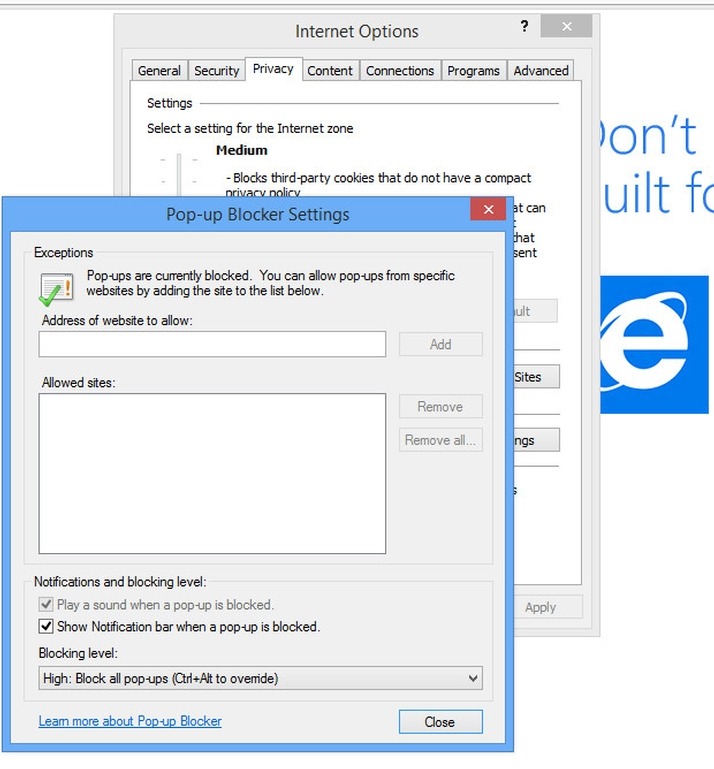
Blocking Pop-ups on Internet Explorer
- Open Internet Explorer and click on the gear icon in the top right corner.
- Select “Internet options”.
- Click on the “Privacy” tab.
- Find the “Pop-up blocker” option and toggle it off.
- If you want to allow specific sites to show pop-ups, click on “Add” next to “Blocked”.
Blocking Pop-ups on Phone or Tablet
If you use a phone or tablet, you can block pop-ups using the following methods:
Blocking Pop-ups on Android Devices
- Open Google Chrome and tap on the three dots in the top right corner.
- Select “Settings” from the dropdown menu.
- Scroll down to the “Site settings” section.
- Find the “Pop-ups” option and toggle it off.
- If you want to allow specific sites to show pop-ups, tap on “Add” next to “Blocked”.
Blocking Pop-ups on Ios Devices
- Open Safari and tap on the “Settings” icon in the bottom right corner.
- Select “Safari”.
- Scroll down to the “Block pop-ups” option and toggle it off.
- If you want to allow specific sites to show pop-ups, tap on “Add” next to “Blocked”.
Blocking Pop-ups on Android Devices Using Google Chrome
- Open Google Chrome and tap on the three dots in the top right corner.
- Select “Settings” from the dropdown menu.
- Scroll down to the “Site settings” section.
- Find the “Pop-ups” option and toggle it off.
- If you want to allow specific sites to show pop-ups, tap on “Add” next to “Blocked”.
Blocking Pop-ups on Android Devices Using Firefox
- Open Mozilla Firefox and tap on the three horizontal lines in the top right corner.
- Select “Settings” from the dropdown menu.
- Scroll down to the “Permissions” section.
- Find the “Pop-ups” option and toggle it off.
- If you want to allow specific sites to show pop-ups, tap on “Add” next to “Blocked”.
Blocking Pop-ups on Android Devices Using Edge
- Open Microsoft Edge and tap on the three dots in the top right corner.
- Select “Settings” from the dropdown menu.
- Scroll down to the “Cookies and saved information” section.
- Click on “Manage website settings”.
- Find the “Pop-ups” option and toggle it off.
- If you want to allow specific sites to show pop-ups, click on “Add” next to “Blocked”.
Conclusion
Blocking pop-ups is a simple process that can help protect your device from potential security threats. By following the instructions above, you can block pop-ups on your PC, phone, and tablet, regardless of the operating system or browser you use.
Frequently Asked Questions (FAQs)
-
Q: What Are Pop-ups?
A: Pop-ups are small windows that appear on your screen when you’re browsing the internet. -
Q: Why Should I Block Pop-ups?
A: You should block pop-ups to protect yourself from potential security threats, such as viruses or malware. -
Q: Can I Still Allow Specific Sites to Show Pop-ups?
A: Yes, you can allow specific sites to show pop-ups by adding them to the list of allowed sites in your browser settings. -
Q: How do I Block Pop-ups on my Phone or Tablet?
A: You can block pop-ups on your phone or tablet by following the instructions above for each operating system and browser. -
Q: Will Blocking Pop-ups Affect my Browsing Experience?
A: No, blocking pop-ups will not affect your browsing experience. You’ll still be able to access all of your favorite websites and online content. -
Q: Can I Unblock Pop-ups if I Need To?
A: Yes, you can unblock pop-ups at any time by following the instructions above for each operating system and browser. -
Q: Will Blocking Pop-ups Protect me From All Types of Malware?
A: No, blocking pop-ups will only protect you from a specific type of malware known as “pop-up malware.” It’s still important to use antivirus software and keep your device up-to-date with the latest security patches.


