
How to Block Spam Calls on Your Mobile Phone
In today’s always-connected world, spam calls have become a constant nuisance, ruining what would otherwise be a peaceful day. If you’re tired of being disrupted by unwanted calls and want to find an effective solution to block them, you’ve come to the right place! This guide will show you how to block spam calls on your Android or iPhone device.
Understanding Spam Calls
Spam calls are unsolicited calls from unknown numbers that can range from annoying telemarketers to scam artists. These calls can be frustrating and even dangerous if not addressed promptly.
Blocking Spam Calls on Android
Android devices have a built-in feature called Google Phone that allows you to block spam calls. To activate this feature, follow these steps:
- Open the Google Phone app by tapping on the cornetta in the Home screen or in the drawer of applications.
- Tap on Settings.
- Select ID caller and spam (in the section Assistive).
- Turn ON the toggle switch next to Visualize ID caller and spam.
- You can also filter out spam calls by selecting the Filter antispam option.
Blocking Spam Calls on Iphone
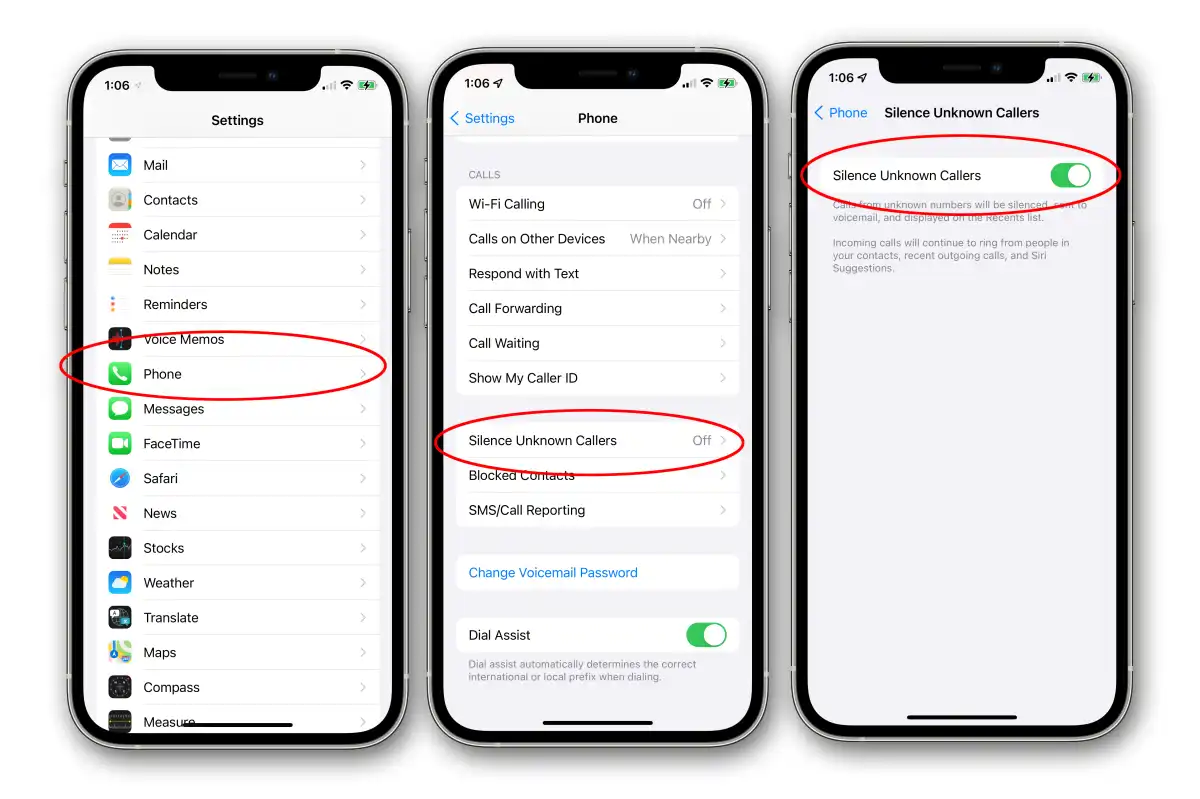
While iPhones don’t have a built-in filter for blocking spam calls, you can use other features to minimize the annoyance. Here’s how:
- Go to Settings > Phone.
- Select Silence unknown numbers and turn ON the toggle switch next to it.
- This feature will silence unknown numbers, but it won’t block them entirely.
Blocking Spam Calls With Apps
If the built-in features on your Android or iPhone device aren’t sufficient, you can try using third-party apps specifically designed for blocking spam calls. Some popular options include:
- Truecaller: Available on both Android and iOS devices, Truecaller is one of the most widely used apps for identifying and blocking spam calls.
- Should I Answer: This app provides a comprehensive database of known spammers and allows you to block their numbers.
Using Truecaller
To use Truecaller, follow these steps:
- Download and install the Truecaller app from the Play Store or App Store.
- Open the app and select Start.
- On Android devices, tap on Settings > ID caller and spam > ON the toggle switch next to Visualize ID caller and spam.
- On iOS devices, go to Settings > Phone > Block calls and identification.
Other Apps For Blocking Spam Calls
If Truecaller or Should I Answer aren’t what you’re looking for, here are some other options:
- Tellows: This app identifies unknown numbers and allows you to block them.
- Spamcall: A simple app that blocks known spammers and provides a database of blocked numbers.
Conclusion
Blocking spam calls is an essential step in maintaining your mobile phone’s security. By following the steps outlined in this guide, you can effectively prevent unwanted calls from disrupting your day. Remember to always be cautious when installing third-party apps and ensure they have good reviews before using them.
Faqs
- Q: How do I Block a Number on my Android Device?
A: To block a number on an Android device, go to Settings > Phone > Block numbers. - Q: Can I Block Spam Calls on my Iphone?
A: Yes, you can silence unknown numbers by going to Settings > Phone > Silence unknown numbers. - Q: What is Truecaller And How Does it Work?
A: Truecaller is an app that identifies and blocks known spammers. It uses a database of known spammers to prevent unwanted calls. - Q: Are There Any Other Apps For Blocking Spam Calls?
A: Yes, some popular options include Should I Answer, Tellows, and SpamCall. - Q: How do I Update my Truecaller App?
A: You can update your Truecaller app by going to the Play Store or App Store on your device. - Q: Can I Block Calls From a Specific Country?
A: Yes, you can block calls from specific countries by adding them to your blocked list in the Google Phone app. - Q: How do I Report Spam Numbers to Truecaller?
A: You can report spam numbers to Truecaller by tapping on the three dots next to the number and selecting Report as spam. - Q: Are There Any Fees Associated With Using Truecaller or Other Apps?
A: Some apps, like Truecaller, offer premium features for a fee, while others are free to use. Be sure to check the app’s pricing before subscribing.


