
How to Block Unknown Numbers: A Step-by-step Guide
Are you tired of receiving unwanted calls from unknown numbers? Do you want to know how to block these pesky calls on your smartphone? Look no further! In this article, we will guide you through the process of blocking unknown numbers on various smartphones and devices.
Why Block Unknown Numbers?
Unknown numbers can be a real nuisance. Whether it’s a telemarketer, a spam caller, or just someone who wants to bother you, these calls can disrupt your daily life. By blocking unknown numbers, you can avoid receiving unwanted calls and maintain peace of mind.
Blocking Unknown Numbers on Android
If you’re using an Android device, there are several ways to block unknown numbers. Here are the steps:
- Go to Settings: Open the settings app on your Android device.
- Select Phone: Tap on the “Phone” option from the list of settings.
- Tap on Call Log: Select the “Call Log” option to view a list of recent calls.
- Block Unknown Numbers: Tap on the three dots at the top-right corner and select “Settings.” From here, tap on “Blocked numbers” and toggle the switch next to “Unknown callers” to ON.
That’s it! You’ve successfully blocked unknown numbers on your Android device.
Blocking Unknown Numbers on Samsung
If you’re using a Samsung smartphone, the process is similar. Here are the steps:
- Open Phone App: Open the phone app on your Samsung device.
- Tap on Three Dots: Tap on the three dots at the top-right corner and select “Settings.”
- Select Blocked Numbers: From here, tap on “Blocked numbers” and toggle the switch next to “Unknown callers” to ON.
Blocking Unknown Numbers on Huawei
If you’re using a HUAWEI smartphone, here are the steps:
- Open Phone App: Open the phone app on your HUAWEI device.
- Tap on Three Dots: Tap on the three dots at the top-right corner and select “Settings.”
- Select Filter Molestie: From here, tap on “Filter molestie” and toggle the switch next to “Block unknown numbers” to ON.
Blocking Unknown Numbers With Truecaller
If you don’t have a built-in feature to block unknown numbers on your device, don’t worry! There are third-party apps that can help. Truecaller is one such app that allows you to block unknown numbers and also identify spam calls. Here’s how to use it:
- Download Truecaller: Download the Truecaller app from the Play Store or App Store.
- Create Account: Create an account on Truecaller by following the prompts.
- Block Unknown Numbers: Once logged in, tap on the “Settings” icon and toggle the switch next to “Block unknown numbers” to ON.
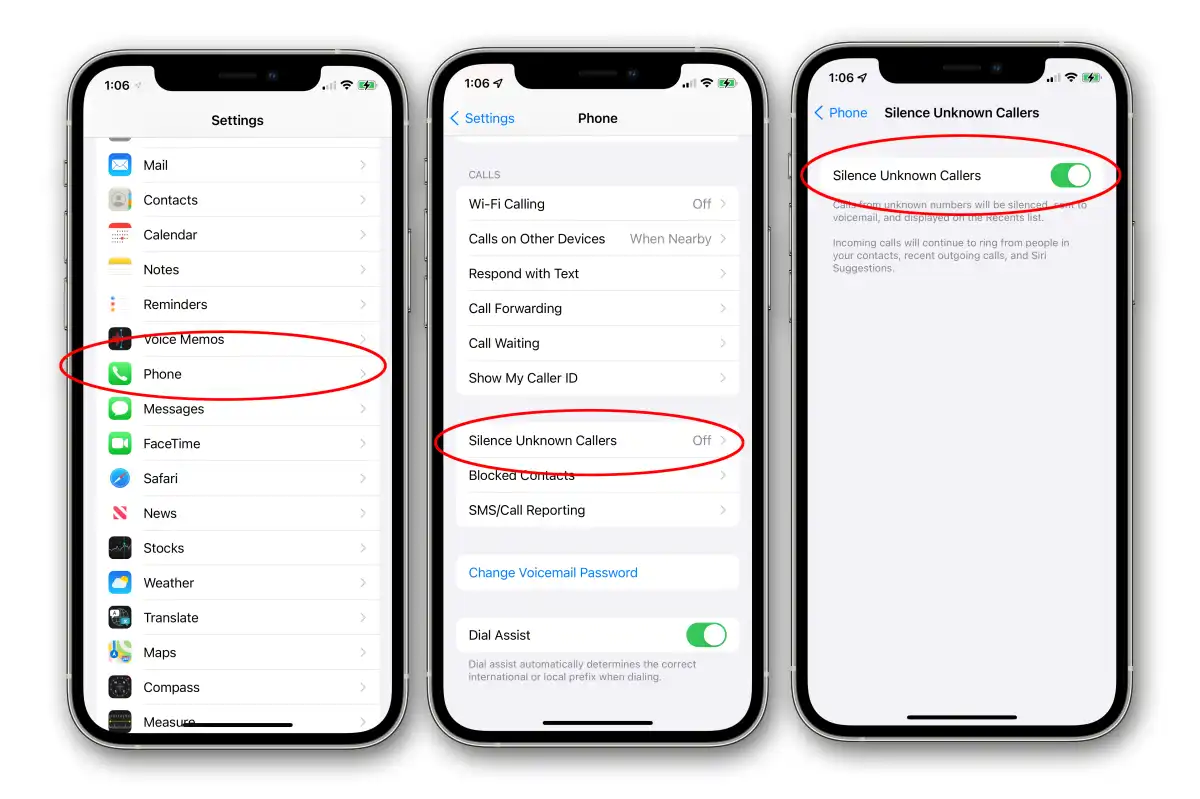
Blocking Unknown Numbers on Iphone
If you’re using an iPhone, here’s how to block unknown numbers:
- Open Settings App: Open the settings app on your iPhone.
- Select Phone: Tap on the “Phone” option from the list of settings.
- Tap on Silence Unknown Callers: Toggle the switch next to “Silence unknown callers” to ON.
That’s it! You’ve successfully blocked unknown numbers on your iPhone.
Blocking Unknown Numbers on Whatsapp
If you’re using WhatsApp, here’s how to block unknown numbers:
- Open Whatsapp App: Open the WhatsApp app on your device.
- Tap on Three Dots: Tap on the three dots at the top-right corner and select “Settings.”
- Select Account: From here, tap on “Account” and toggle the switch next to “Block contacts with no phone number” to ON.
Blocking Anonymous Numbers
If you’re receiving calls from anonymous numbers, there’s an app called Whooming that can help. Here’s how it works:
- Download Whooming: Download the Whooming app from the Play Store or App Store.
- Create Account: Create an account on Whooming by following the prompts.
- Block Anonymous Numbers: Once logged in, toggle the switch next to “Block anonymous numbers” to ON.
Conclusion
Blocking unknown numbers is a simple process that can save you from unwanted calls and maintain peace of mind. Whether you’re using an Android device, Samsung smartphone, HUAWEI phone, iPhone, or WhatsApp, we’ve got you covered with these step-by-step guides. Remember, by blocking unknown numbers, you’re taking control of your communication experience.
Frequently Asked Questions
Q: What is the best app to block unknown numbers?
A: Truecaller and Whooming are two popular apps that can help block unknown numbers.
Q: Can I block anonymous numbers on my device?
A: Yes, there are various methods to block anonymous numbers depending on your device and operating system.
Q: How do I unblock a number that was blocked by accident?
A: The process varies depending on the device, but generally, you can go to settings and toggle the switch next to “Blocked numbers” or “Unknown callers” to OFF.
Q: Can I block a number that is not in my contacts list?
A: Yes, most devices allow you to block a number even if it’s not in your contacts list.
Q: What are some other features of Truecaller and Whooming besides blocking unknown numbers?
A: Both apps offer various features such as identifying spam calls, filtering out unwanted messages, and more.
Q: How do I cancel my subscription to Truecaller or Whooming premium services?
A: You can usually find the cancellation link in your account settings or by contacting their customer support team.
Q: Can I use Truecaller or Whooming on multiple devices?
A: Yes, most apps offer cross-platform compatibility and allow you to sync your data across multiple devices.


