
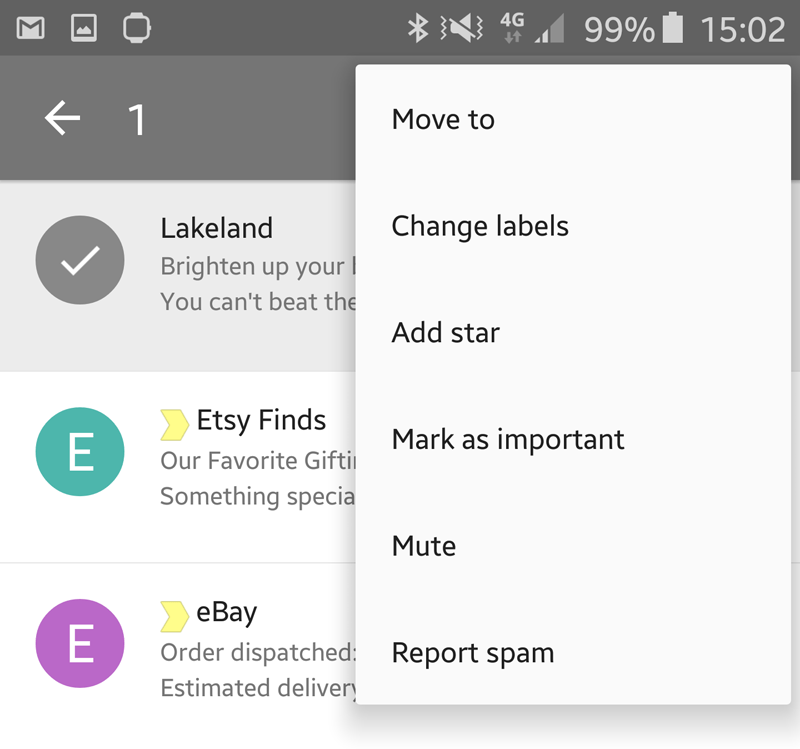
How to Block Unwanted Emails on Android: A Step-by-step Guide
Are you tired of receiving unwanted emails on your Android device? Do you find yourself struggling to manage the overwhelming number of messages in your inbox? Look no further! In this article, we will guide you through a step-by-step process on how to block unwanted emails on various email services, including Gmail, Hotmail, Libero, Virgilio, Alice, and Fastweb.
The Problem With Unwanted Emails
With the rise of digital communication, it’s not uncommon for people to receive unwanted emails in their inbox. Whether it’s spam messages, newsletter subscriptions, or messages from unknown contacts, these emails can be frustrating and time-consuming to deal with. By learning how to block unwanted emails on your Android device, you can save yourself a significant amount of time and effort.
How to Block Unwanted Emails on Gmail
If you use Gmail as your primary email service, blocking unwanted emails is relatively straightforward. Here’s what you need to do:
- Open the Gmail app on your Android device.
- Tap on an unwanted message from the contact you want to block.
- Access the contextual menu by tapping on the three dots (⋯) next to the “Reply” button.
- Select the option to “Block [name of sender]”.
This will prevent any future emails from that sender from reaching your inbox.
How to Block Unwanted Emails on Hotmail
If you use Hotmail as your email service, blocking unwanted emails is just as easy:
- Open the Outlook app on your Android device.
- Tap on an unwanted message from the contact you want to block.
- Access the menu by tapping on the three dots (⋯) in the top-right corner of the screen.
- Select the option to “Block”.
This will prevent any future emails from that sender from reaching your inbox.
How to Block Unwanted Emails on Libero
If you use Libero as your email service, blocking unwanted emails is a bit more complicated:
- Open the Free Mail app on your Android device.
- Tap on an unwanted message from the contact you want to block.
- Access the menu by tapping on the three dots (⋯) in the top-right corner of the screen.
- Select the option to “Mark as Spam”.
Unfortunately, this won’t completely block unwanted emails from reaching your inbox. However, marking them as spam can help reduce their visibility.
How to Block Unwanted Emails on Virgilio
If you use Virgilio as your email service, blocking unwanted emails is similar to Libero:
- Open the Virgil Mail app on your Android device.
- Tap on an unwanted message from the contact you want to block.
- Access the menu by tapping on the three dots (⋯) in the top-right corner of the screen.
- Select the option to “Block Sender”.
This will prevent any future emails from that sender from reaching your inbox.
How to Block Unwanted Emails on Alice
If you use Alice Mail as your email service, blocking unwanted emails is a bit more complicated:
- Open the Alice Mail app on your Android device.
- Tap on an unwanted message from the contact you want to block.
- Access the menu by tapping on the three dots (⋯) in the top-right corner of the screen.
- Select the option to “Block Sender”.
This will prevent any future emails from that sender from reaching your inbox.
How to Block Unwanted Emails on Fastweb
If you use Fast Mail as your email service, blocking unwanted emails is a bit more complicated:
- Open the Fast Mail app on your Android device.
- Tap on an unwanted message from the contact you want to block.
- Access the menu by tapping on the three dots (⋯) in the top-right corner of the screen.
- Select the option to “Block Sender”.
This will prevent any future emails from that sender from reaching your inbox.
Conclusion
Blocking unwanted emails on Android is a straightforward process, regardless of which email service you use. By following these step-by-step guides, you can save yourself time and effort by reducing the number of unwanted messages in your inbox.
Faqs
Q: What happens if I block someone who has sent me a legitimate message?
A: If you accidentally block someone who has sent you a legitimate message, you can unblock them by going to the “Blocked” section of your email app and selecting “Unblock”.
Q: Will blocking unwanted emails affect my email service’s ability to send me important notifications?
A: No, blocking unwanted emails will not affect your email service’s ability to send you important notifications.
Q: Can I block multiple contacts at once?
A: Yes, most email apps allow you to block multiple contacts at once. Check your email app’s settings for more information.
About The Author
Salvatore Aranzaulla is a blogger and computer science expert who has been featured in various Italian publications. He is also the founder of Aranzaulla.It, a popular website that provides answers to common tech-related questions.


