
How to Block Unwanted Emails on Free Email Services
Are you tired of receiving unwanted emails on your Free email account? Do you want to learn how to block these pesky messages from cluttering your inbox? Look no further! In this article, we will guide you through the simple steps to block unwanted emails on Free email services.
Understanding Unwanted Emails
Before we dive into the solution, let’s understand what unwanted emails are. These are emails that you didn’t subscribe to or requested to be sent to you. They can be spam messages, promotional emails, or even emails from unknown senders.
Blocking Unwanted Emails on Free Email Services
To block unwanted emails on your Free email account, follow these steps:
Blocking a Specific Address
- Log in to your Free email account.
- Open the email that you want to block.
- Click on the three dots at the top-right corner of the email.
- Select “Block sender” from the dropdown menu.
- Confirm that you want to block the sender.
Alternatively, you can also block a specific address by clicking on the gear icon in the top-right corner of your Free email account. Then, select “Settings,” followed by “Blocked senders.” Click on the “+” button and enter the address you want to block.
Blocking Messages Marked as Spam
- Open your Free email account.
- Go to the “Spam” folder.
- Find the message that you want to mark as spam.
- Click on the three dots at the top-right corner of the message.
- Select “Mark as spam.”
To mark multiple messages as spam, select all the messages in the Spam folder and click on the “Mark as spam” button.
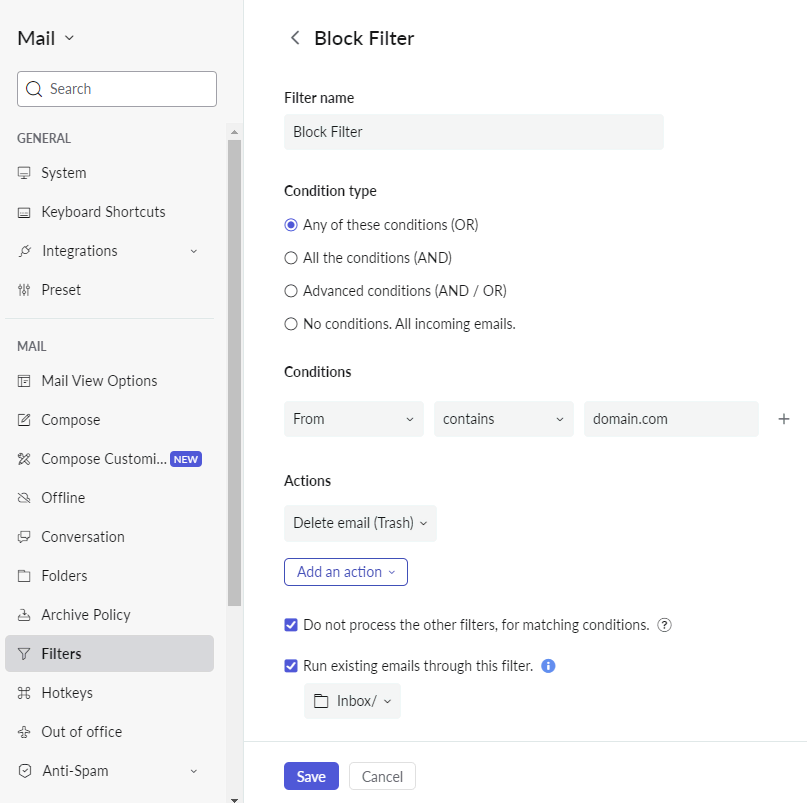
Blocking Specific Filters
- Open your Free email account.
- Go to the “Settings” section.
- Click on “Filters.”
- Create a new filter by clicking on the “+” button.
- Set up the filter criteria, such as sender address or subject line.
- Choose what action to take when the filter matches, such as moving the email to the Spam folder.
To modify an existing filter, go to the Filters section and select the filter you want to change. Then, click on the edit button to make changes.
Blocking Unwanted Emails on Mobile Devices
If you’re using a mobile device to access your Free email account, follow these steps:
- Open the Free email app.
- Tap on the gear icon in the top-right corner.
- Select “Settings.”
- Scroll down and select “Blocked senders.”
- Tap on the “+” button and enter the address you want to block.
Alternatively, you can also mark a message as spam by tapping on it, then selecting the “Mark as spam” option from the dropdown menu.
Troubleshooting Unwanted Emails
If you’re still receiving unwanted emails despite blocking them, try these troubleshooting steps:
- Check your email account settings to ensure that you have not inadvertently subscribed to any newsletters or promotional emails.
- Review your filter settings to ensure that they are set up correctly.
- Report the unwanted emails to Free’s support team by filling out a form on their website.
Conclusion
Blocking unwanted emails on Free email services is a simple and straightforward process. By following these steps, you can enjoy a clutter-free inbox and reduce the amount of spam messages in your account.
Frequently Asked Questions (FAQs)
- How do I Block a Specific Address?
To block a specific address, go to your email account settings, click on “Blocked senders,” and enter the address you want to block. - Can I Block Multiple Addresses at Once?
Yes, you can block multiple addresses by clicking on the “+” button in the Blocked senders section and entering the addresses one by one. - How do I Mark a Message as Spam?
To mark a message as spam, open your email account, go to the Spam folder, find the message you want to mark, and click on the “Mark as spam” button. - Can I Block Specific Filters?
Yes, you can block specific filters by going to your email account settings, clicking on “Filters,” and creating a new filter with the criteria you want to block. - How do I Block Unwanted Emails on Mobile Devices?
To block unwanted emails on mobile devices, open the Free email app, tap on the gear icon, select “Settings,” then scroll down and select “Blocked senders.” - Can I Report Unwanted Emails to Free’s Support Team?
Yes, you can report unwanted emails to Free’s support team by filling out a form on their website. - How do I Modify or Delete Filters?
To modify or delete filters, go to the Filters section in your email account settings and select the filter you want to change or delete. - Can I Block Specific Keywords or Phrases?
Yes, you can block specific keywords or phrases by creating a new filter with the criteria you want to block.


