
How to Block Unwanted Websites on Your Devices
As a parent or guardian, it’s natural to want to protect your children from accessing unwanted websites on their devices. With the increasing use of technology among kids, it’s essential to set boundaries and ensure they only access content suitable for their age. In this article, we’ll guide you through various methods to block unwanted websites on different platforms, including Windows, Mac, Chrome, Android, iPhone, and iPad.
Why Block Unwanted Websites?
Blocking unwanted websites is crucial in today’s digital landscape. These sites can expose children to mature content, online predators, or other dangers that may compromise their safety and well-being. By setting restrictions, you can prevent your child from accessing these types of websites, thereby creating a safer online environment for them.
Methods to Block Unwanted Websites on Windows
On Windows devices, you can utilize the built-in parental controls feature to block unwanted websites. Here’s how:
- Open Settings: Click on the Start button and select the Settings icon.
- Choose Family & Other Users: From the menu, select “Family & other users.”
- Add a New Account: Create an account for your child by clicking on the “Add” button.
- Set up Filters: In the Filters section, toggle on “Filter websites and searches not suitable for minors.”
- Choose Websites to Block: Select specific websites to block or allow only approved websites.
Methods to Block Unwanted Websites on Mac
On Mac devices, you can use the built-in parental controls feature to block unwanted websites:
- Open System Preferences: Click on the Apple menu and select “System Preferences.”
- Choose Users & Groups: From the menu, select “Users & Groups.”
- Set up Restrictions: In the Restrictions section, toggle on “Content & privacy restrictions.”
- Block Websites: Select specific websites to block or choose to allow only approved websites.
Methods to Block Unwanted Websites on Chrome
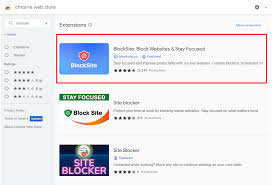
On Chrome devices, you can use extensions like BlockSite to block unwanted websites:
- Install Blocksite: Download and install the BlockSite extension from the Chrome Web Store.
- Block a Website: Click on the BlockSite icon, select “Block this site,” and confirm.
Methods to Block Unwanted Websites on Android
On Android devices, you can use the Google Family Link app to block unwanted websites:
- Install Google Family Link: Download and install the Google Family Link app.
- Set up Restrictions: In the app, set up restrictions by blocking specific websites or allowing only approved websites.
Methods to Block Unwanted Websites on Iphone
On iPhone devices, you can use the built-in Screen Time feature to block unwanted websites:
- Open Settings: Click on the Settings icon and select “Screen Time.”
- Set up Restrictions: In the Restrictions section, toggle on “Content & privacy restrictions.”
- Block Websites: Select specific websites to block or choose to allow only approved websites.
Methods to Block Unwanted Websites on Ipad
On iPad devices, you can use the same methods as for iPhone devices:
- Open Settings: Click on the Settings icon and select “Screen Time.”
- Set up Restrictions: In the Restrictions section, toggle on “Content & privacy restrictions.”
- Block Websites: Select specific websites to block or choose to allow only approved websites.
Other Solutions to Block Unwanted Websites For Kids
If you’re not satisfied with the above methods, consider using a filter like OpenDNS, which offers a DNS filtering service that can block unwanted content:
- Set up Opendns: Follow our tutorial on setting up OpenDNS for more information.
By implementing these measures, you can create a safer online environment for your child and ensure they only access content suitable for their age.
Conclusion
Blocking unwanted websites is an essential step in protecting your children from online dangers. By utilizing the methods outlined above, you can set boundaries and ensure they only access content suitable for their age. Remember to always stay up-to-date with the latest technology trends and best practices to keep your child safe online.
Faqs
- Q: What Are Some Effective Methods to Block Unwanted Websites on Windows?
A: Utilize the built-in parental controls feature by setting up filters and blocking specific websites. - Q: How Can I Block Unwanted Websites on Chrome Devices?
A: Use extensions like BlockSite or other alternative tools, such as Stay Focused or Family Link. - Q: What Are Some Ways to Block Unwanted Websites on Android Devices?
A: Utilize the Google Family Link app or install third-party apps that offer website blocking features. - Q: How Can I Block Unwanted Websites on Iphone And Ipad Devices?
A: Use the built-in Screen Time feature by setting up restrictions and blocking specific websites. - Q: What Are Some Other Solutions to Block Unwanted Websites For Kids?
A: Consider using filters like OpenDNS or implementing DNS filtering services that can block unwanted content. - Q: How Often Should I Review my Child’s Online Activity?
A: Regularly monitor your child’s online activity and adjust settings as needed to ensure their safety. - Q: Can I Block Specific Websites on Different Devices Simultaneously?
A: Yes, you can set up restrictions and block specific websites across multiple devices using the same methods outlined above. - Q: What if my Child Finds a Way to Bypass These Blocking Measures?
A: Educate your child about online safety and ensure they understand why these measures are in place.


