
How to Block Whatsapp on Android, Samsung, Huawei, Xiaomi, Oppo/oneplus/realme
Are you tired of sharing your WhatsApp account with others? Do you want to keep your conversations private? Well, you’re in luck! In this article, we’ll show you how to block WhatsApp on various devices, including Android, Samsung, Huawei, Xiaomi, and more.
Why Block Whatsapp?
Blocking WhatsApp is a great way to protect your privacy. When you share your phone with others, they might try to access your WhatsApp account without your permission. By blocking WhatsApp, you can prevent unauthorized access and keep your conversations private.
Method 1: Blocking Whatsapp on Android
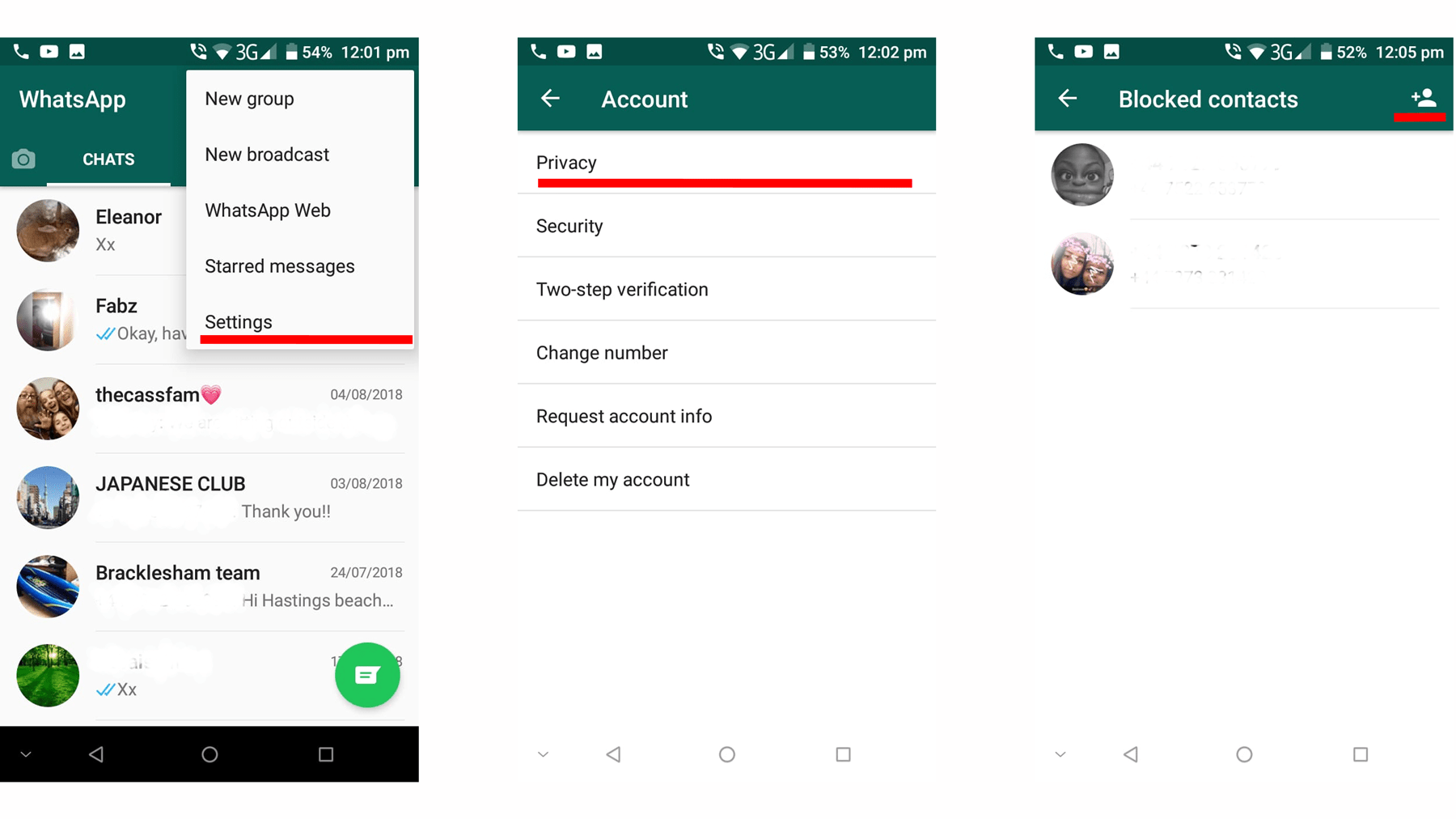
If you own an Android device, you can block WhatsApp using the built-in feature. Here’s how:
- Open WhatsApp and go to Settings.
- Tap on “Account” > “Privacy” > “Block with digital footprint”.
- Turn on the switch next to “Unblock with digital footprint”.
- Choose when you want to unblock WhatsApp (immediately, after 1 minute, or after 30 minutes).
- Select how you want to receive notifications.
- Tap on “OK” to confirm.
Method 2: Blocking Whatsapp on Samsung
If you have a Samsung device, you can block WhatsApp using the built-in feature. Here’s how:
- Open Settings and go to “Advanced Features”.
- Scroll down and tap on “Block application”.
- Select WhatsApp from the list of installed apps.
- Choose when you want to unblock WhatsApp (immediately, after 1 minute, or after 30 minutes).
- Tap on “OK” to confirm.
Method 3: Blocking Whatsapp on Huawei
If you have a Huawei device, you can block WhatsApp using the built-in feature. Here’s how:
- Open Settings and go to “Security & privacy”.
- Scroll down and tap on “Block apps”.
- Select WhatsApp from the list of installed apps.
- Choose when you want to unblock WhatsApp (immediately, after 1 minute, or after 30 minutes).
- Tap on “OK” to confirm.
Method 4: Blocking Whatsapp on Xiaomi
If you have a Xiaomi device, you can block WhatsApp using the built-in feature. Here’s how:
- Open Settings and go to “Security & updates”.
- Scroll down and tap on “Block apps”.
- Select WhatsApp from the list of installed apps.
- Choose when you want to unblock WhatsApp (immediately, after 1 minute, or after 30 minutes).
- Tap on “OK” to confirm.
Method 5: Blocking Whatsapp on Oppo/oneplus/realme
If you have an OPPO, OnePlus, or Realme device, you can block WhatsApp using the built-in feature. Here’s how:
- Open Settings and go to “Security & updates”.
- Scroll down and tap on “Block apps”.
- Select WhatsApp from the list of installed apps.
- Choose when you want to unblock WhatsApp (immediately, after 1 minute, or after 30 minutes).
- Tap on “OK” to confirm.
Blocking Whatsapp on Iphone
If you have an iPhone, you can block WhatsApp using Face ID or Touch ID. Here’s how:
- Open WhatsApp and go to Settings.
- Tap on “Account” > “Privacy” > “Block”.
- Choose when you want to unblock WhatsApp (immediately, after 1 minute, or after 30 minutes).
- Select how you want to receive notifications.
- Tap on “OK” to confirm.
Blocking Whatsapp Web
If you’ve used WhatsApp Web on a computer, you can block access to your account by following these steps:
- Open the WhatsApp app on your phone and go to Settings.
- Tap on “Devices connected”.
- Find the session connected to the computer you want to block.
- Tap on “Disconnect” to block access.
Blocking Whatsapp on a Stolen Phone
If your phone has been stolen, here’s what you can do:
- Report the theft to the authorities.
- Go to an official shop of your telephone operator and request the block of the SIM card and replacement with a new one.
- Activate WhatsApp on your new phone using the same number as before.
Conclusion
Blocking WhatsApp is a simple process that can help protect your privacy. By following these methods, you can prevent unauthorized access to your account and keep your conversations private. Remember to always report any stolen phones to the authorities and take steps to secure your account.
Frequently Asked Questions
- How do I Unblock Whatsapp?
To unblock WhatsApp, follow the same steps as blocking it, but turn off the switch next to “Unblock with digital footprint”. - Will Blocking Whatsapp Affect my Notifications?
Blocking WhatsApp will prevent unauthorized access to your account, but you can still receive notifications. - Can I Block Whatsapp on Multiple Devices at Once?
Yes, you can block WhatsApp on multiple devices using the same steps as above. - How do I Report a Stolen Phone?
Report the theft to the authorities and go to an official shop of your telephone operator to request the block of the SIM card and replacement with a new one. - Will Blocking Whatsapp Affect my Whatsapp Web Sessions?
Blocking WhatsApp will prevent access to your account, including WhatsApp Web sessions. - Can I Use a Vpn to Bypass Whatsapp’s Block Feature?
We do not recommend using a VPN to bypass WhatsApp’s block feature. - How Can I Recover my Whatsapp Account if it Has Been Blocked?
Contact WhatsApp support for help recovering your account. - Will Blocking Whatsapp Affect my Messaging Apps?
Blocking WhatsApp will only affect access to the WhatsApp app and not other messaging apps on your device.
Remember, security is everyone’s responsibility! Stay safe and secure with WhatsApp.


