
Boosting Fps on Minecraft: Tips And Tricks
Are you tired of experiencing lag and low FPS on Minecraft? Look no further! In this article, we’ll explore various tips and tricks to help you boost your FPS and enjoy a smoother gaming experience.
Why is my Minecraft Fps so Low?
Before we dive into the solutions, let’s understand why your Minecraft FPS might be low in the first place. There are several reasons for this, including:
- Insufficient system requirements
- Overloaded CPU or GPU
- Outdated graphics drivers
- Poor internet connection
Verifying System Requirements
The first step to boost your Minecraft FPS is to ensure that your system meets the minimum requirements. For Minecraft Java Edition, you’ll need:
- CPU: Intel Core i3-3210 3.2 GHz / AMD A8-7600 APU 3.1 GHz or equivalent
- RAM: 4GB
- GPU (integrated): Intel HD Graphics 4000 (Ivy Bridge) or AMD Radeon R5 series (Kaveri line)
- HDD: At least 1GB
For Minecraft Bedrock Edition, the minimum requirements are:
- OS: Windows 10 version 17134.0 Or superior
- RAM: 4GB
- CPU: Intel Celeron J4105 / AMD FX-4100
- GPU: Intel HD Graphics 4000 / AMD Radeon R5
Modifying Graphic Settings
If your system meets the minimum requirements, you can try modifying the graphic settings to boost your FPS. For Minecraft Java Edition:
- Open Minecraft and go to Options > Video
- Adjust the following parameters:
- Graphical: Set to Sophisticated or above
- Soft Lighting: Set to Minimum or No
- V-Sync: Activate or deactivate based on your monitor’s refresh rate
- Clouds: Set to Easy or No
- Particles: Set to Reduced or Minimum
- Shades of Entity: Set to No
For Minecraft Bedrock Edition:
- Open Minecraft and go to Settings > Video
- Adjust the following parameters:
- Advanced Graphics: Set to Off
- Bubbly Effects: Set to Off
- Clouds: Set to Off
- Marvellous Sky: Set to Off
- Soft Lighting: Set to Off
Installing Optifine
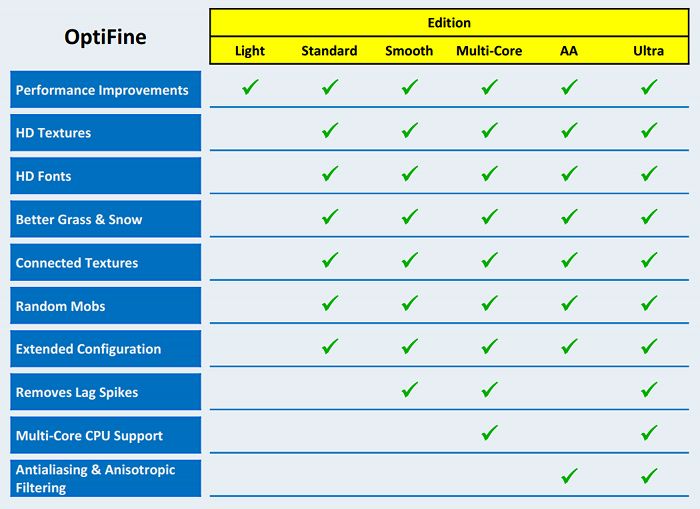
If modifying graphic settings doesn’t help, you can try installing OptiFine. This tool allows you to broaden the graphic parameters and enhance your FPS.
- Go to the official OptiFine website and download the compatible version for your Minecraft client.
- Double-click the downloaded file and follow the installation instructions.
- Launch Minecraft and select the OptiFine profile.
- Adjust the graphic settings as needed in the OptiFine options menu.
Other Tips And Tricks
In addition to modifying graphic settings and installing OptiFine, here are some other tips to help you boost your FPS:
- Update your graphics drivers
- Close unnecessary programs while gaming
- Use a software booster like Razer Cortex
- Consider upgrading your hardware (CPU, GPU, RAM)
Conclusion
Boosting your Minecraft FPS requires some tweaks to graphic settings and system requirements. By following the tips and tricks outlined in this article, you should be able to enjoy a smoother gaming experience.
Frequently Asked Questions
- Q: Why is my Minecraft FPS so low?
A: There are several reasons for this, including insufficient system requirements, overloaded CPU or GPU, outdated graphics drivers, and poor internet connection. - Q: How can I boost my Minecraft FPS?
A: You can try modifying graphic settings, installing OptiFine, updating your graphics drivers, closing unnecessary programs while gaming, using a software booster like Razer Cortex, and considering upgrading your hardware (CPU, GPU, RAM). - Q: What are the minimum system requirements for Minecraft Java Edition?
A: The minimum requirements are CPU: Intel Core i3-3210 3.2 GHz / AMD A8-7600 APU 3.1 GHz or equivalent, RAM: 4GB, and HDD: At least 1GB. - Q: What are the minimum system requirements for Minecraft Bedrock Edition?
A: The minimum requirements are OS: Windows 10 version 17134.0 Or superior, RAM: 4GB, CPU: Intel Celeron J4105 / AMD FX-4100, and GPU: Intel HD Graphics 4000 / AMD Radeon R5. - Q: Can I install OptiFine on Minecraft Bedrock Edition?
A: No, OptiFine is only compatible with Minecraft Java Edition. - Q: Will upgrading my hardware improve my Minecraft FPS?
A: Yes, upgrading your CPU, GPU, or RAM can help boost your Minecraft FPS. - Q: How often should I update my graphics drivers?
A: It’s recommended to update your graphics drivers regularly to ensure optimal performance and compatibility with the latest games and software.


