
Incognito Mode on Iphone: A Comprehensive Guide
Are you tired of your browsing history being tracked? Do you want to maintain some level of anonymity online? Look no further! In this article, we will explore the concept of incognito mode on an iPhone and provide a step-by-step guide on how to activate it.
What is Incognito Mode?
Incognito mode, also known as private browsing, is a feature that allows you to browse the internet without leaving any history or cookies behind. This means that your browsing activity will not be tracked by websites or advertising companies.
Why Use Incognito Mode?
There are several reasons why you might want to use incognito mode:
- To maintain anonymity online
- To avoid tracking by websites or advertising companies
- To keep your browsing history private
- To access websites that may not work properly in regular browsing mode
How to Activate Incognito Mode on Iphone
Activating incognito mode on an iPhone is relatively simple. Here’s a step-by-step guide:
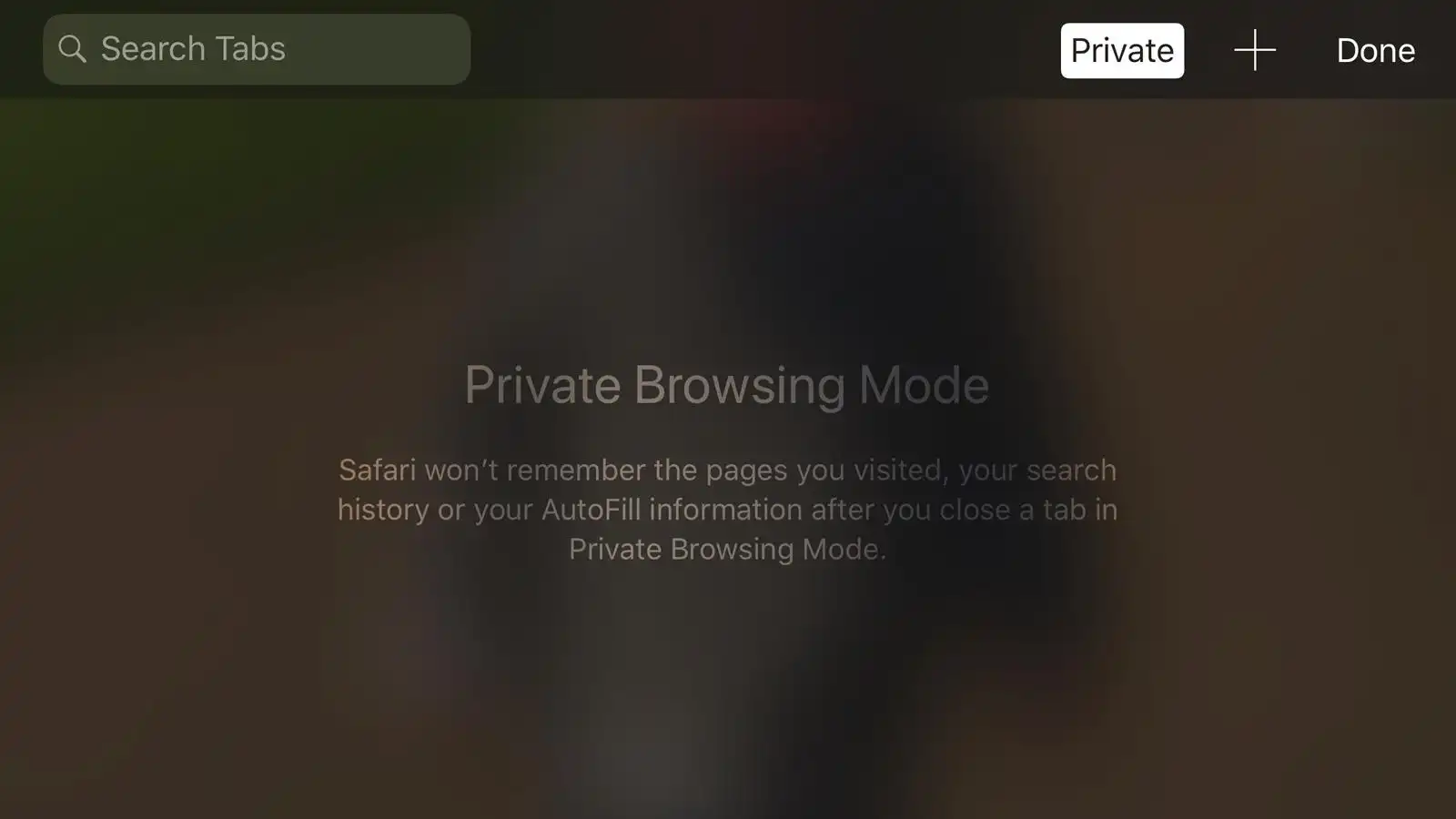
To activate incognito mode on an iPhone using Safari, follow these steps:
- Open the Safari browser
- Tap on the two squares icon in the bottom menu
- Select the “Private” option from the list
- Tap on the “+” button to open a new panel and start browsing in private mode
How to Use Incognito Mode With Google Chrome on Iphone
To activate incognito mode using Google Chrome, follow these steps:
- Open the Google Chrome browser
- Tap on the three dots icon in the top-right corner
- Select the “New incognito tab” option from the list
- Start browsing in private mode
How to View Browsing History in Incognito Mode
Unfortunately, it’s not possible to view your browsing history while using incognito mode. However, if you’re a parent and want to monitor your child’s online activity, there are some third-party apps that can help.
- Famisafe: This app allows parents to track their child’s internet usage, including browsing history.
- Ikeymonitor: Another popular app for monitoring online activity.
How to Deactivate Incognito Mode on Iphone
To deactivate incognito mode and return to regular browsing mode, follow these steps:
- Close all open panels in private mode
- Tap on the two squares icon in the bottom menu
- Select the “Page opening” option from the list
How to Deactivate Incognito Mode With Google Chrome on Iphone
- Close all open private tabs
- Tap on the three dots icon in the top-right corner
- Select the “New tab” option from the list
Conclusion
Incognito mode is a useful feature that can help you maintain some level of anonymity online. By following these steps, you can easily activate and deactivate incognito mode on your iPhone.
Frequently Asked Questions (FAQs)
- Q: What happens when I close Safari or turn off my iPhone while using incognito mode?
A: Your browsing history will not be saved. - Q: Can I view my browsing history in incognito mode?
A: No, it’s not possible to view your browsing history while using incognito mode. - Q: How do I monitor my child’s online activity?
A: You can use third-party apps like FamiSafe or iKeyMonitor to track their internet usage. - Q: Is incognito mode the same as a VPN?
A: No, incognito mode is not the same as a VPN. A VPN will encrypt your internet traffic and mask your IP address. - Q: Can I use incognito mode with all browsers on my iPhone?
A: Yes, you can activate incognito mode using Safari or Google Chrome. - Q: How do I deactivate incognito mode?
A: Simply close all open private tabs or panels and return to regular browsing mode. - Q: Will websites still be able to track me while using incognito mode?
A: No, incognito mode will prevent websites from tracking your activity. - Q: Can I use incognito mode on other devices, such as my computer or tablet?
A: Yes, many web browsers have an incognito mode feature that you can activate on various devices.
By understanding the basics of incognito mode and following these steps, you can enjoy a higher level of online anonymity and security.


