
How to Sail in Incognito Mode on The Internet
Are you tired of leaving a digital trail every time you browse the web? Do you want to maintain your online privacy without sacrificing functionality? Then learning how to sail in incognito mode is a must!
In this article, we’ll explore what incognito mode is, its benefits and limitations, and provide step-by-step guides on how to enable it on popular browsers like Google Chrome, Mozilla Firefox, Microsoft Edge, and Safari. We’ll also touch on how to use incognito mode on mobile devices, LinkedIn, Facebook, and YouTube.
What is Incognito Mode?
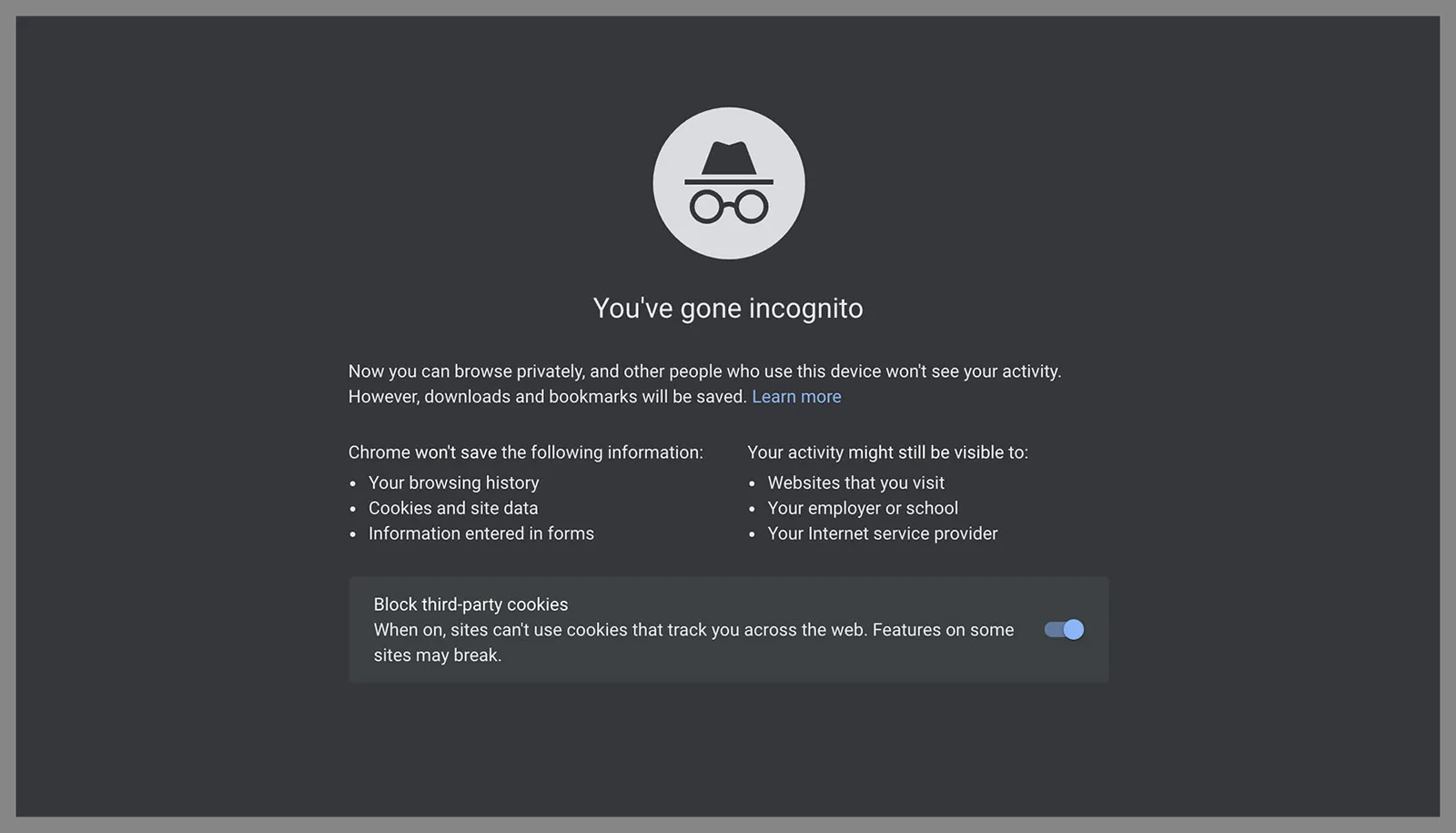
Incognito mode, also known as private browsing or anonymous browsing, is a feature that allows you to browse the web without storing any data in your browser’s cache, cookies, or history. This means that websites won’t be able to track your online activities, and your browser won’t save any information about the sites you visit.
Benefits of Incognito Mode
- Enhanced Privacy: By not storing any data, incognito mode ensures that your browsing activities remain private.
- Security: You can browse sensitive websites or make purchases without worrying about compromising your personal info.
- Convenience: Incognito mode helps you quickly clear your browser’s cache and cookies without having to manually delete them.
Limitations of Incognito Mode
- Limited Protection: While incognito mode protects your browsing activities within the browser, it doesn’t safeguard against external tracking or data collection by websites.
- No Anonymity Online: Your IP address and other identifying information are still visible when you browse in incognito mode.
- Some Features Might Not Work: Certain extensions or features might not function properly in incognito mode.
How to Use Incognito Mode on Google Chrome
To use incognito mode on Google Chrome:
- Click the three dots in the top-right corner of your browser window.
- Select “New incognito window” from the menu.
- Alternatively, press Ctrl + Shift + N (Windows) or Cmd + Shift + N (Mac) to open a new incognito window.
How to Use Incognito Mode on Mozilla Firefox
To use incognito mode on Mozilla Firefox:
- Click the three dots in the top-right corner of your browser window.
- Select “New private window” from the menu.
- Alternatively, press Ctrl + Shift + P (Windows) or Cmd + Shift + P (Mac) to open a new private window.
How to Use Incognito Mode on Microsoft Edge
To use incognito mode on Microsoft Edge:
- Click the three dots in the top-right corner of your browser window.
- Select “New InPrivate window” from the menu.
- Alternatively, press Ctrl + Shift + N (Windows) or Cmd + Shift + N (Mac) to open a new InPrivate window.
How to Use Incognito Mode on Safari
To use incognito mode on Safari:
- Click “File” in the top-left corner of your browser window.
- Select “New Private Window” from the menu.
- Alternatively, press Cmd + Shift + N (Mac) to open a new private window.
How to Use Incognito Mode on Mobile Devices
To use incognito mode on mobile devices:
- Android: Open Google Chrome and tap the three dots in the top-right corner of your screen. Select “New incognito tab” from the menu.
- Ios/ipados: Open Safari and tap the two squares in the bottom-left corner of your screen. Tap the “Private” button.
How to Use Incognito Mode on Linkedin
To use incognito mode on LinkedIn:
- Access your profile and click the three dots in the top-right corner.
- Select “Settings & privacy” from the menu.
- Click “Visibility” and select the first option, “Your name and summary.”
How to Use Incognito Mode on Facebook
To use incognito mode on Facebook:
- Follow our guides on how to use incognito mode on mobile devices or desktop browsers.
How to Use Incognito Mode on Youtube
To use incognito mode on YouTube:
- Open the YouTube app.
- Tap your profile picture in the top-right corner.
- Select “Active” and toggle off “Navigation in incognito.”
Other Solutions For Anonymous Browsing
While incognito mode provides some protection, it’s not foolproof against external tracking or data collection. To truly safeguard your online activities:
- Use a Vpn: Virtual private networks encrypt your internet traffic and hide your IP address.
- Explore Alternative Browsers: Some browsers, like Tor, prioritize anonymity and security.
Conclusion
Incognito mode is an excellent way to maintain your online privacy while browsing the web. By understanding its benefits and limitations, you can choose when to use this feature to protect your sensitive information or personal data.
Frequently Asked Questions (FAQs)
- Q: Is Incognito Mode Safe?
A: Incognito mode is generally secure, but it doesn’t safeguard against external tracking or data collection. - Q: Will my Browsing History be Deleted in Incognito Mode?
A: Yes, your browsing history will be cleared when you exit incognito mode. - Q: Can I Use Extensions in Incognito Mode?
A: Some extensions might not work properly in incognito mode, so it’s essential to check compatibility before installing them. - Q: Is Incognito Mode Available on All Browsers?
A: Yes, most modern web browsers support incognito mode, including Google Chrome, Mozilla Firefox, Microsoft Edge, and Safari. - Q: Can I Use Incognito Mode on Mobile Devices?
A: Yes, you can enable incognito mode on both Android and iOS devices using the Google Chrome or Safari browser. - Q: Is it Possible to Disable Tracking Online Without Using a Vpn?
A: While incognito mode helps, it’s not foolproof against external tracking. Using a VPN is still the most effective way to protect your online activities.
Remember, understanding how to use incognito mode and taking additional security measures can help you maintain your online privacy and security.


