
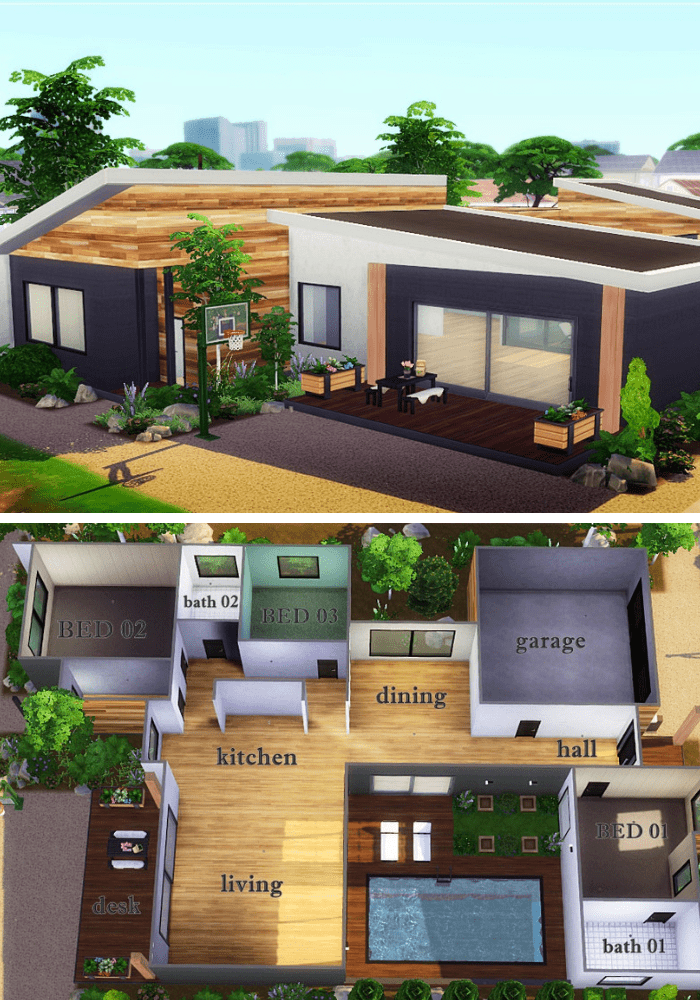
How to Construct a House on The Sims 4: A Step-by-step Guide
Are you ready to embark on an exciting adventure in the world of The Sims 4? If yes, then you’re in the right place! In this article, we’ll take you through a step-by-step guide on how to construct a house on The Sims 4. From building a simple house to creating a beautiful mansion, we’ll cover everything you need to know.
Introduction
The Sims 4 is a popular life simulation game that allows players to create and control their own characters, build homes, and explore various careers. One of the most exciting aspects of the game is building and designing homes for your Sims. In this article, we’ll show you how to construct a house on The Sims 4, including tips and tricks for creating a beautiful and functional home.
Choosing Your Lot
Before you start building your house, you need to choose a lot. A lot is a virtual piece of land where your Sim will live. You can choose from various lots available in the game or create your own using the “Create-a-Lot” tool. Make sure to select a lot that suits your Sims’ needs and preferences.
Step 1: Create Your Foundation
To build a house, you need to start with a foundation. The foundation is the base of your home, and it will determine the overall structure and design of your building. To create a foundation, follow these steps:
- Select the “Construct” tool from the toolbar.
- Choose the “Foundation” option from the menu.
- Select the type of foundation you want to build (e.G., Concrete, wood, or stone).
- Use the mouse to draw the foundation on the lot.
Step 2: Build Your Walls
Once you have created your foundation, it’s time to build your walls. The walls will provide a structure for your home and can be customized with various materials and designs. To build your walls, follow these steps:
- Select the “Walls” tool from the toolbar.
- Choose the type of wall material you want to use (e.G., Brick, wood, or glass).
- Use the mouse to draw the walls on the lot, following the outline of your foundation.
Step 3: Add Windows And Doors
Windows and doors are essential elements of a house. They provide natural light, ventilation, and access to the outdoors. To add windows and doors, follow these steps:
- Select the “Windows” tool from the toolbar.
- Choose the type of window you want to use (e.G., Single, double, or skylight).
- Use the mouse to place the windows on your walls.
- Select the “Doors” tool from the toolbar.
- Choose the type of door you want to use (e.G., Front, back, or side door).
- Use the mouse to place the doors on your walls.
Step 4: Create a Roof
A roof is an essential part of any house. It provides shelter and protection from the elements. To create a roof, follow these steps:
- Select the “Roof” tool from the toolbar.
- Choose the type of roof material you want to use (e.G., Shingles, tiles, or glass).
- Use the mouse to draw the roof on your house.
Step 5: Add Finishing Touches
Once you have built and designed your house, it’s time to add the finishing touches. This includes adding furniture, decorations, and other elements that will make your home cozy and inviting. To add these elements, follow these steps:
- Select the “Furniture” tool from the toolbar.
- Choose the type of furniture you want to use (e.G., Sofa, bed, or kitchen table).
- Use the mouse to place the furniture in your house.
- Select the “Decorations” tool from the toolbar.
- Choose the type of decoration you want to use (e.G., Paintings, rugs, or vases).
- Use the mouse to place the decorations in your house.
How to Construct a House to Two Pianos on The Sims 4
If you have a large family and need more space, you can construct a house with two pianos. To do this, follow these steps:
- Select the “Construct” tool from the toolbar.
- Choose the “House with two pianos” option from the menu.
- Follow the same steps as above to build your walls, add windows and doors, create a roof, and add finishing touches.
Tips And Tricks
Here are some tips and tricks to help you construct a beautiful house on The Sims 4:
- Use the “Create-a-Lot” tool to design your own lot.
- Experiment with different materials and designs for your walls, windows, and doors.
- Add a pool or hot tub to create an outdoor oasis.
- Use the “Gallery” feature to download and import rooms from other players.
- Don’t forget to add finishing touches, such as furniture, decorations, and lighting.
Conclusion
Constructing a house on The Sims 4 can be a fun and creative experience. By following these steps and tips, you’ll be able to build a beautiful and functional home for your Sim. Remember to experiment with different materials and designs to create a unique and personalized space. Happy building!
Faqs
Q: What are the requirements for building a house on The Sims 4?
A: You need to have the game installed on your computer or console, as well as a valid license key.
Q: Can I build a house with multiple levels?
A: Yes, you can build a house with multiple levels by using the “Create-a-Lot” tool and designing your own lot.
Q: How do I add finishing touches to my house?
A: You can add furniture, decorations, lighting, and other elements to your house using the various tools available in the game.
Q: Can I download and import rooms from other players?
A: Yes, you can use the “Gallery” feature to download and import rooms from other players.
Q: What are some tips for building a beautiful house on The Sims 4?
A: Experiment with different materials and designs, add a pool or hot tub, and don’t forget to add finishing touches such as furniture, decorations, and lighting.
Q: Can I build a house with two pianos?
A: Yes, you can build a house with two pianos by selecting the “House with two pianos” option from the menu and following the same steps as above.
Q: How do I get started with building a house on The Sims 4?
A: Simply launch the game, select the “Construct” tool, and follow the on-screen instructions to build your dream home!


