
How to Masterize a Dvd With 4.7 GB Capacity: A Step-by-step Guide
Are you tired of running out of space on your classic DVDs? Do you want to save videos and other types of files on a diskette, even if the dimensions are greater than 4.7 GB? Look no further! In this guide, we will show you how to masterize a DVD with 4.7 GB capacity using the Dual-Layer (or Double-Layer) technology.
What is a Dual-layer Dvd?
A Dual-Layer DVD is a type of DVD that has double the capacity of a standard DVD. It can store up to 8.5 GB of data, making it an ideal solution for saving large files and videos. The Dual-Layer DVD looks and operates just like a classic DVD, but its inner layer allows for more storage space.
Where Can I Buy a Dual-layer Dvd?
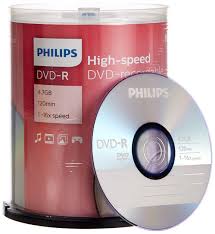
You can find Dual-Layer DVDs on online marketplaces such as Amazon. Look for products with the acronym DVD+R DL or Double-Layer. Some popular brands that offer Dual-Layer DVDs include Philips and Verbatim.
How to Masterize a Dvd With 4.7 GB Capacity: Windows Edition
If you have a computer running Windows, you can use the built-in function to masterize your DVD. Here’s how:
- Insert the Dual-Layer DVD into your computer’s DVD drive.
- Access the File Explorer by clicking on the icon in the taskbar or searching for it in the Start menu.
- Click on the “This PC” option in the left-hand menu, then click on the DVD drive to select it.
- Drag the file you want to masterize onto the DVD drive icon.
- Right-click on the DVD drive icon and select “Burn” to start the masterization process.
How to Masterize a Dvd With 4.7 GB Capacity: Macos Edition
If you’re using a Mac, you can use the built-in function to masterize your DVD as well:
- Insert the Dual-Layer DVD into your computer’s DVD drive.
- Open the Finder by clicking on its icon in the dock or searching for it in Spotlight.
- Click on the “Data” or “Video” option in the top menu bar, depending on the type of file you want to masterize.
- Drag the file onto the DVD icon in the sidebar.
- Select the DVD drive as the destination and choose the speed of writing.
Using Cdburnerxp For Masterization
If you’re not satisfied with the built-in function or prefer a more user-friendly interface, you can use CDBurnerXP to masterize your DVD. This free program is available for Windows and allows for more customization options:
- Download and install CDBurnerXP from its official website.
- Insert the Dual-Layer DVD into your computer’s DVD drive.
- Launch CDBurnerXP and select the “Disc” or “DVD Video” option, depending on the type of file you want to masterize.
- Drag the file onto the CDBurnerXP window.
- Select the DVD drive as the destination and choose the speed of writing.
Using Burn For Masterization
If you’re using a Mac, you can use the Burn program to masterize your DVD:
- Download and install Burn from its official website.
- Insert the Dual-Layer DVD into your computer’s DVD drive.
- Launch Burn and select the “Data” or “Video” option, depending on the type of file you want to masterize.
- Drag the file onto the Burn window.
- Select the DVD drive as the destination and choose the speed of writing.
Conclusion
Masterizing a DVD with 4.7 GB capacity using Dual-Layer technology is a simple process that can be done using either Windows or macOS. With this guide, you should now have all the necessary information to masterize your DVDs like a pro! If you have any questions or need further assistance, feel free to ask.
Faqs
- What is The Difference Between a Dual-layer Dvd And a Standard Dvd?
A Dual-Layer DVD has double the capacity of a standard DVD, with up to 8.5 GB of storage space. - Can I Use a Dual-layer Dvd on Any Computer or Reader?
Yes, Dual-Layer DVDs are compatible with most DVD readers and computers, including those running Windows and macOS. - How Long Does it Take to Masterize a Dvd?
The time it takes to masterize a DVD depends on the speed of writing and the size of the file being saved. - Can I Masterize Multiple Files at Once?
Yes, you can masterize multiple files onto a single Dual-Layer DVD. - Is Cdburnerxp Compatible With Macos?
No, CDBurnerXP is only available for Windows. - What is The Best Program to Use For Mastering Dvds on Macos?
Burn is a popular and user-friendly program for mastering DVDs on macOS. - Can I Convert Videos to Dvd Format Using These Programs?
Yes, you can convert videos to DVD format using some of the programs mentioned in this guide. - How do I Ensure That my Mastered Dvds Are Compatible With Different Devices?
To ensure compatibility, make sure to select the correct format and settings when mastering your DVDs.


