
How to Masterize With Windows 7: A Step-by-step Guide
Are you searching for a way to masterize with Windows 7, but don’t know which options to choose? You’ve come to the right place! In this article, we’ll show you how to create disks that are tailored to your needs, from classic CD/DVDs with documents and data to DVD videos and audio CDs.
Masterizing With Built-in Windows 7 Functions
Windows 7 includes a range of built-in functions dedicated to masterization. We’ll explore the most important ones and learn how to use them effectively.
Creating a Common CD or Dvd
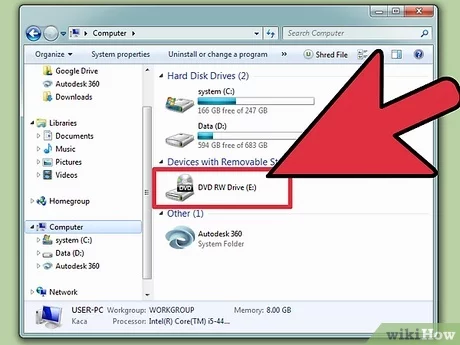
To create a common CD or DVD, you don’t need to do anything other than insert an empty disk into your masterizer and click on the “Masterizza” option in the AutoPlay window that opens. If no window appears, click on the Start button, select Computer, and double-click on the icon for the CD/DVD.
Choosing The Type of Diskette
Choose the type of diskette you want to create: A standard CD/DVD, a rewritable CD/DVD, or an ISO image file.
Creating a Rewritable Cd/dvd
To create a rewritable CD/DVD, follow these steps:
- Insert an empty disk into your masterizer.
- Click on the “Masterizza” option in the AutoPlay window that opens.
- Choose the type of diskette you want to create: A standard CD/DVD or a rewritable CD/DVD.
Creating an Iso Image File
To create an ISO image file, follow these steps:
- Insert a blank disk into your masterizer.
- Right-click on the file you want to masterize and select “Property”.
- Click on the “Capsize” button and select the “Immagine disc” option.
- Choose the type of diskette you want to create: An ISO image file.
Masterizing With Windows Media Player
Did you know that you can also use Windows Media Player to masterize audio CDs? Follow these steps:
- Insert a blank CD into your CD burner.
- Open Windows Media Player and select the “Music” tab.
- Drag the musical pieces you want to masterize onto the CD in the player.
- Select the “CD audio” option from the menu.
- Click on the “Masterizza” button.
Masterizing a Dvd Video
Do you need to create a DVD video with your living room DVD player? Windows 7 includes a built-in tool called Windows DVD Maker that makes it easy to do so.
Creating a Dvd Video
To create a DVD video, follow these steps:
- Insert a blank disk into your masterizer.
- Open the Windows DVD Maker application.
- Select the “Choose photo and video” option.
- Choose the video you want to masterize.
- Assign a title to your DVD.
Masterizing an Iso Image File
Have you downloaded a file image in ISO format but don’t know how to masterize it? Fear not! Windows 7 includes a built-in tool that makes it easy to do so.
Masterizing an Iso Image File
To masterize an ISO image file, follow these steps:
- Insert a blank disk into your masterizer.
- Right-click on the file you want to masterize and select “Property”.
- Click on the “Capsize” button and select the “Immagine disc” option.
- Choose the type of diskette you want to create: An ISO image file.
Using Alternative Masterization Software
If the built-in Windows 7 functions don’t meet your needs, there are alternative masterization software programs available that can expand these functionalities or make them more accessible and fast.
Cdburnerxp
CDBurnerXP is a free software program that allows you to create CDs and DVDs of data, audio CDs, DVD videos (splitting of video already converted), and copy existing diskettes.
Imgburn
ImgBurn is another alternative masterization software program that can be used to masterize rows ISO or other formats of rows image.
Conclusion
Masterizing with Windows 7 doesn’t have to be a difficult task. With this guide, you should now know how to create disks that are tailored to your needs, from classic CD/DVDs with documents and data to DVD videos and audio CDs.
Faqs
Q: What is the best software for masterization with Windows 7?
A: CDBurnerXP and ImgBurn are two alternative software programs that can be used for masterization with Windows 7.
Q: How do I create a CD or DVD with documents and data?
A: To create a CD or DVD with documents and data, insert an empty disk into your masterizer and click on the “Masterizza” option in the AutoPlay window that opens.
Q: Can I use Windows Media Player to masterize audio CDs?
A: Yes, you can use Windows Media Player to masterize audio CDs.
Q: How do I create a DVD video with my living room DVD player?
A: To create a DVD video with your living room DVD player, insert a blank disk into your masterizer and open the Windows DVD Maker application.
Q: Can I use alternative software programs for masterization with Windows 7?
A: Yes, you can use CDBurnerXP, ImgBurn, or other alternative software programs for masterization with Windows 7.


