
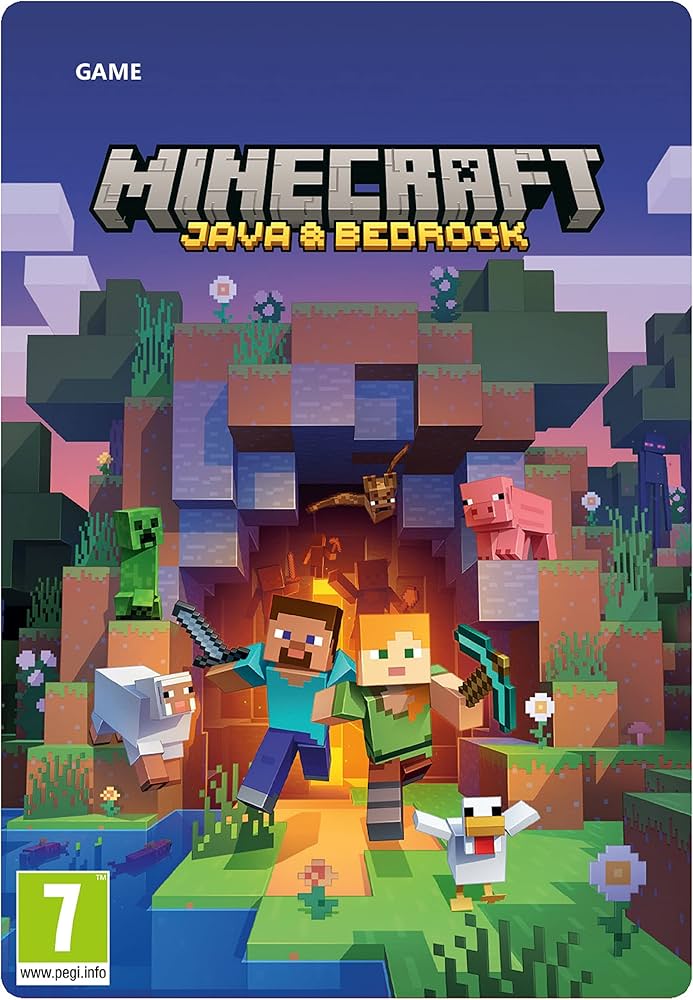
Buying Minecraft For Pc: A Comprehensive Guide
Are you ready to unlock the magic of Minecraft on your computer? Look no further! In this article, we’ll guide you through the process of buying Minecraft for PC, exploring the different editions available, and providing step-by-step instructions on how to install it.
Choosing The Right Edition
Minecraft comes in various editions, each with its own set of features. Before making a purchase, let’s take a look at the options:
- Java Edition: This is the original edition of Minecraft, suitable for PC users who want the classic gaming experience.
- Bedrock Edition: This version is designed for cross-platform play, allowing you to join friends on other devices like Xbox, PlayStation, and mobile.
Why Choose Bedrock?
The Bedrock Edition is an excellent choice if you want a seamless gaming experience across different platforms. With this edition, you can:
- Play with friends on PC, Xbox, PlayStation, and mobile
- Access exclusive content and updates
- Enjoy a more modern and streamlined gameplay experience
System Requirements
Before installing Minecraft, ensure your PC meets the minimum system requirements:
- Operating System: Windows 10 or later
- Processor: Intel Core i5 or AMD equivalent
- RAM: 4 GB or more
- Graphics Card: NVIDIA GeForce GTX 660 or AMD Radeon HD 7870
Step-by-step Installation Guide
Follow these steps to install Minecraft on your PC:
Install Minecraft Java Edition
- Visit the official Minecraft website and click on the “Get Minecraft” button.
- Choose the Java Edition option and select your desired plan (Single Player, Multiplayer, or Realm).
- Click on the “Download” button and follow the installation prompts.
- Launch the game and log in with your Microsoft account to access all features.
Install Minecraft Bedrock Edition
- Visit the Microsoft Store and search for Minecraft Bedrock Edition.
- Select the game and click on the “Get” button.
- Follow the installation prompts, ensuring you’re signed in with your Microsoft account.
- Launch the game and enjoy the seamless gaming experience.
Tips And Variations
- If you’re interested in purchasing the Deluxe Edition, which includes additional content and features, follow the same installation process as above.
- For a more budget-friendly option, consider subscribing to Xbox Game Pass for PC, which often includes Minecraft: Java & Bedrock Editions.
- Don’t forget to check the system requirements and update your device regularly to ensure smooth gameplay.
Conclusion
Buying Minecraft for PC is easier than ever! With this comprehensive guide, you’ll be able to choose the right edition for your needs and enjoy a seamless gaming experience. Whether you’re a seasoned player or new to the world of Minecraft, we hope this article has provided you with valuable insights and tips to enhance your gameplay.
Frequently Asked Questions
- What’s The Difference Between Java And Bedrock Editions?
The main difference lies in their cross-platform capabilities and exclusive content. - Can I Play Minecraft on my Mac or Linux Device?
Yes, but only with the Java Edition. The Bedrock Edition is not compatible with these operating systems. - How do I Update my Minecraft Game?
Launch the game and check for updates within the in-game menu. - What’s The Minimum System Requirement For Minecraft?
Refer to the official Minecraft website or consult our guide for detailed system requirements. - Can I Downgrade my Minecraft Version?
Yes, but only temporarily, and only if Apple allows it during a brief window after an update. - How do I Cancel an Update on my Iphone?
Consult our dedicated guide for step-by-step instructions on how to undo updates.
Still Confused?
Feel free to reach out to us with any questions or concerns!


