
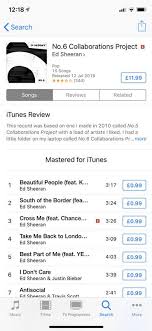
How to Acquire Music, Movies, Books, And More on Itunes
Are you an avid user of Apple devices? Do you want to know how to acquire your favorite music, movies, books, and more on iTunes? Look no further! In this comprehensive guide, we will walk you through the step-by-step process of acquiring content on iTunes using your iPhone, iPad, Mac, or PC.
Methods of Payment to Acquire on Itunes
Before we dive into the details, let’s take a look at the various methods of payment accepted by iTunes. You can use Apple Pay, your own PayPal account, credit/debit cards from Visa, MasterCard, and American Express, or even debit your phone bill using services like TIM and WINDTRE.
Additionally, you can purchase an iTunes Card, which is a prepaid card that can be used to make purchases on the iTunes Store. This card can be bought in physical format at Apple Stores or authorized retailers, or digitally online.
Acquiring Music, Movies, Books, And More on Itunes
Now that we’ve covered the methods of payment, let’s move on to the actual process of acquiring content on iTunes.
Acquiring Music, Movies, Books, And More on Iphone/ipad
- To start, access the Settings app on your device.
- Tap on your name at the top of the screen, then select “Payment & Purchases.”
- Check the form of payment associated with your Apple ID.
- If you haven’t added a payment method yet, tap “Add Payment Method” and follow the prompts to add Apple Pay, a credit/debit card, PayPal, or debit your phone bill using services like TIM or WINDTRE.
Once you’ve set up your payment method, you’re ready to start acquiring content on iTunes!
- Open the iTunes Store app.
- Tap on the tab for Music, Movies, TV Shows, or Audiobooks.
- Browse through the available content and find what you want to acquire.
- Tap on the price button next to the item to purchase it.
To confirm your purchase, enter your password (or use Touch ID/Face ID) and tap “Buy Now.”
Acquiring Music, Movies, Books, And More on Pc/windows
If you’re using a PC or Windows device, you can still acquire content on iTunes. Here’s how:
- First, make sure you have the latest version of iTunes installed.
- If you don’t already have it, download and install iTunes from the Microsoft Store (for Windows 10) or from Apple’s official website.
Once you’ve got iTunes set up, follow these steps:
- Open iTunes and sign in with your Apple ID.
- Tap on the “Account” menu at the top left corner of the screen.
- Select “View My Account.”
- Check the form of payment associated with your Apple ID.
- If you haven’t added a payment method yet, click “Manage Payments” and follow the prompts to add Apple Pay, a credit/debit card, PayPal, or debit your phone bill using services like TIM or WINDTRE.
Now that you’ve set up your payment method, you can start acquiring content on iTunes!
- Tap on the tab for Music, Movies, TV Shows, or Audiobooks.
- Browse through the available content and find what you want to acquire.
- Click on the price button next to the item to purchase it.
To confirm your purchase, enter your password (or use Touch ID/Face ID) and click “Buy Now.”
Acquiring Music, Movies, Books, And More on Mac
If you’re using a Mac with macOS Mojave or earlier, the process is similar to acquiring content on iTunes using a PC/Windows device.
- Open iTunes and sign in with your Apple ID.
- Tap on the “Account” menu at the top left corner of the screen.
- Select “View My Account.”
- Check the form of payment associated with your Apple ID.
- If you haven’t added a payment method yet, click “Manage Payments” and follow the prompts to add Apple Pay, a credit/debit card, PayPal, or debit your phone bill using services like TIM or WINDTRE.
Now that you’ve set up your payment method, you can start acquiring content on iTunes!
- Tap on the tab for Music, Movies, TV Shows, or Audiobooks.
- Browse through the available content and find what you want to acquire.
- Click on the price button next to the item to purchase it.
To confirm your purchase, enter your password (or use Touch ID/Face ID) and click “Buy Now.”
Acquiring Music, Movies, Books, And More in The Us
If you’re using an Apple device in the United States, you might need to modify your Apple ID settings before acquiring content on iTunes.
- Go to Settings > [your name] > iTunes & App Store.
- Tap on “View Apple ID.”
- Select “Country/Region” and choose the US from the list.
- Follow the prompts to accept the terms and conditions of the services Apple provides in the United States.
Once you’ve modified your settings, you can start acquiring content on iTunes using the same steps outlined above.
What’s Next?
With these simple steps, you should be able to acquire music, movies, books, and more on iTunes using your iPhone, iPad, Mac, or PC. Remember to always use a valid payment method and follow the prompts to complete your purchase.
Stay tuned for more tutorials and guides from our team of experts!
Sources:
- Mondadori Computer Science
- The Messenger (Italian newspaper)
Hope this helps! Let me know if you have any further questions or need more clarification on anything.


