
How to Acquire on App Store Without Card of Credit
Are you tired of using your credit card to make purchases on the App Store? Do you want to explore other options for payment? Look no further! In this article, we will guide you through the process of acquiring apps and subscriptions on the App Store without a credit card.
Overview of Payment Options on App Store
The App Store offers various payment options, including PayPal, debit card, Apple Pay, and balance Apple. Each option has its own requirements and procedures for setting up and using.
Paypal as a Payment Option
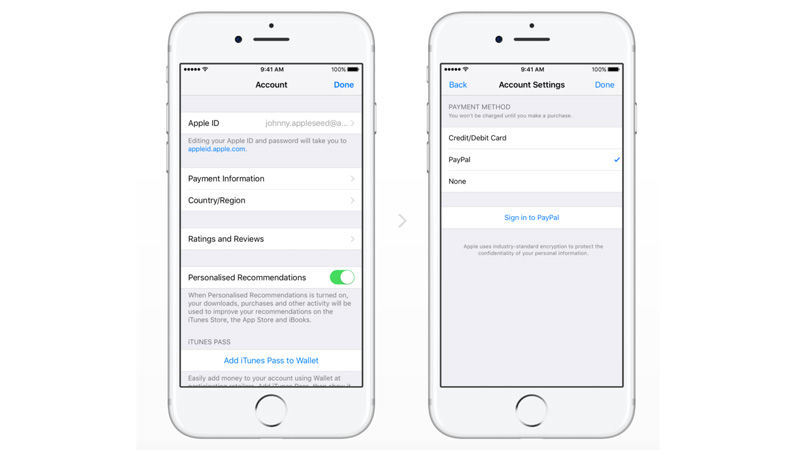
One popular payment option is PayPal. To set up PayPal as a payment method on the App Store:
- Access Settings: On your iPhone or iPad, go to Settings > [Your Name] > Password & Security.
- Add Paypal: Tap “Add Payment Method” and select PayPal from the list of available options.
- Enter Paypal Credentials: Enter your PayPal email address and password, then tap “Next.”
- Verify Paypal Account: Verify your PayPal account by following the on-screen instructions.
- Set Paypal as Default Payment Method: If you want to use PayPal as your default payment method, tap the toggle next to “PayPal” to enable it.
Debit Card as a Payment Option
Another option is debit card. To set up a debit card as a payment method on the App Store:
- Access Settings: On your iPhone or iPad, go to Settings > [Your Name] > Password & Security.
- Add Debit Card: Tap “Add Payment Method” and select Debit Card from the list of available options.
- Enter Debit Card Details: Enter your debit card details, including the account holder’s name and bank account number.
- Verify Debit Card: Verify your debit card by following the on-screen instructions.
- Set Debit Card as Default Payment Method: If you want to use a debit card as your default payment method, tap the toggle next to “Debit Card” to enable it.
Apple Pay as a Payment Option
Apple Pay is another option for making payments on the App Store. To set up Apple Pay:
- Access Wallet & Apple Pay: On your iPhone or iPad, go to Settings > [Your Name] > Password & Security.
- Add Card to Wallet: Tap “Add Card” and select a card from your wallet to add it as a payment method.
- Enter Card Details: Enter the details of the card you want to use, including the card number and expiration date.
- Verify Card: Verify your card by following the on-screen instructions.
Balance Apple as a Payment Option
Finally, if you have a balance on your Apple account, you can use it to make purchases on the App Store:
- Access Settings: On your iPhone or iPad, go to Settings > [Your Name] > Password & Security.
- Add Balance: Tap “Add Payment Method” and select Balance from the list of available options.
- Enter Balance Details: Enter the details of your balance, including the amount available.
Conclusion
In conclusion, there are various payment options available on the App Store, including PayPal, debit card, Apple Pay, and balance Apple. Each option has its own requirements and procedures for setting up and using. By following the steps outlined in this article, you can acquire apps and subscriptions on the App Store without a credit card.
Frequently Asked Questions
- Q: Can I Use Multiple Payment Methods on The App Store?
A: Yes, you can add multiple payment methods to your account. - Q: How do I Change my Default Payment Method on The App Store?
A: To change your default payment method, go to Settings > [Your Name] > Password & Security and tap the toggle next to the new payment method you want to use. - Q: Can I Use a Debit Card to Make Purchases on The App Store if I’m Under 18?
A: No, you must be at least 18 years old to add a debit card as a payment method on the App Store. - Q: How do I Verify my Paypal Account on The App Store?
A: To verify your PayPal account, follow the on-screen instructions in Settings > [Your Name] > Password & Security. - Q: Can I Use Apple Pay to Make Purchases on The App Store if I’m Not Using an Iphone?
A: No, Apple Pay is only available on devices with Face ID or Touch ID. - Q: How do I Add a Balance to my Apple Account on The App Store?
A: To add a balance to your Apple account, go to Settings > [Your Name] > Password & Security and tap “Add Payment Method” and select Balance from the list of available options. - Q: Can I Use Multiple Payment Methods to Make Purchases on The App Store if I Have a Balance?
A: Yes, you can add a balance to your Apple account and also set up other payment methods, such as PayPal or debit card. - Q: How do I Change my Default Payment Method on The App Store if I’m Using a Mac?
A: To change your default payment method on the App Store, go to System Preferences > Wallet & Apple Pay and tap the toggle next to the new payment method you want to use.
Additional Resources
- Apple Support: For help with setting up and using payment methods on the App Store.
- PayPal Help Center: For assistance with PayPal-related issues on the App Store.
- Debit Card Help: For guidance on using a debit card as a payment method on the App Store.


