
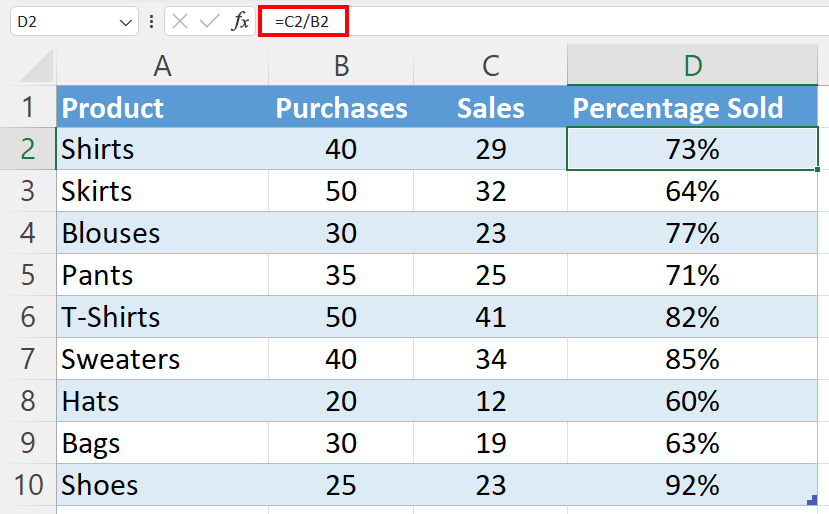
Calculating Percentages in Excel: A Step-by-step Guide
Are you tired of struggling with percentage calculations in Excel? Look no further! In this article, we’ll show you how to calculate percentages with ease using various formulas and techniques.
Why Calculate Percentages in Excel?
Percentages are an essential part of many business operations, such as calculating discounts, taxes, and profits. With Excel’s powerful calculation capabilities, you can perform complex percentage calculations quickly and accurately.
Calculating The Percentage of a Number in Excel
To calculate the percentage of a number, follow these simple steps:
- Enter the number and percentage value in separate cells.
- Use the formula
[number]*[#percentage]to multiply the number by the percentage. - Format the result as a percentage by using the
=%format.
Example: Calculate the IVA (Value-Added Tax) on an item priced at €500, with a 22% tax rate.
- Enter the price in cell A2 and the tax rate in cell B2.
- Use the formula
=A2*B2to calculate the IVA amount. - Format the result as a percentage by using the
=%format.
Calculating The Percentage Variation in Excel
To calculate the percentage variation between two numbers, follow these steps:
- Enter the original and new values in separate cells.
- Use the formula
(new value - original value) / original valueto calculate the variation. - Format the result as a percentage by using the
=%format.
Example: Calculate the percentage increase from €150 to €200.
- Enter the original value in cell A2 and the new value in cell B2.
- Use the formula
=(B2-A2)/A2to calculate the variation. - Format the result as a percentage by using the
=%format.
Calculating The Total Splitting of a Percentage And a Quantity
To calculate the total splitting of a percentage and a quantity, follow these steps:
- Enter the quantity and percentage values in separate cells.
- Use the formula
(quantity / (1 - percentage))to calculate the result. - Format the result as desired.
Example: Calculate the original price of an item after a 25% discount.
- Enter the discounted price in cell A2 and the discount percentage in cell B2.
- Use the formula
=A2 / (1 - B2)to calculate the original price. - Format the result as desired.
Calculating The Percentage Difference in Excel
To calculate the percentage difference between two numbers, follow these steps:
- Enter the values in separate cells.
- Use the formula
=ABS((value 1 - value 2) / value 1)to calculate the absolute difference. - Format the result as a percentage by using the
=%format.
Example: Calculate the percentage difference between two sales figures.
- Enter the values in cells A2 and B2.
- Use the formula
=ABS((B2-A2)/A2)to calculate the absolute difference. - Format the result as a percentage by using the
=%format.
Calculating The Percentage Variation in Excel
To calculate the percentage variation between two numbers, follow these steps:
- Enter the values in separate cells.
- Use the formula
(value 1 - value 2) / value 1to calculate the variation. - Format the result as a percentage by using the
=%format.
Example: Calculate the percentage decrease from €200 to €150.
- Enter the original value in cell A2 and the new value in cell B2.
- Use the formula
=(A2-B2)/B2to calculate the variation. - Format the result as a percentage by using the
=%format.
Calculating The Percentage Incidence in Excel
To calculate the percentage incidence of a subset total on an overall total, follow these steps:
- Enter the subset totals in separate cells.
- Use the formula
(subset total / overall total)to calculate the incidence. - Format the result as a percentage by using the
=%format.
Example: Calculate the percentage incidence of each sector’s sales on the company’s overall sales.
- Enter the sector totals in cells B2 and C2, and the overall total in cell D2.
- Use the formula
=(B2/D2)to calculate the incidence for sector 1. - Format the result as a percentage by using the
=%format.
Conclusion
Calculating percentages in Excel is a straightforward process that can be accomplished with various formulas and techniques. By following these steps, you’ll be able to perform complex percentage calculations quickly and accurately, saving you time and increasing your productivity.
Frequently Asked Questions (FAQs)
- Q: How do I Calculate The Percentage of a Number in Excel?
A: Use the formula[number]*[#percentage]to multiply the number by the percentage. - Q: What is The Difference Between Calculating The Percentage Variation And The Percentage Incidence?
A: The percentage variation calculates the change between two values, while the percentage incidence calculates the proportion of a subset total on an overall total. - Q: How do I Format The Result as a Percentage in Excel?
A: Use the=%format to display the result as a percentage. - Q: Can I Use These Formulas With Decimal or Fractional Numbers?
A: Yes, you can use these formulas with decimal or fractional numbers. - Q: Are There Any Specific Formatting Requirements For The Input Cells?
A: No, but make sure to enter the values correctly and in the correct format (e.G., As a number or percentage). - Q: Can I Apply These Formulas to Large Datasets or Multiple Sheets?
A: Yes, you can apply these formulas to large datasets or multiple sheets by using Excel’s built-in functions and formatting options. - Q: What Are Some Common Applications For Calculating Percentages in Excel?
A: Calculating percentages is essential in various business operations, such as calculating discounts, taxes, profits, sales commissions, and more.
We hope this guide has helped you master the art of calculating percentages in Excel!


