
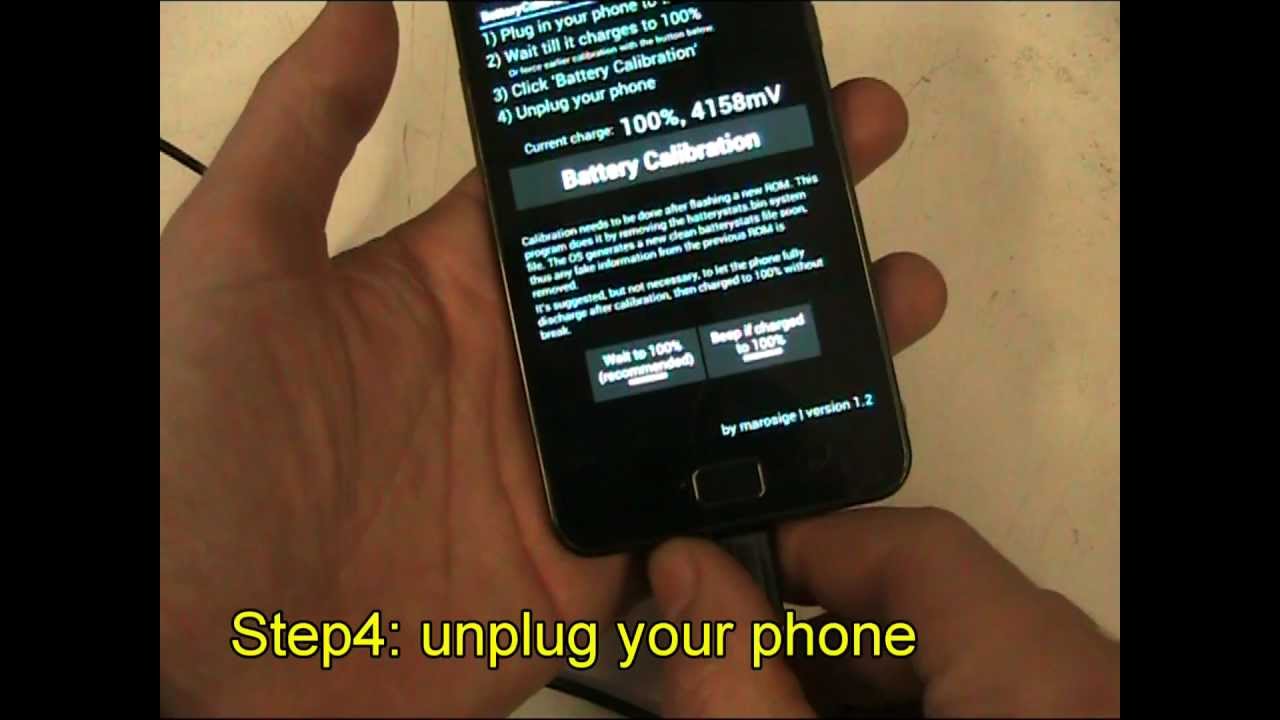
Calibrating Your Android Smartphone’s Battery: A Step-by-step Guide
Are you tired of your Android smartphone’s battery suddenly draining? Do you find yourself constantly wondering why the percentage is dropping sharply, only to have it jump back up again? If so, you may be in need of a battery calibration. In this article, we’ll guide you through the process of calibrating your Android smartphone’s battery, using various methods.
Why Calibrate Your Battery?
Calibration is essential when your device experiences problems such as sudden shutdowns or erratic battery life. These issues can arise due to faulty battery readings, incorrect calibration, or other system glitches. By calibrating your battery, you’ll ensure that the operating system receives accurate information about the battery’s state of charge.
Method 1: Calibrating With a Charger
The most straightforward method involves using a charger to calibrate your battery. Here’s how:
- Drain The Battery: Let the device run until it completely drains.
- Charge The Device: Plug in the charger and let it charge until the battery is full (around 100%).
- Unplug And Repeat: Unplug the charger, wait for a few minutes, then plug it back in and let it charge again.
- Repeat Steps 1-3: Continue this process of draining and charging the device several times.
Method 2: Calibrating With an App
If the first method doesn’t yield desired results, you can try using specialized apps to calibrate your battery. Here’s a step-by-step guide for one such app:
- Easy Battery Calibration: Download and install this free app from the Play Store.
- Root Permissions: Ensure that root access is enabled on your device, as this app requires it.
- Connect to Charger: Plug in the charger and let the battery charge until it reaches 95% or higher.
- Tap ‘Calibrate’: Tap the Calibrate button within the app. This will initiate the calibration process.
Method 3: Calibrating Without Root
If you don’t want to root your device, there’s another app that can help:
- Battery Repair Life Pro: Download and install this free app from the Play Store.
- Tap ‘Start’: Tap the Start button within the app. This will initiate an analysis of the battery cells.
- Fix Problems: If any issues are detected, tap the Fix Problems! button to resolve them.
Tips For Optimizing Battery Life
Even after calibrating your battery, you can take additional steps to improve its performance:
- Limit Background Apps: Close unused apps and disable persistent notifications to reduce power consumption.
- Lower Screen Brightness: Adjust your screen’s brightness setting to conserve energy.
- Monitor Temperatures: Keep an eye on the device’s temperature, as high temps can affect battery life.
Conclusion
Calibrating your Android smartphone’s battery is a relatively simple process that can resolve issues related to sudden shutdowns or erratic battery life. By following these methods and tips, you’ll be able to enjoy optimal performance from your device. Remember, if the issue persists after calibration, it may be worth investigating further by consulting with a professional or considering replacing the battery.
Faqs
- What is Battery Calibration?
Battery calibration involves resetting the operating system’s understanding of the battery’s state of charge. - Why do I Need to Calibrate my Battery?
Calibration can resolve issues like sudden shutdowns, erratic battery life, or incorrect battery readings. - Which Method Should I Use First?
Try Method 1 (calibrating with a charger) as it’s the most straightforward approach. - Do I Need Root Permissions to Calibrate my Battery?
Yes, some methods require root access for proper calibration. - Can I Use an App to Calibrate my Battery Without Rooting?
Yes, apps like Easy Battery Calibration or Battery Repair Life PRO can help calibrate your battery without root access. - Will Calibrating my Battery Affect Its Lifespan?
Calibration should not have a significant impact on the battery’s overall lifespan, but it may be worth exploring further if issues persist.
Now you know the various methods for calibrating your Android smartphone’s battery!


