
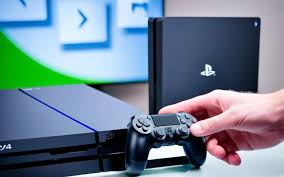
How to Calibrate Your Ps4 Controller: A Step-by-step Guide
Are you tired of experiencing frustrating gameplay due to an uncalibrated controller? Look no further! In this article, we’ll guide you through the process of calibrating your PS4 controller on PC, smartphone, and tablet.
Understanding The Problem
Calibrating your PS4 controller is essential for a smooth gaming experience. If your controller’s analog sticks are not calibrated correctly, it can lead to frustrating gameplay, unresponsive movements, and more. In this article, we’ll explore the reasons behind this issue and provide you with a step-by-step guide on how to calibrate your controller.
The Calibration Process
Calibrating your PS4 controller involves testing and adjusting the analog sticks, directional pad, and other controls. The process may vary depending on the device you’re using (PC, smartphone, or tablet). We’ll cover each of these scenarios in detail below.
How to Calibrate Your Ps4 Controller on Pc
To calibrate your PS4 controller on a PC, follow these steps:
- Connect your controller to your computer via USB.
- Open the Control Panel and navigate to Devices and Printers.
- Right-click on the PS4 controller icon and select Properties.
- In the Properties window, click on the Settings tab.
- Click on the Test button next to each analog stick to check for any issues.
- Adjust the sticks as needed to achieve precise movements.
- Repeat the process for the directional pad and other controls.
Calibrating Your Ps4 Controller on Smartphone or Tablet
Unfortunately, there isn’t a direct way to calibrate your PS4 controller on smartphones or tablets using official tools. However, you can use a third-party app like Playstation Remote Play (iOS and Android) to play games from your console directly on your mobile device.
While this app doesn’t have built-in calibration features, it’s still worth mentioning for those who want to experience PS4 gaming on the go.
Calibrating Your Ps4 Controller on Console
Unfortunately, there isn’t a direct way to calibrate your PS4 controller on the console itself. The process is similar to that on PC, but you’ll need to use a separate device (such as a computer) to access the calibration settings.
What if Calibration Fails?
If calibration fails or doesn’t produce the desired results, don’t worry! There are other solutions available. You can try resetting your controller to its factory settings using the steps outlined in our guide on how to reset your PS4 controller.
Alternatively, if you’ve tried all troubleshooting methods and still experience issues, it may be time to consider replacing your controller or seeking professional assistance.
Why Calibration is Essential
Calibration ensures that your PS4 controller functions correctly, providing an optimal gaming experience. Without proper calibration, you may encounter:
- Unresponsive movements
- Frustrating gameplay experiences
- Difficulty controlling characters or game elements
By following the steps outlined in this guide, you’ll be able to calibrate your PS4 controller on PC, smartphone, and tablet, ensuring a smooth and enjoyable gaming experience.
Conclusion
Calibrating your PS4 controller may seem daunting at first, but with our step-by-step guide, you can ensure that your gaming experiences are seamless and enjoyable. Remember to always check for updates and patches from Sony or the game developers, as these may resolve issues related to calibration or compatibility.
By following this guide, you’ll be able to:
- Calibrate your PS4 controller on PC
- Understand why calibration is essential
- Troubleshoot any issues that may arise
Don’t let a faulty controller ruin your gaming experiences. Follow our guide and get ready to dive into the world of PS4 gaming with confidence!
Faqs
Here are some frequently asked questions related to calibrating your PS4 controller:
- Q: Why is my Ps4 Controller Not Responding Properly?
- A: Your controller may need calibration, which can be done on PC using the steps outlined in this guide.
- Q: Can I Calibrate my Ps4 Controller on a Smartphone or Tablet?
- A: Unfortunately, there isn’t a direct way to calibrate your PS4 controller on smartphones or tablets. However, you can use third-party apps like PlayStation Remote Play for mobile gaming experiences.
- Q: How do I Reset my Ps4 Controller if Calibration Fails?
- A: You can try resetting your controller using the steps outlined in our guide on how to reset your PS4 controller. If issues persist, consider replacing the controller or seeking professional assistance.
Hope this helps you with the calibration of the controller


