
Calibrating The Touch Screen on Android
If you’ve ever felt like your device’s screen isn’t responding correctly to touch commands, don’t worry – it might be possible to adjust this without needing professional help. In this guide, we’ll show you how to calibrate the touch screen on your Android device using software settings.
Preliminary Information
It’s worth noting that calibration might not always resolve issues, especially if there are hardware problems. If you’re experiencing persistent problems with your device’s display or other components, it may be best to seek professional help.
Calibrating The Touch Screen on Android
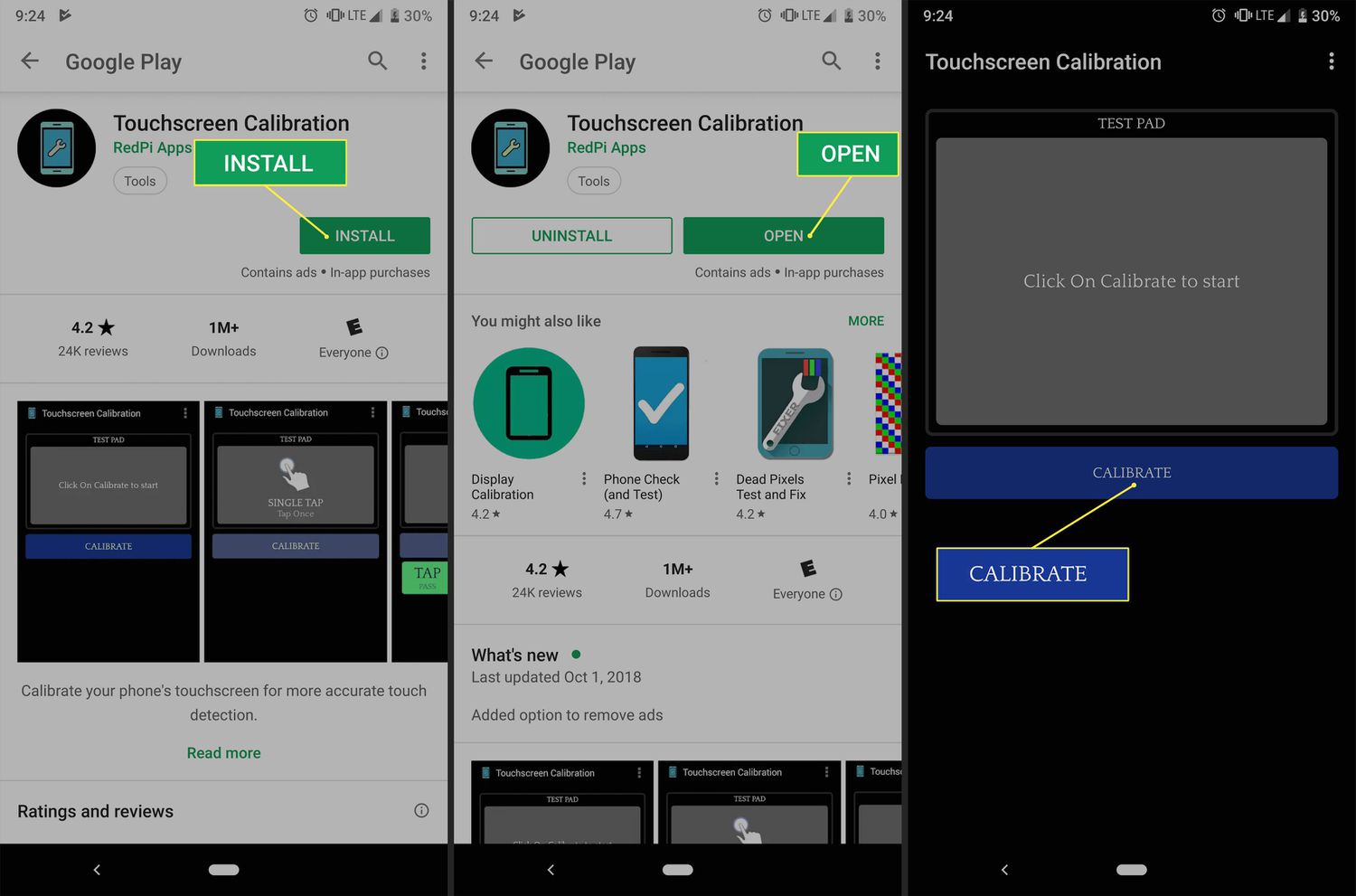
To calibrate your touch screen, you can either adjust settings within the operating system or use a third-party app designed for this purpose.
Adjusting Settings
One option is to access the device’s settings menu. While these options might be limited and may not always lead to significant improvements, they can still provide helpful guidance if you’re experiencing issues with text input. If problems persist, you can consider more advanced testing methods.
Using Apps For Calibration
Unfortunately, there aren’t many effective software-based solutions specifically designed for calibrating Android touch screens. However, before considering professional assistance, it’s worth trying a few different approaches to see if this resolves the issue.
Testing The Touch Screen
There are several modes you can use to test your device’s touch screen. One simple method involves downloading and using an app designed for this purpose.
What to Do If Calibration Fails
If calibration doesn’t resolve issues with your touch screen, it may be due to hardware problems rather than a software issue. In this case, restarting your device is worth trying as a final step before seeking professional help.
Conclusion
While the above steps won’t guarantee success in every case, they’re worth trying if you’re experiencing problems with your Android device’s touch screen.


