
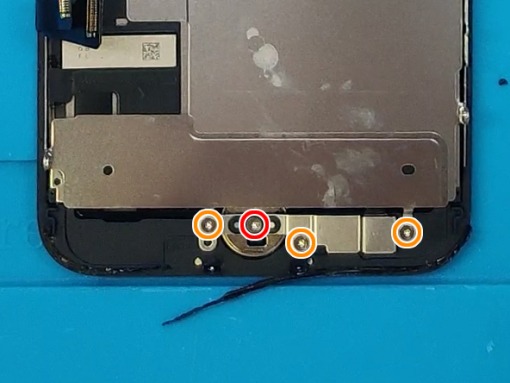
Calibrating The Home Button: A Step-by-step Guide
Are you tired of dealing with a malfunctioning Home button on your iPhone or iPad? Don’t worry, we’ve got you covered! Calibrating the Home button is a relatively simple process that can be done from the comfort of your own home. In this article, we’ll walk you through the steps to calibrate your Home button and provide some additional tips to ensure it’s working properly.
Why Calibrate Your Home Button?
Before we dive into the calibration process, let’s talk about why it’s necessary in the first place. The Home button on your iPhone or iPad is a critical component that allows you to navigate through your device with ease. However, sometimes it can get stuck or become unresponsive due to software glitches or hardware issues.
Calibrating your Home button ensures that it’s working correctly and efficiently. This process involves resetting the button’s settings and recalibrating its sensitivity to ensure optimal performance.
Step 1: Initiate an App
To start the calibration process, you’ll need to initiate an app on your device. You can choose any app that’s installed by default, such as Phone or Messages. Simply tap on the app icon to open it.
Step 2: Hold Down The Power Button
Next, hold down the power button until the shutdown bar appears on the screen. This will signal to your device that you want to shut it down. Release the power button and keep holding down the Home button for a few seconds.
Step 3: Wait For The Shutdown Screen to Disappear
As you hold down the Home button, the shutdown screen should disappear, and the Home button’s settings will be recalibrated. This process may take a few seconds, so be patient and wait for the screen to clear up.
Step 4: Check if The Calibration Was Successful
To verify that the calibration was successful, try initiating another app on your device. If the Home button is working correctly, you should see the app open without any issues. If it’s still unresponsive, don’t worry; we have more troubleshooting steps to take.
How to Repair Your Home Button
If calibrating your Home button doesn’t work, there might be a hardware issue that needs to be addressed. In this case, you can try using the AssistiveTouch feature on your iPhone or iPad. This virtual Home button can help you navigate through your device even if the physical Home button is not working.
Step 1: Enable Assistivetouch
To enable AssistiveTouch, go to Settings > General > Accessibility and toggle the switch next to AssistiveTouch to turn it on.
Step 2: Customize Your Assistivetouch Menu
Once AssistiveTouch is enabled, you can customize your menu by tapping on the icon and selecting the options that suit your needs. You can add or remove icons as needed.
Step 3: Use Assistivetouch as a Substitute Home Button
To use AssistiveTouch as a substitute Home button, simply tap on it to navigate through your device. You can also customize the settings for AssistiveTouch to make it work more smoothly with your iPhone or iPad.
Troubleshooting Tips
If calibrating and using AssistiveTouch doesn’t resolve the issue with your Home button, there might be a hardware problem that needs to be addressed. In this case, you may need to visit an Apple Store or contact their customer support for further assistance.
Conclusion
Calibrating your Home button is a relatively simple process that can help resolve issues related to software glitches or hardware problems. By following the steps outlined in this article, you should be able to get your Home button working correctly again. If not, don’t worry; there are additional troubleshooting steps and resources available to help you resolve the issue.
Frequently Asked Questions (FAQs)
- Q: Why do I Need to Calibrate my Home Button?
A: Calibrating your Home button ensures that it’s working correctly and efficiently, which can help resolve issues related to software glitches or hardware problems. - Q: How Often Should I Calibrate my Home Button?
A: You shouldn’t need to calibrate your Home button frequently unless you’re experiencing persistent issues with it. - Q: Can I Use Assistivetouch as a Substitute Home Button?
A: Yes, AssistiveTouch can be used as a substitute Home button if the physical one is not working. - Q: What Should I do if Calibrating And Using Assistivetouch Doesn’t Resolve The Issue With my Home Button?
A: If calibrating and using AssistiveTouch doesn’t resolve the issue, you may need to visit an Apple Store or contact their customer support for further assistance.


