
Microsoft Teams Tutorial: A Step-by-step Guide to Making Calls
As we navigate the ever-changing landscape of remote work, effective communication has become more crucial than ever. Microsoft Teams has emerged as a powerful tool for teams to collaborate and communicate seamlessly. In this article, we’ll delve into the world of Teams and explore how to make calls, both within and outside your organization.
Why Use Microsoft Teams?
Before we dive into the nitty-gritty of making calls on Teams, let’s take a moment to appreciate why this platform has become an essential tool for many organizations. With Teams, you can:
- Communicate with colleagues and teams across the globe
- Hold virtual meetings and collaborate in real-time
- Share files and data seamlessly
- Integrate with other Microsoft tools like Office 365
Getting Started With Microsoft Teams
To get started with making calls on Teams, you’ll need to create a Microsoft account. This is a simple process that involves providing some basic information about yourself.
Once you’ve created your account, download the Teams application on your computer or mobile device. You can also access Teams through the web browser.
Creating an Account
To create a Microsoft account, follow these steps:
- Go to the Microsoft website and sign up for a new account.
- Fill out the required information, including your name, email address, and password.
- Verify your email address by clicking on the confirmation link sent to you.
- Set up your profile, including your picture, bio, and other details.
Installing Teams
To install Teams on your computer or mobile device, follow these steps:
- Go to the Microsoft website and download the Teams application.
- Run the installation file and follow the prompts to install the app.
- Launch Teams and sign in with your Microsoft account credentials.
Making Calls on Microsoft Teams
Now that you have Teams up and running, let’s dive into the process of making calls.
Calling a Friend on Teams
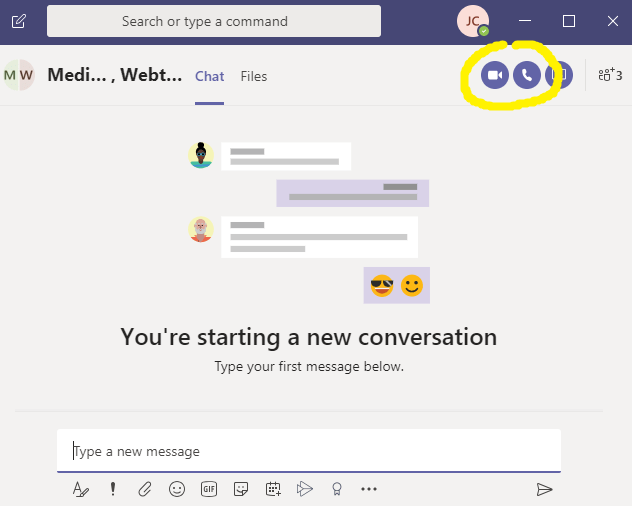
To call a friend or colleague using Teams, follow these steps:
- Launch Teams and sign in with your Microsoft account credentials.
- Click on the “Chat” icon in the top-left corner of the window.
- Type the name or email address of the person you want to call in the search bar.
- Select the person’s name from the results list.
- Click on the “Call” button to initiate a voice call.
Calling an External Number on Teams
To call an external number using Teams, follow these steps:
- Launch Teams and sign in with your Microsoft account credentials.
- Click on the “Chat” icon in the top-left corner of the window.
- Type the phone number or email address of the person you want to call in the search bar.
- Select the person’s name from the results list.
- Click on the “Call” button to initiate a voice call.
Calling a Number on Teams (Mobile And Tablet)
To call a number using Teams on your mobile device or tablet, follow these steps:
- Launch Teams and sign in with your Microsoft account credentials.
- Tap on the “Chat” icon at the bottom of the screen.
- Type the phone number or email address of the person you want to call in the search bar.
- Select the person’s name from the results list.
- Tap on the “Call” button to initiate a voice call.
Tips And Tricks
Here are some additional tips and tricks to keep in mind when making calls using Teams:
- Make sure you have a stable internet connection for optimal call quality.
- Use a headset or speakerphone for better audio quality.
- Consider using a third-party video conferencing tool for more advanced features.
- Be mindful of your colleagues’ time zones and schedules when scheduling calls.
Conclusion
Making calls on Microsoft Teams is a straightforward process that can be completed in just a few steps. Whether you’re calling a friend or colleague, or making external calls, Teams provides a reliable and feature-rich platform for communication.
By following the steps outlined in this tutorial, you’ll be well on your way to becoming a Teams expert and unlocking the full potential of this powerful tool.
Frequently Asked Questions
Here are some additional FAQs to help you get started with Microsoft Teams:
Q: What is Microsoft Teams?
A: Microsoft Teams is a communication and collaboration platform that allows teams to work together seamlessly.
Q: How do I create a Microsoft account?
A: To create a Microsoft account, go to the Microsoft website and sign up for a new account. Fill out the required information and verify your email address by clicking on the confirmation link sent to you.
Q: What are the system requirements for running Teams?
A: The system requirements for running Teams include Windows 10 or later, macOS High Sierra or later, iOS 11 or later, or Android 9 or later.
Q: Can I make calls using Teams on my mobile device or tablet?
A: Yes! You can make calls using Teams on your mobile device or tablet by following the steps outlined in this tutorial.
Q: What is the maximum number of participants allowed for a call?
A: The maximum number of participants allowed for a call is 100.
Q: Can I record calls made using Teams?
A: Yes, you can record calls made using Teams. However, this feature may not be available on all plans or subscriptions.
Additional Resources
For more information about Microsoft Teams and making calls using the platform, check out these additional resources:
- Microsoft Teams documentation
- Microsoft Teams tutorials
- Microsoft Teams customer support


