
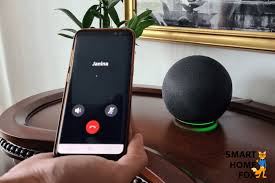
Understanding Voice Assistants: How to Call With Alexa
As technology advances, voice assistants have become an integral part of our daily lives. Amazon’s Echo, equipped with Alexa, is a popular choice among smart home enthusiasts. However, setting up and using these devices can be overwhelming, especially for beginners. In this article, we’ll delve into the world of voice assistants and explore how to call with Alexa.
Getting Started: Requirements And Prequisites
Before diving into the details, it’s essential to understand the prerequisites for calling with Alexa. To use this feature, you need:
- A device compatible with Amazon Echo (e.G., Echo, Echo Dot, or other smart speakers)
- The Alexa app installed on your smartphone or tablet (for Android 8.0 Or later and iOS/iPadOS 14.0 Or later)
- An Amazon account (if you don’t have one, create a new account)
Setting Up Communications Alexa
To enable calling with Alexa, follow these steps:
- Open the Alexa app on your device.
- Tap on the “More” tab and select “Settings.”
- Scroll down to “Communications” and toggle the switch next to “Communications” to turn it on.
- Review and agree to the terms of service.
Calling With Alexa: Methods And Options
Now that you’ve set up Communications Alexa, let’s explore how to call using different methods:
Method 1: Using The Alexa App
- Open the Alexa app on your device.
- Tap on the “Communications” tab.
- Select the contact you want to call (or search for their name).
- Choose between audio or video calling.
Method 2: Using Voice Commands
To initiate a call using voice commands:
- Open the Alexa app and tap on the logotype of Alexa in the top-right corner.
- Say “Alexa, call [name]” (or “Alexa, initiate video call with [name]”).
- Alexa will connect you to your contact.
Method 3: Using Drop In
To use Drop In, a feature that allows instant conversations:
- Open the Alexa app and tap on the menu.
- Select “Devices” and then “Echo & Alexa.”
- Toggle the switch next to “Drop In” to turn it on (or enable voice command recognition).
- To initiate a Drop In call, say “Alexa, drop in on [name].”
Answering Calls With Alexa
When someone calls you using Alexa:
- On a smartphone or tablet: Tap the “Answer Call” button.
- On an Echo device (with display): Tap the answer button on your Echo device.
To end a call, tap the red hang-up icon on your device or say “Alexa, hang up.”
Calling Phone Numbers With Alexa
Unfortunately, it’s not possible to call phone numbers directly using Alexa. However, you can use Skype (connected to your Amazon account) to make voice and video calls to contacts and phone numbers.
Configuring Skype on Alexa
To enable Skype on your Alexa device:
- Open the Alexa app and tap on the menu.
- Select “Settings.”
- Tap on “Communication” and toggle the switch next to “Skype” to turn it on.
- Connect your Skype account by entering your login credentials.
Now, you can say “Alexa, call [name] with Skype” or “Alexa, call the mobile number of [name] with Skype.”
Using Echo Car: Calling Phone Numbers
Another option for calling phone numbers is using Echo Car. This feature allows you to make hands-free calls using your car’s infotainment system.
- Connect your smartphone to your car’s Bluetooth.
- Open the Alexa app on your device and tap on the menu.
- Select “Settings” and toggle the switch next to “Echo Car” to turn it on.
- Configure Echo Car by linking your phone number to your Amazon account.
Now, you can say “Alexa, call [name]” or “Alexa, call my mobile number.”
Conclusion
In conclusion, calling with Alexa is a convenient and innovative way to communicate with friends and family. By understanding the requirements, setting up Communications Alexa, and exploring different methods of calling (voice commands, Drop In, Skype, and Echo Car), you can enjoy seamless voice interactions.


