
How to Cancel a Friendship Request on Facebook: A Step-by-step Guide
Are you wondering how to cancel a friendship request on Facebook? Look no further! In this article, we will guide you through the process of cancelling a friendship request both on your mobile device and computer.
Why Would You Want to Cancel a Friendship Request on Facebook?
Before we dive into the steps, let’s talk about why you might want to cancel a friendship request. Perhaps you accidentally sent a friend request to someone you don’t know or want to add as a friend. Or maybe you changed your mind after sending a request and want to retract it.
Whatever the reason, cancelling a friendship request on Facebook is easier than you think!
Cancelling a Friendship Request on Mobile Device
To cancel a friendship request on your mobile device, follow these steps:
- Open Facebook App: First, open the Facebook app on your mobile device.
- Login to Your Account: If you haven’t already logged in, log in to your account by entering your email address and password.
- Find The Friend Request: Tap on the “Friends” icon at the top right corner of the screen. Then, tap on “Add Friends”.
- Cancel The Friendship Request: Find the person whose friendship request you want to cancel. Tap on their profile picture, then tap on the three horizontal lines at the top right corner of the screen.
- Tap Cancel Request: In the menu that appears, tap on “Cancel Request”. Confirm your action by tapping “Cancel” again.
Cancelling a Friendship Request on Computer
To cancel a friendship request on your computer, follow these steps:
- Open Facebook Website: Open Facebook in your web browser.
- Login to Your Account: If you haven’t already logged in, log in to your account by entering your email address and password.
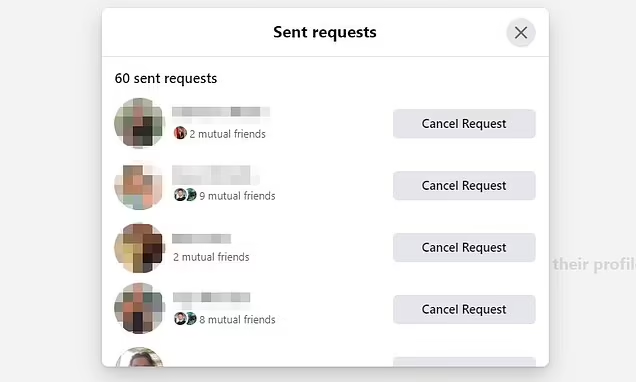
- Find The Friend Request: Click on the “Friends” tab at the top of the screen. Then, click on “Add Friends”.
- Cancel The Friendship Request: Find the person whose friendship request you want to cancel. Click on their profile picture, then click on the three horizontal lines at the top right corner of the screen.
- Click Cancel Request: In the menu that appears, click on “Cancel Request”. Confirm your action by clicking “Cancel” again.
How to Erase a Friendship Request Got on Facebook
If you’re wondering how to erase a friendship request got on Facebook, follow these steps:
- Open Facebook App or Website: Open the Facebook app on your mobile device or open Facebook in your web browser.
- Login to Your Account: If you haven’t already logged in, log in to your account by entering your email address and password.
- Find The Friendship Request: Tap or click on the “Friends” tab at the top of the screen.
- Cancel The Friendship Request: Find the person whose friendship request you want to cancel. Tap or click on their profile picture, then tap or click on the three horizontal lines at the top right corner of the screen.
- Tap or Click Cancel Request: In the menu that appears, tap or click on “Cancel Request”. Confirm your action by tapping or clicking “Cancel” again.
Why Can’t I See The Cancel Request Button?
If you can’t see the cancel request button, it’s possible that the person whose friendship request you want to cancel has already accepted your friend request. In this case, you won’t be able to cancel the request.
However, you can still remove them from your friends list by tapping or clicking on their profile picture and then selecting “Remove from Friends”.
What Happens When I Cancel a Friendship Request?
When you cancel a friendship request, the person whose request you cancelled will not receive any notification. However, if they had already accepted your friend request, they may still see your name in their friends list.
If you want to remove them from your friends list, follow the steps above to cancel their friendship request and then select “Remove from Friends”.
Conclusion
Cancelling a friendship request on Facebook is easy! Whether you’re using your mobile device or computer, simply follow the steps outlined above to retract your friend request. Remember that cancelling a friendship request will not send any notification to the other person.
If you have any questions or concerns about this article, feel free to ask us in the comments section below!
Faqs
Q: Why Can’t I See The Cancel Request Button?
A: The cancel request button may not be visible if the person whose friendship request you want to cancel has already accepted your friend request.
Q: What Happens When I Cancel a Friendship Request?
A: When you cancel a friendship request, the person whose request you cancelled will not receive any notification. However, if they had already accepted your friend request, they may still see your name in their friends list.
Q: Can I Remove Someone From my Friends List After Cancelling Their Friendship Request?
A: Yes! After cancelling a friendship request, you can still remove the person from your friends list by tapping or clicking on their profile picture and then selecting “Remove from Friends”.
Q: Why Did Facebook Add This New Feature to Cancel Friend Requests?
A: We couldn’t find any information about why Facebook added this feature. However, it’s possible that they wanted to make it easier for users to manage their friends list.
Q: Can I Cancel a Friendship Request After The Other Person Has Accepted my Request?
A: Yes! You can still remove someone from your friends list even if they had already accepted your friend request.
Q: How do I Know if Someone Has Accepted my Friend Request?
A: If someone has accepted your friend request, you will see their profile picture in the “Friends” tab on Facebook.


